Want to move apps to SD card on Samsung? This HowTrekker tutorial walks you through the process with four clear steps, common mistakes to avoid, and helpful official resources.
Before you begin
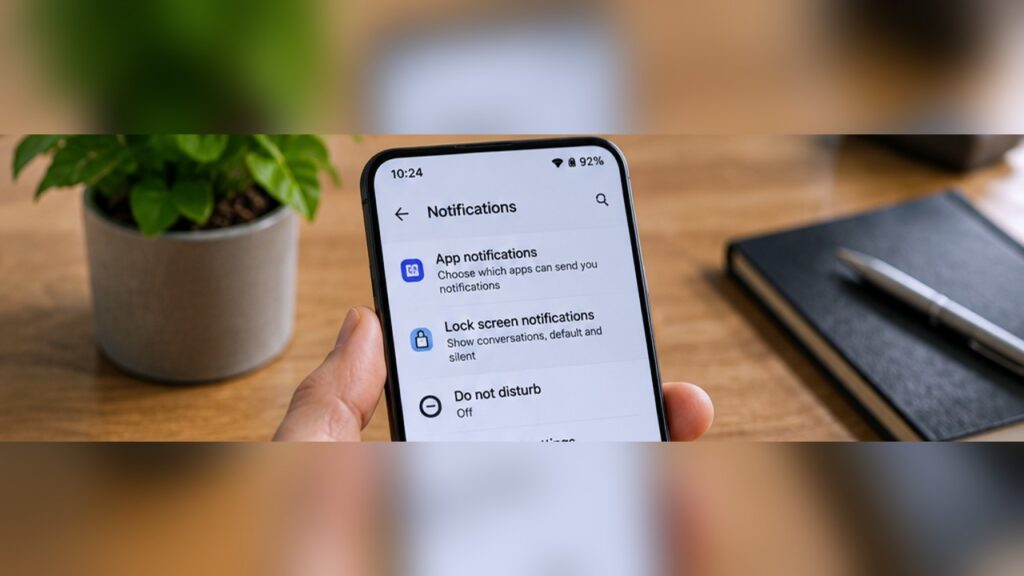
These visuals are AI-generated reconstructions of software interfaces, not actual device screenshots. Labels and layouts may vary by software version. Read each step carefully before changing settings.
Compatibility: Many recent Samsung phones have no microSD slot, and most modern apps cannot be moved to removable storage. The presence of a Change button depends on the device, app and Android version.
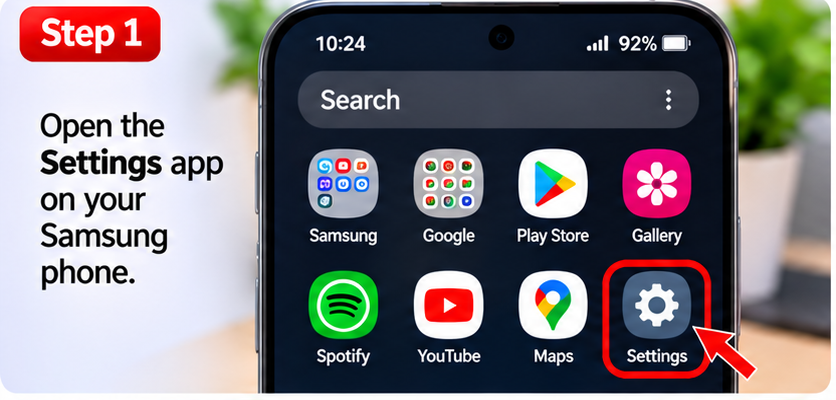
Step 1: Open Settings
Open Settings on a Samsung phone with a microSD card installed. Not every Samsung model supports expandable storage.
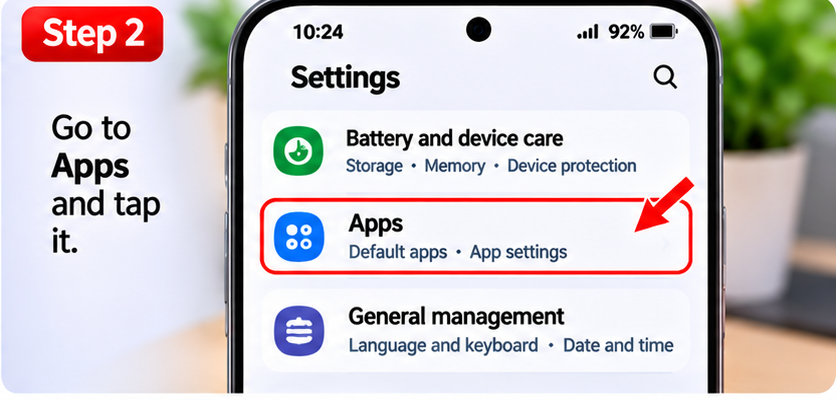
Step 2: Find Apps
Open Apps to view installed applications.
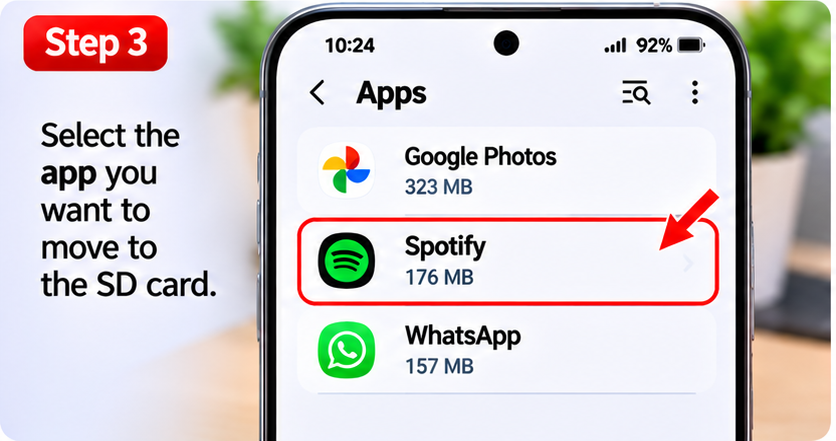
Step 3: Choose an app
Select the app you want to check, then tap Storage on its App info screen.
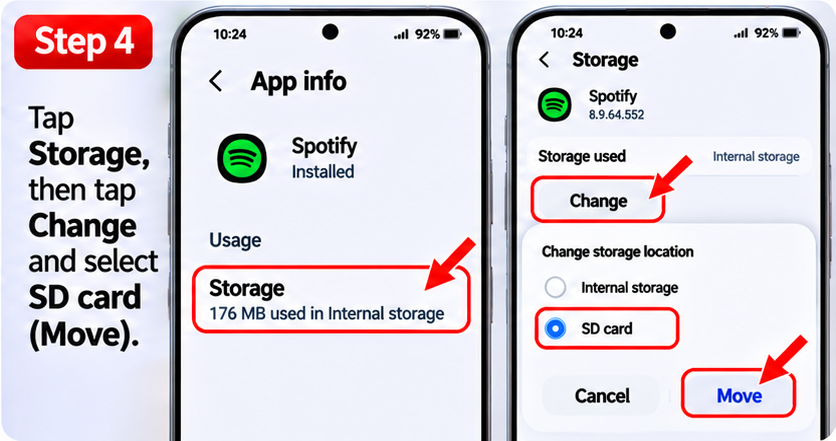
Step 4: Look for Change
If Storage shows a Change button, tap it and check whether SD card is offered. If Change is missing, the app cannot be moved using this method. The illustrated app is only an example; Spotify and WhatsApp generally do not support moving the installed app this way.
Official documentation
For the latest software-specific instructions, see Samsung: Move apps to an SD card.
Related HowTrekker guide
You may also find our guide How to transfer photos from Android to PC helpful. Check that this internal article is published before making this draft live.
Frequently asked questions
Will the interface look exactly like the images?
Not necessarily. The pictures are AI-generated visual examples; the actual menu labels may differ by software release.
What if I cannot find an option?
Check for system updates and search Settings for the named feature. Some features depend on your hardware, app or operating-system version.
Should I make a backup first?
Yes, before any action that could remove files, reset configurations or affect app storage, back up anything important.
Reviewed November 2026.