Want to back up iPhone to iCloud before updating iOS, replacing your phone, or simply protecting your photos and settings? This guide explains how to turn on iCloud Backup, start a backup manually, and confirm that it finished.
Before you start
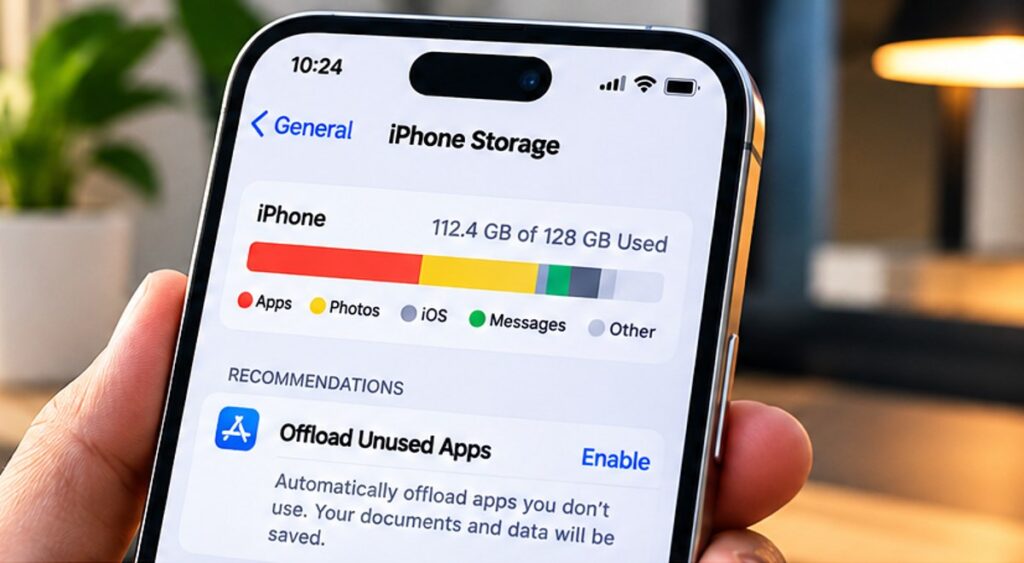
Connect your iPhone to Wi-Fi, make sure you are signed in to your Apple Account, and check that you have enough available iCloud storage. Apple’s free iCloud tier includes 5 GB, which may not be enough for a full backup. The illustrations below are AI-generated visual guides, not screenshots captured from a real iPhone; menu positions can vary by iOS version.
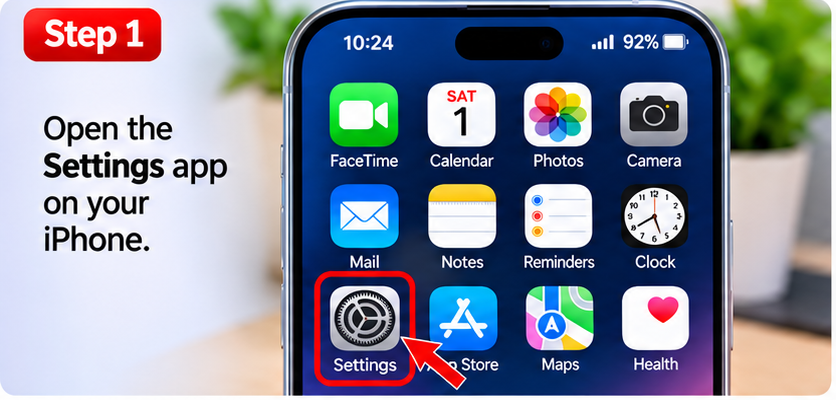
Step 1: Open Settings on your iPhone
Unlock your iPhone and open the Settings app (the gray gear icon).
Step 2: Open your Apple Account and iCloud
Tap your name at the top of Settings, then choose iCloud. The illustration highlights both destinations for clarity; on most iPhones they are separate screens, not two buttons on the same page.
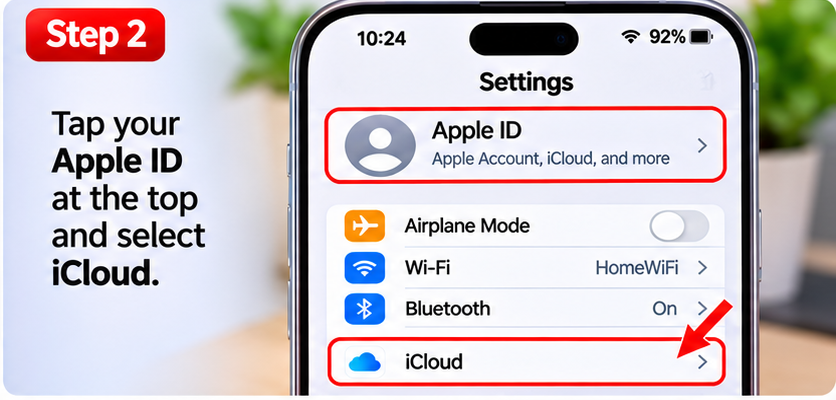
Step 3: Find iCloud Backup
In iCloud settings, open iCloud Backup. Depending on your iOS version, you may first need to tap See All under the device backup options.
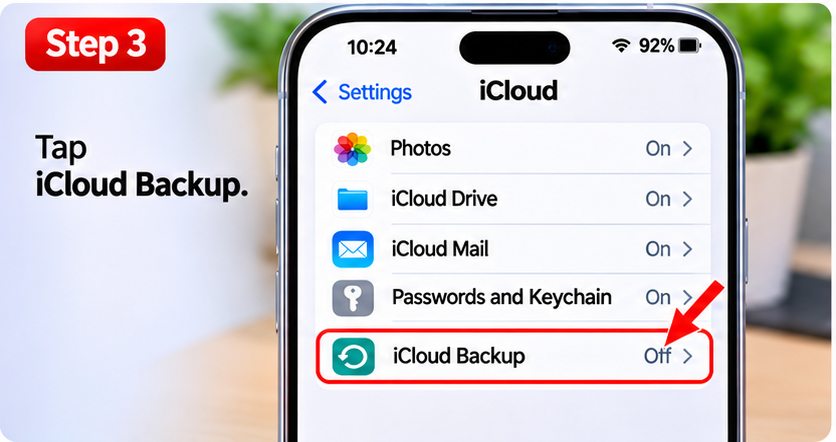
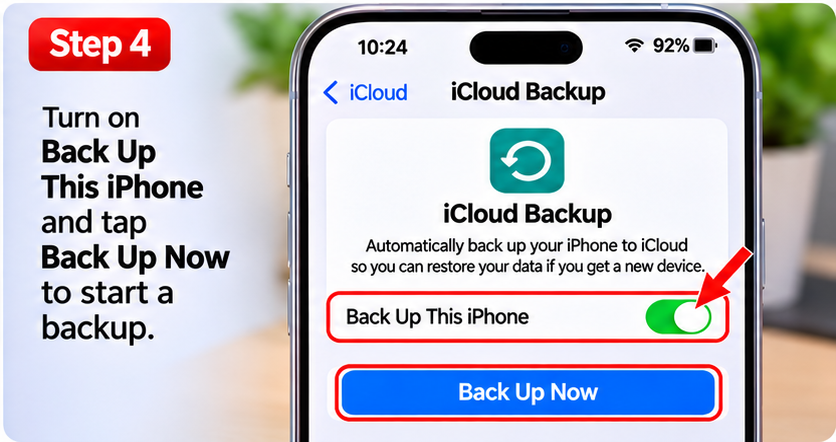
Step 4: Enable backup and start one now
Switch on Back Up This iPhone. Then tap Back Up Now. Keep your iPhone connected to Wi-Fi until the backup finishes. The screen should display the time of your most recent successful backup.
How to check whether your iCloud backup worked
Return to Settings → your name → iCloud → iCloud Backup and look for the latest successful backup date and time. If you see an error, check Wi-Fi connectivity and available iCloud storage before trying again.
What does iCloud Backup include?
iCloud Backup stores information that is not already syncing separately with iCloud. Some photos, contacts, and notes may be synced rather than included in the device backup itself. Learn the details in Apple’s official iCloud backup instructions and Apple’s explanation of what iCloud backs up.
Related HowTrekker guides
Need to move photos to your computer too? Read our guide to transferring photos from iPhone to Windows 11. If that guide is not yet published, replace this link with a live internal article before publishing.
Frequently asked questions
Does iCloud back up my iPhone automatically?
Yes, when iCloud Backup is enabled and your iPhone meets Apple’s backup conditions, including power, Wi-Fi and a locked screen.
Can I back up an iPhone without Wi-Fi?
Some iPhones and mobile plans support backing up over cellular data. Availability depends on the device, carrier, and settings; Wi-Fi is the simplest option.
How long does an iCloud backup take?
It depends on the amount of data and your upload speed. The first backup can take much longer than later incremental backups.
Will backing up delete anything from my iPhone?
No. Creating an iCloud backup does not erase your iPhone.
Last reviewed: November 2026. Interface images are AI-generated illustrations; verify the labels on your own iPhone.