Want to keep an app out of sight on your iPhone? Starting with iOS 18, Apple lets you hide many downloaded apps behind Face ID, Touch ID, or your passcode. This guide explains how to hide apps on iPhone, where to find them, and how to bring them back.
Before you begin: The full Hidden Apps feature requires iOS 18 or later. Some built-in apps cannot be hidden. Hiding an app does not erase it or make all traces of its activity disappear.
How to hide apps on iPhone using Face ID
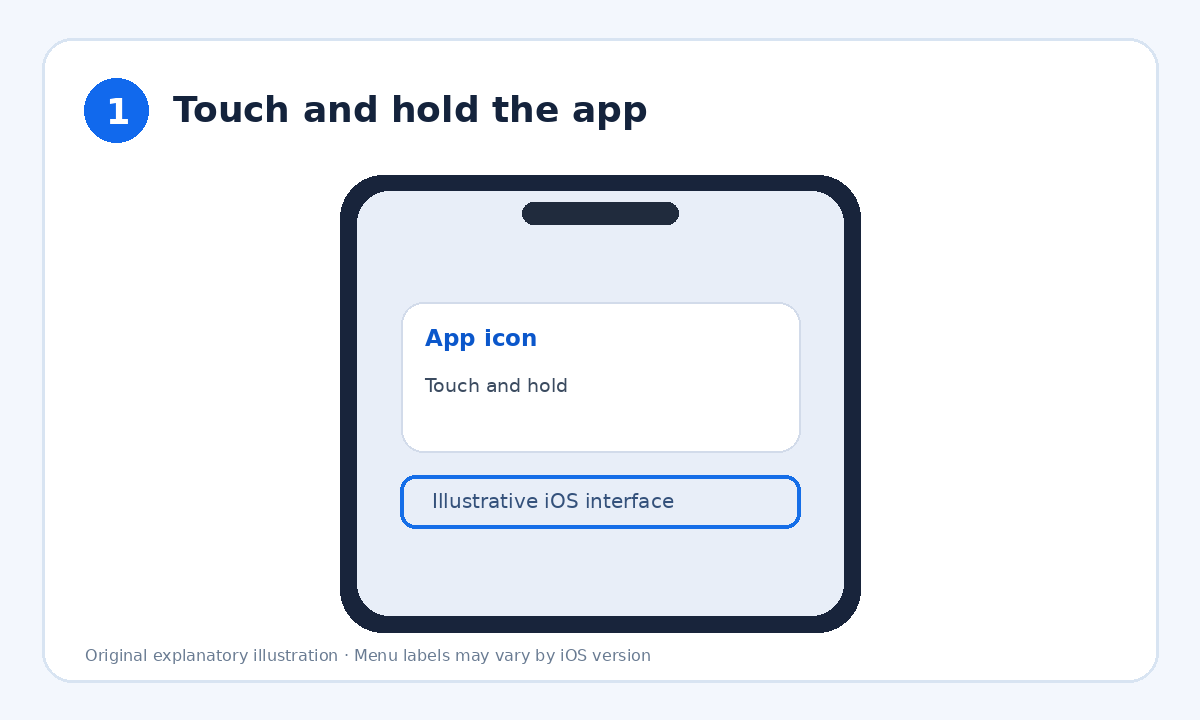
Step 1: Touch and hold the app
On the Home Screen, touch and hold the app icon until a menu appears.
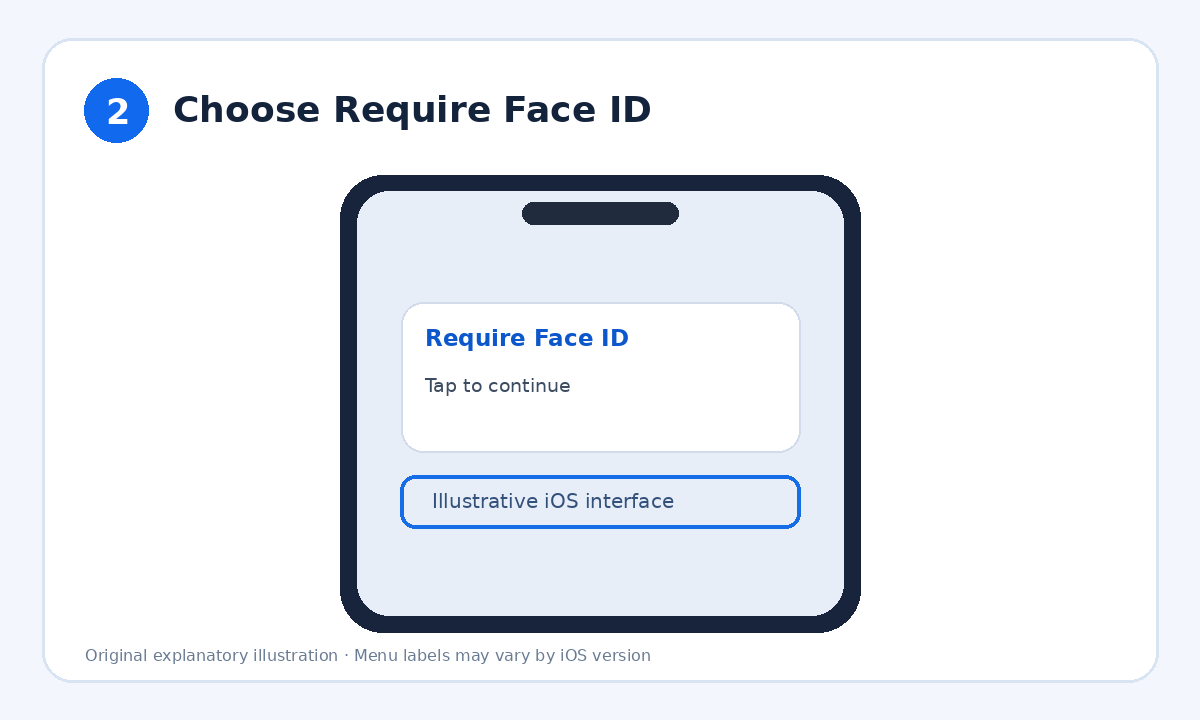
Step 2: Choose Require Face ID
In the quick-actions menu, select Require Face ID (or Touch ID / Passcode).
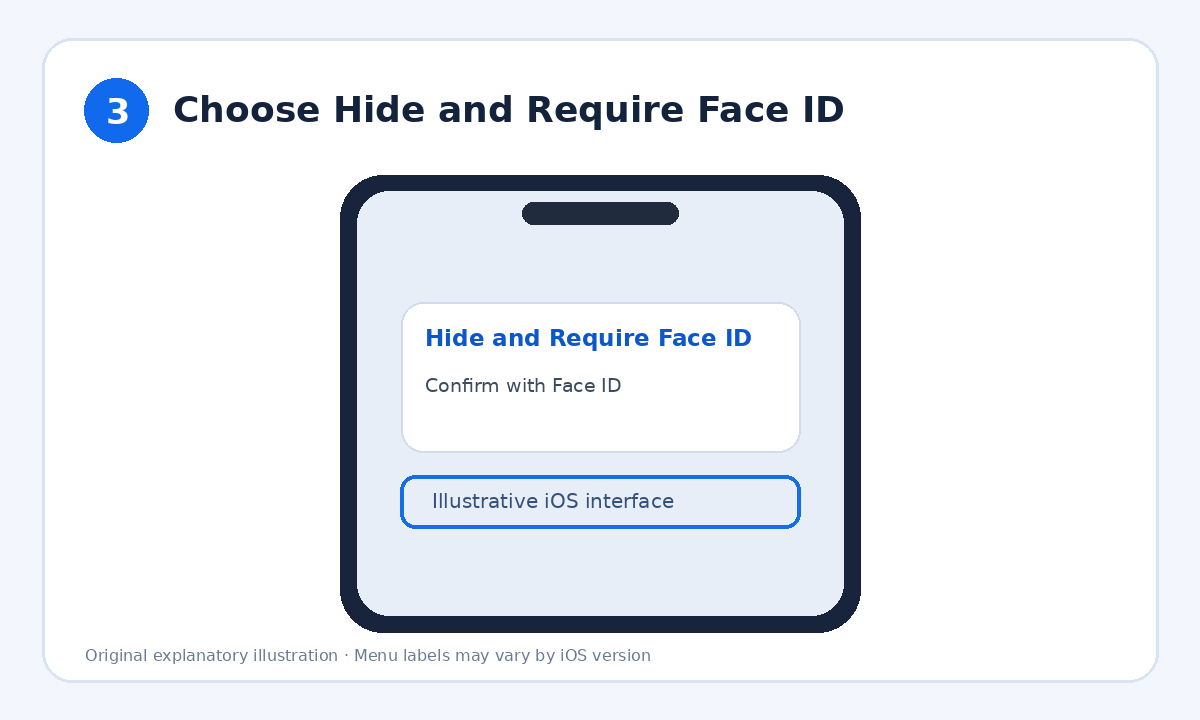
Step 3: Choose Hide and Require Face ID
Select Hide and Require Face ID, then authenticate to confirm.
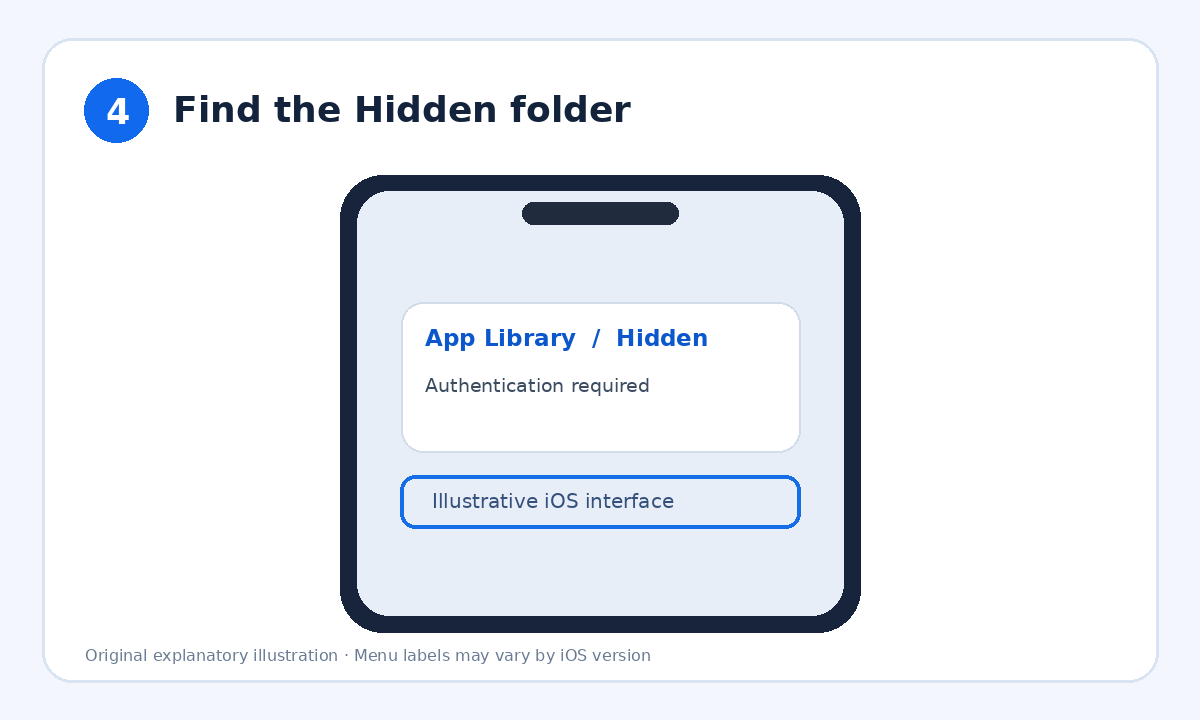
Step 4: Find the Hidden folder
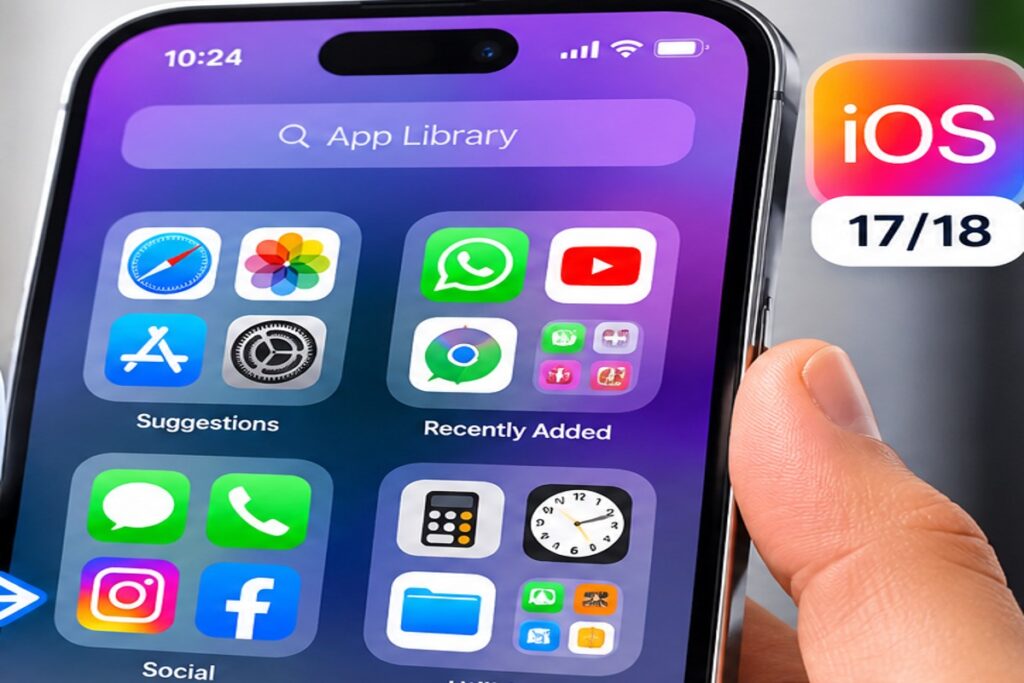
Swipe left to the App Library, scroll to the bottom, and open Hidden. Authenticate to view apps.
Tip: If you see only Require Face ID but no option to hide the app, that particular app may not support hiding.
How to find hidden apps on iPhone
Swipe left past your Home Screen pages to open App Library. Scroll to the bottom, tap the Hidden folder, and authenticate. Hidden apps remain installed and can be opened from there.
How to unhide an app
Open App Library → Hidden and authenticate. Touch and hold the app, then choose Don’t Require Face ID (or the corresponding authentication option). Confirm your identity. The app becomes visible in App Library again; if needed, touch and hold it and select Add to Home Screen.
Alternative: remove an app from the Home Screen only
If you use an older iOS version, or simply want a cleaner Home Screen, touch and hold an app, tap Remove App, then Remove from Home Screen. This does not hide the app from App Library or protect it with authentication.
What hiding an app does—and does not do
- It moves a supported app into the authenticated Hidden folder.
- It reduces the app’s visibility in common places, but is not a guarantee of complete privacy.
- Some system settings, usage information, and other records may still reveal the app.
- It does not delete the app or its data.
Frequently asked questions
Can I hide any app on iPhone?
No. The feature works with many downloaded apps, but certain built-in apps and other apps may not offer the hide option.
Does hiding an app delete its data?
No. Hiding is different from uninstalling. Your app and its local data remain on the device.
Can I hide apps on iOS 17?
iOS 17 does not have the same authenticated Hidden folder feature. You can remove apps from the Home Screen, but they remain accessible in App Library.
Where do I find a hidden app?
Open App Library, scroll to the bottom, tap Hidden, and authenticate.
Official Apple guidance
For the latest device-specific details, see Apple’s guide to locking or hiding apps and Apple’s App Library guide.
Related HowTrekker tutorial: How to Turn Off Background App Refresh on iPhone (if published at this address).