Want to reduce unnecessary background activity on your iPhone? Background App Refresh lets supported apps check for new content while you are not actively using them. You can disable it for all apps or just the apps you choose.
Quick answer: Go to Settings → General → Background App Refresh → Background App Refresh and choose Off. You can also select Wi-Fi or turn off individual app switches instead.
How to Turn Off Background App Refresh on iPhone
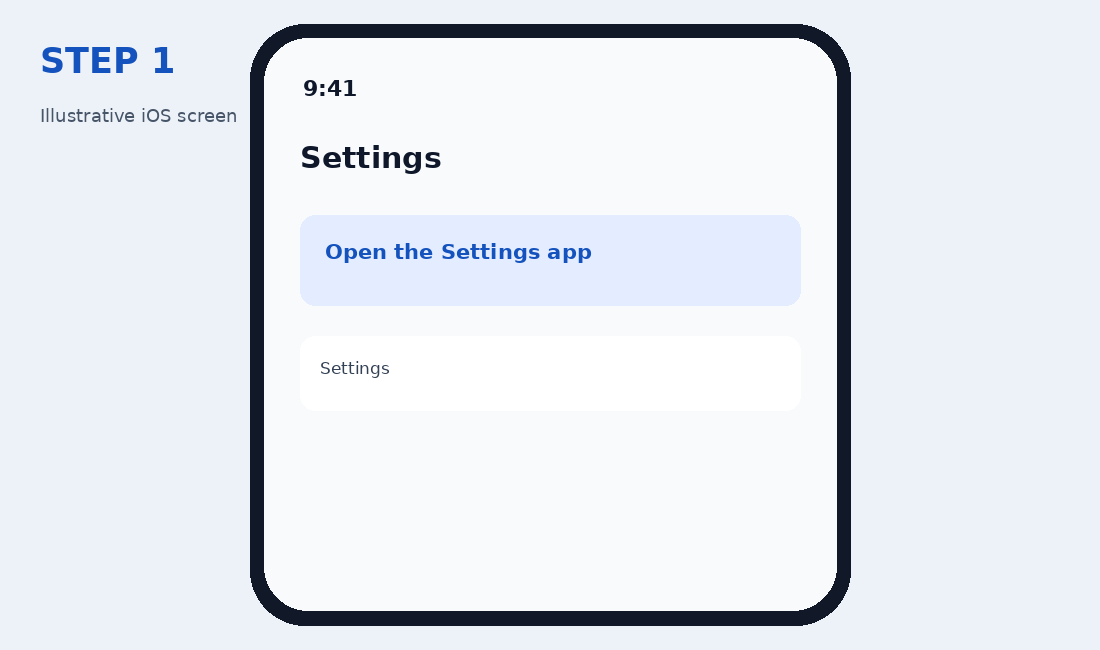
Step 1: Open Settings
Unlock your iPhone and open the Settings app. The exact appearance may vary with your iOS version.
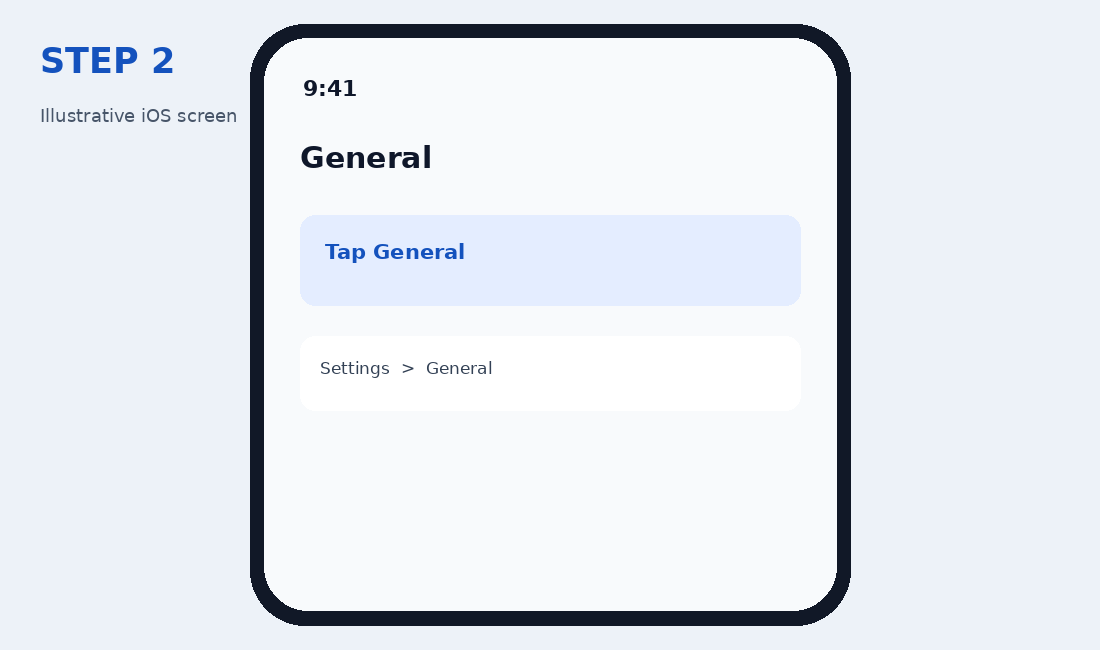
Step 2: Tap General
Scroll down in Settings and tap General.
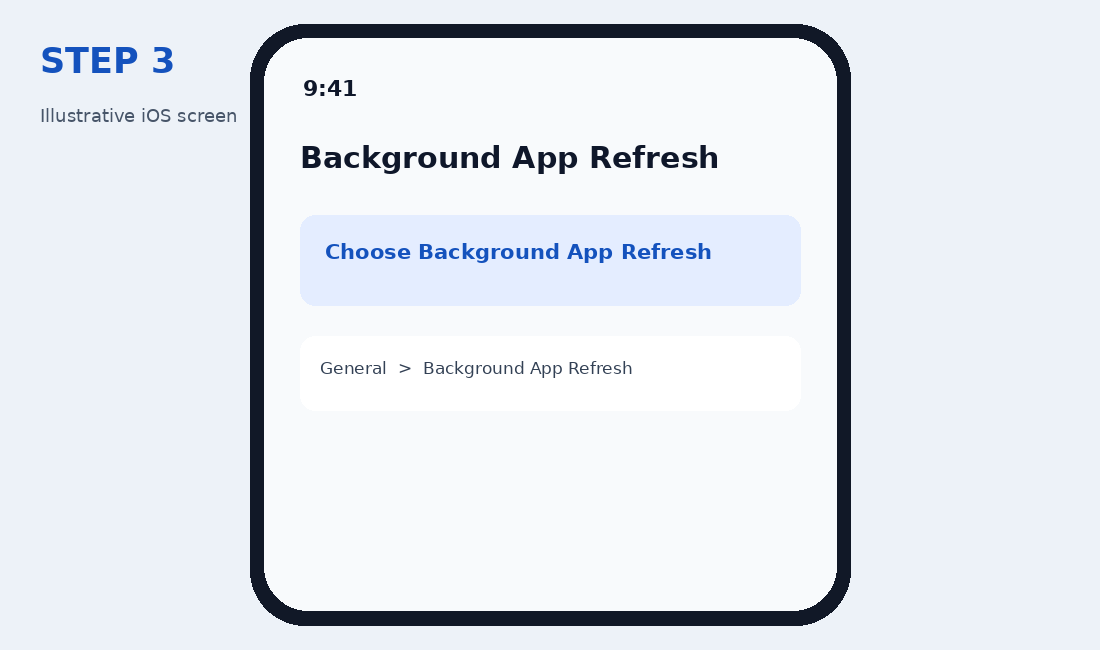
Step 3: Open Background App Refresh
Tap Background App Refresh. You will see available app controls and a setting for background refresh behavior.
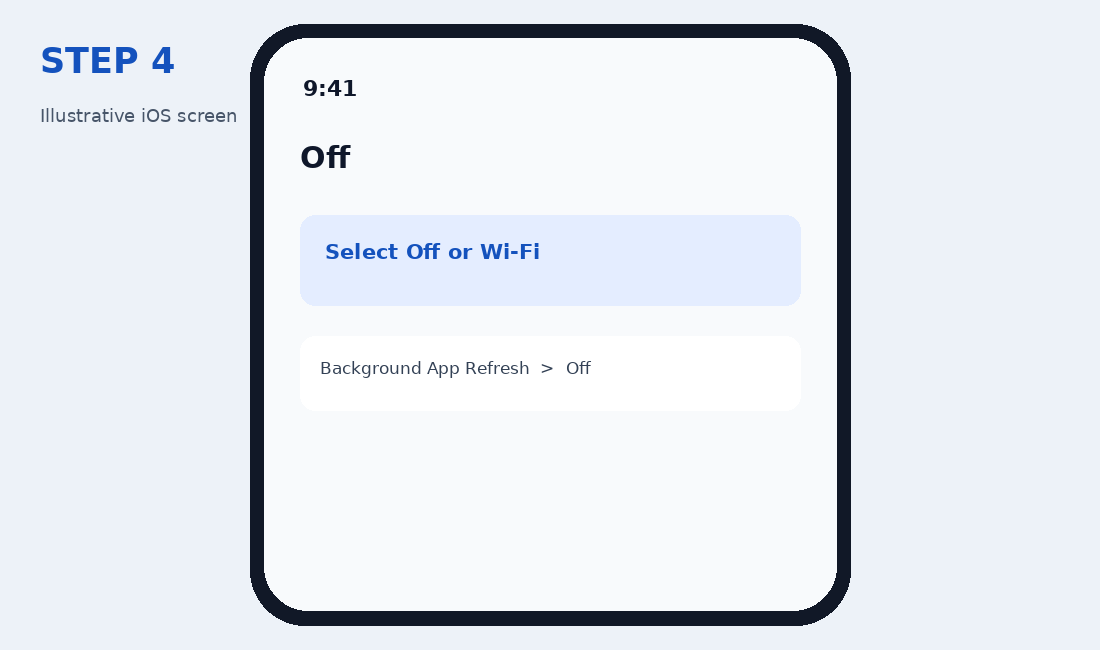
Step 4: Select Off
Tap Background App Refresh again at the top, then choose Off to disable it system-wide. Alternatively, choose Wi-Fi if you prefer to allow refresh only while connected to Wi-Fi. To disable only certain apps, return to the app list and switch off the ones you do not need refreshing in the background.
What Happens When You Turn It Off?
Apps may take a moment to update their content when you open them. Disabling Background App Refresh can reduce some background data use and activity, but battery savings vary depending on your apps and usage. It does not disable push notifications or prevent every form of background activity.
Should You Turn It Off for Every App?
Not necessarily. If you rely on an app to keep content updated before you open it, consider leaving refresh enabled for that app. For apps you rarely use, turning it off is a reasonable option. Low Power Mode can also temporarily reduce background activity.
Troubleshooting: Background App Refresh Is Grayed Out
Check whether Low Power Mode is enabled under Settings → Battery; it can disable Background App Refresh temporarily. Device management or other restrictions may also affect the available settings.
Frequently Asked Questions
Will I still receive WhatsApp messages and other notifications?
Turning off Background App Refresh does not automatically disable push notifications. Notification behavior also depends on the app, your connection, and notification permissions.
Does this delete app data?
No. Changing Background App Refresh settings does not delete your apps, photos, messages, or app data.
Can I turn it back on later?
Yes. Return to the same menu and select Wi-Fi or Wi-Fi & Cellular Data, depending on the options shown on your iPhone.
Official Apple Help
For more information, see Apple’s guide to switching between apps and Background App Refresh and Apple iPhone Support.
Note: Images in this guide are explanatory illustrations, not exact screenshots. Menu labels and layouts may vary by iOS version.