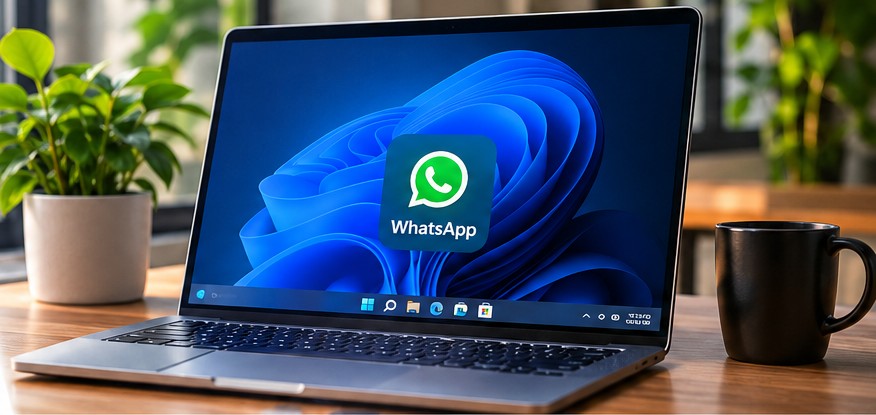
Want to use WhatsApp on your Windows 11 computer? You can install the official desktop app, link it to your phone, and send messages from your PC. This beginner-friendly guide shows you how.
Quick answer: To install WhatsApp on Windows 11, open Microsoft Store, search for WhatsApp, install the official app, and link it to WhatsApp on your phone by scanning the QR code.
Before you start
Make sure you have Windows 11, an internet connection, and WhatsApp already set up on your Android phone or iPhone. The exact wording of buttons may change with app updates. Only use the official Microsoft Store listing or WhatsApp’s official website.
How to install WhatsApp on Windows 11
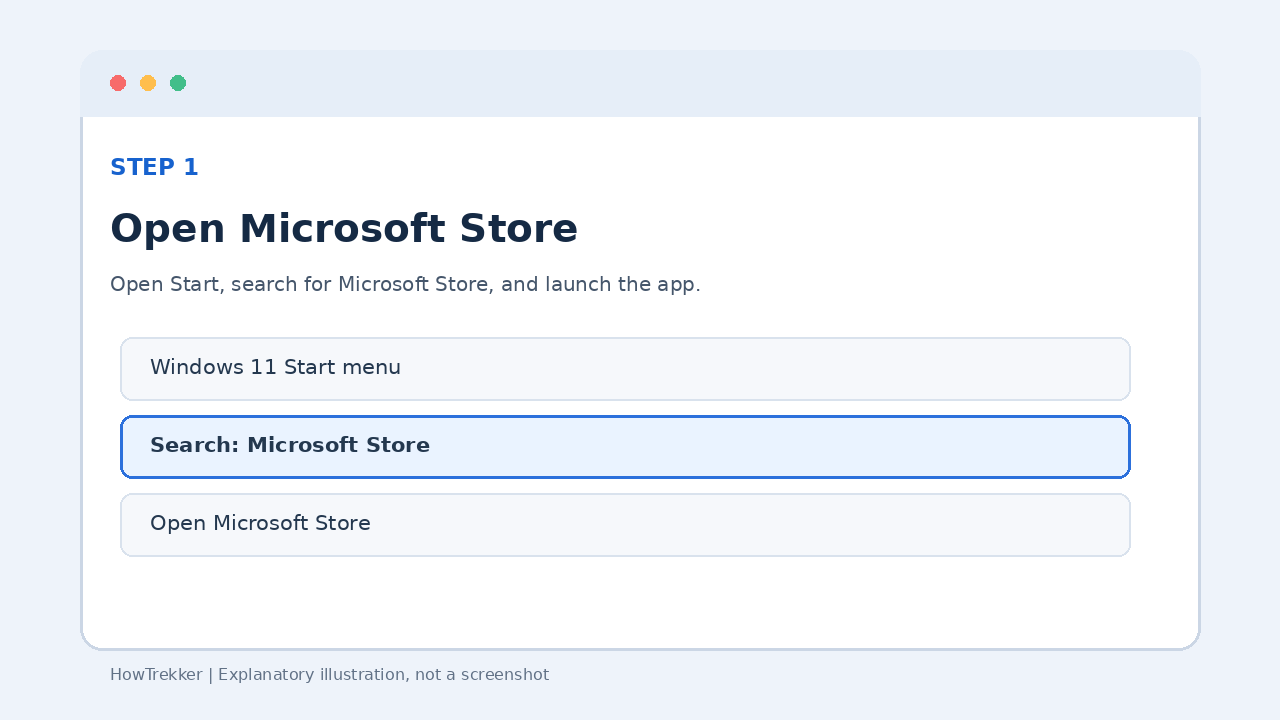
Step 1: Open Microsoft Store
Click Start, type Microsoft Store, and open it. If Microsoft Store is pinned to your taskbar, you can open it from there instead.
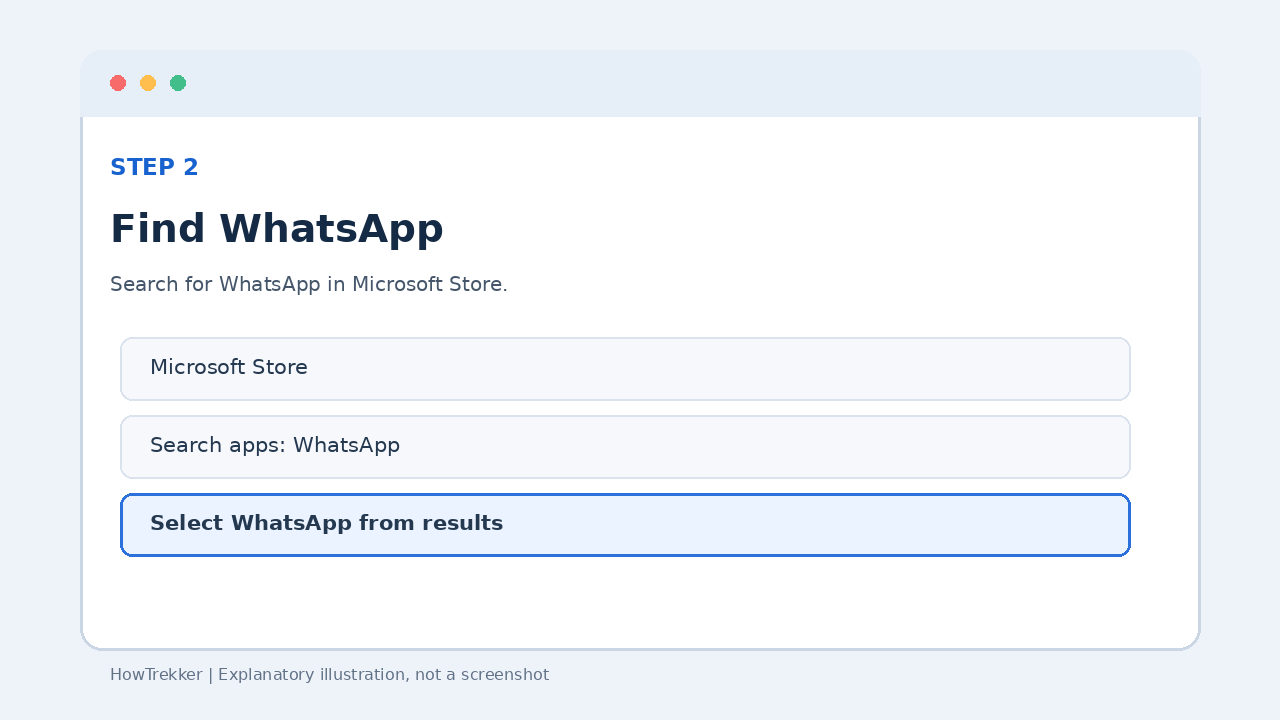
Step 2: Search for WhatsApp
Use the search field at the top of Microsoft Store and search for WhatsApp. Select the official WhatsApp application. Check the publisher before installing.
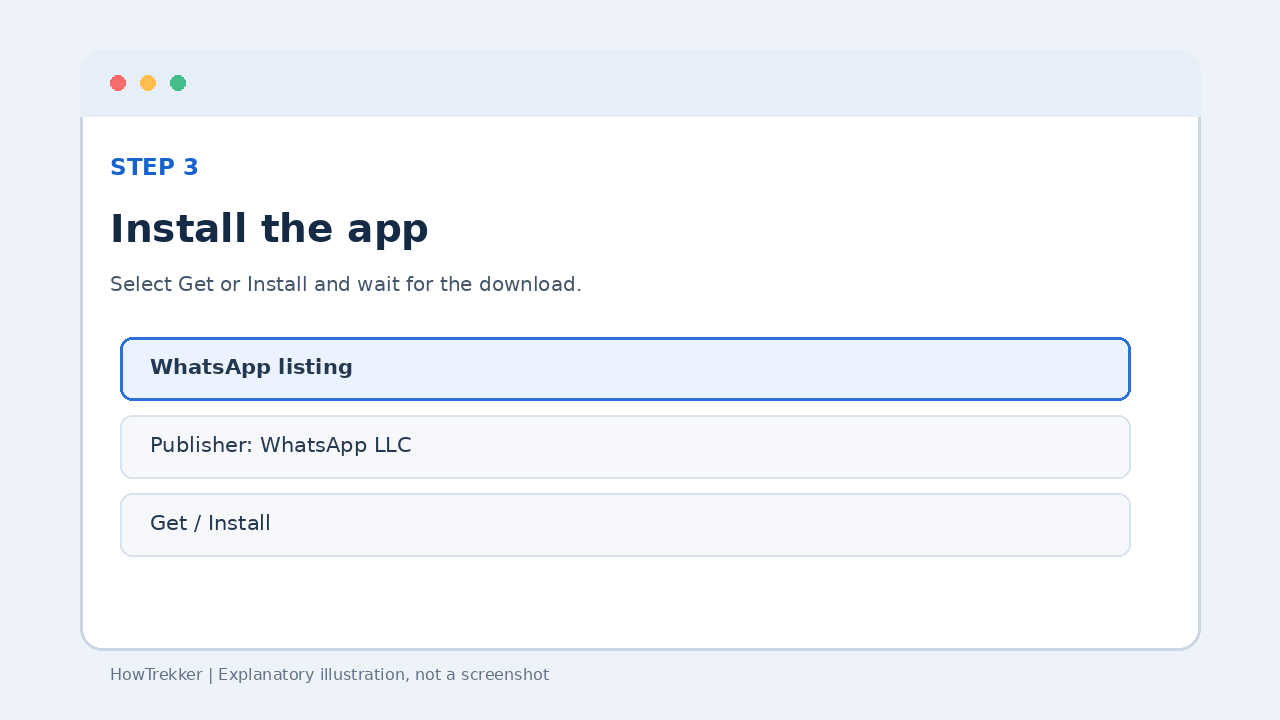
Step 3: Install WhatsApp
On the app listing, select Get or Install (the button label can vary). Wait for the installation to finish, then select Open. You can also launch WhatsApp from the Start menu.
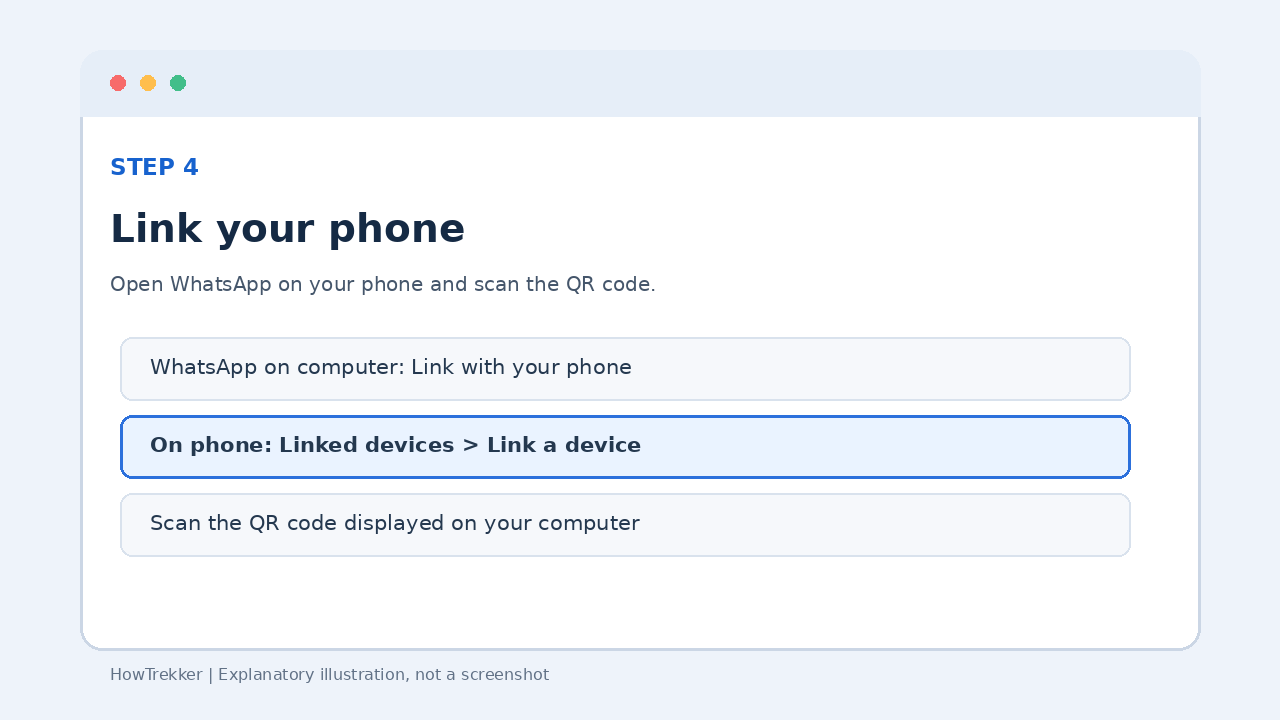
Step 4: Link WhatsApp to your phone
When you first open WhatsApp on your PC, it usually displays a QR code. On your phone, open WhatsApp and go to Linked devices, then choose Link a device. On Android this is commonly found under the three-dot menu; on iPhone it is typically under Settings. Follow the prompts to scan the QR code shown on your PC.
Security tip: Scan only the QR code shown in your own official WhatsApp app. Never share a login or linking code with someone else.
How to use WhatsApp on your computer
Once linked, you can open chats, type with your keyboard, send files, and receive messages. Available calling and notification features depend on your version of WhatsApp and your computer’s permissions.
What if WhatsApp will not install?
- Microsoft Store does not open: Restart your computer, check for Windows updates, and try again.
- Download is stuck: Check your internet connection and available storage.
- QR code does not scan: Update WhatsApp on your phone, improve lighting, and ensure both devices have internet access.
- Wrong app listing: Use the official WhatsApp download page to find the supported download option.
Frequently asked questions
Is WhatsApp for Windows 11 free?
Yes. The official WhatsApp app is free to download. Your internet or mobile data provider may charge for data use.
Can I use WhatsApp without keeping my phone online?
After linking, supported companion devices can generally work without the phone remaining online all the time, although periodic phone use and other account requirements may apply.
Can I use WhatsApp in a browser instead?
Yes. Visit WhatsApp Web and link your phone. This avoids installing a desktop app.
Official resources
For current installation options and supported devices, visit the official WhatsApp download page and WhatsApp Help Center.