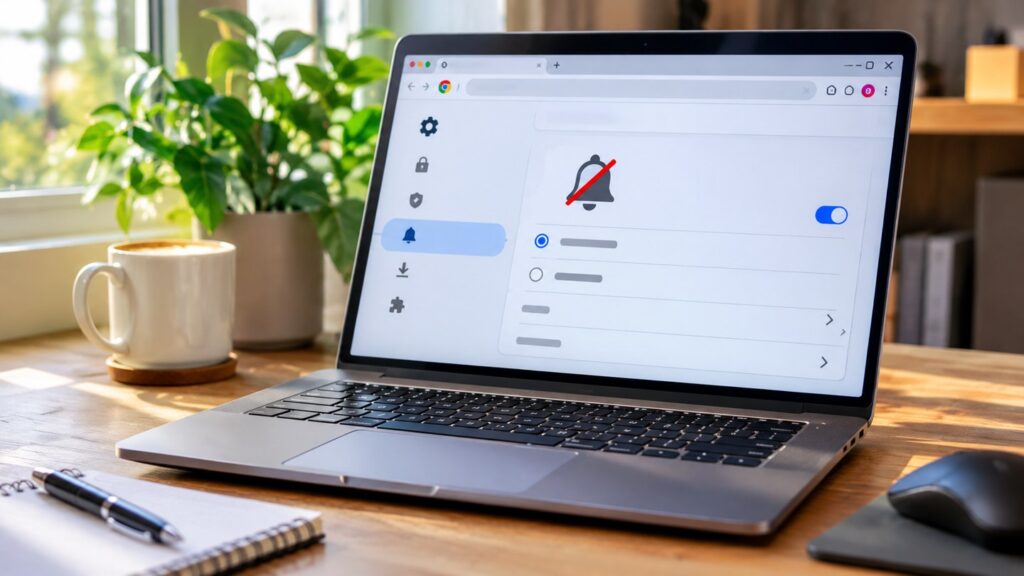
Getting unwanted website alerts in Google Chrome? You can stop notification requests completely or block only the websites that bother you. This guide covers Chrome on Windows, macOS, and other desktop computers.
Quick answer: Open Chrome → Settings → Privacy and security → Site settings → Notifications. Choose Don’t allow sites to send notifications to stop new permission requests, and review previously allowed sites separately.
How to turn off Chrome notifications on a computer
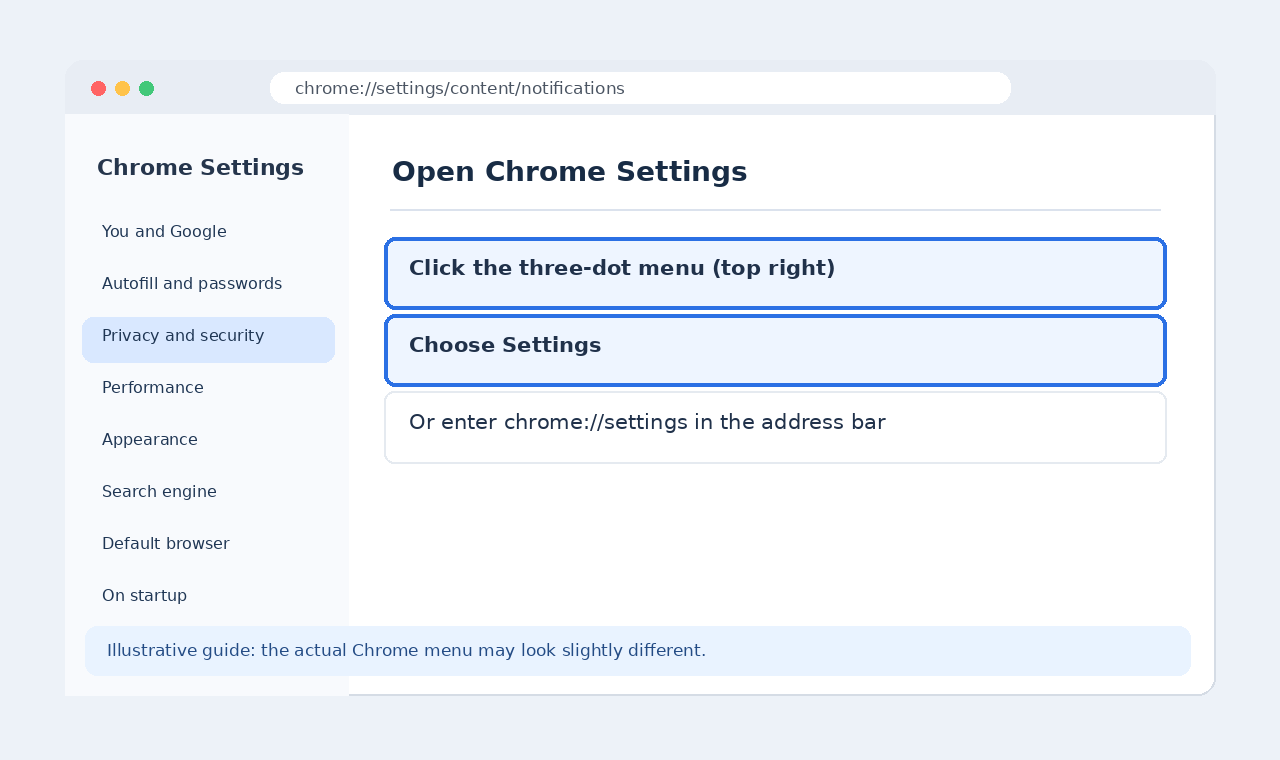
Step 1: Open Chrome Settings
Open Google Chrome. Click the three-dot menu in the upper-right corner and select Settings. You can also type chrome://settings in the address bar and press Enter.
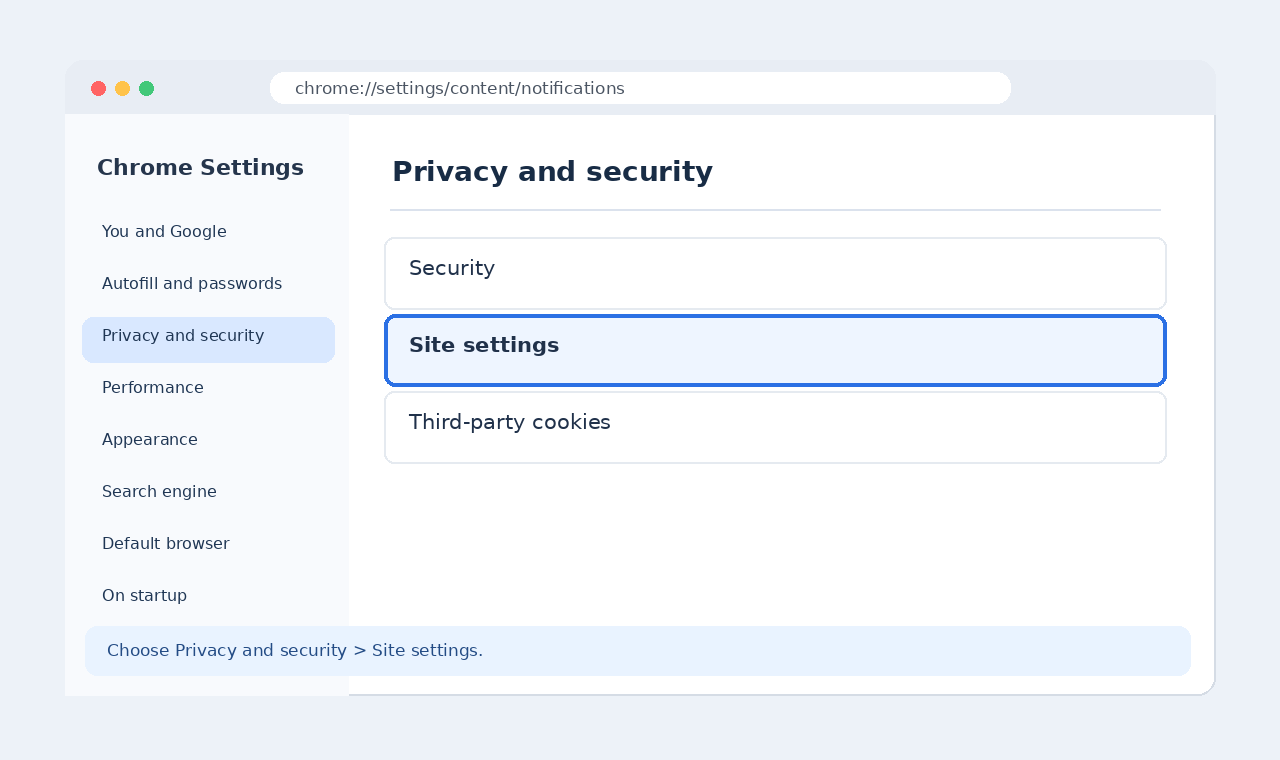
Step 2: Go to Privacy and security
In the left sidebar, choose Privacy and security, then select Site settings.
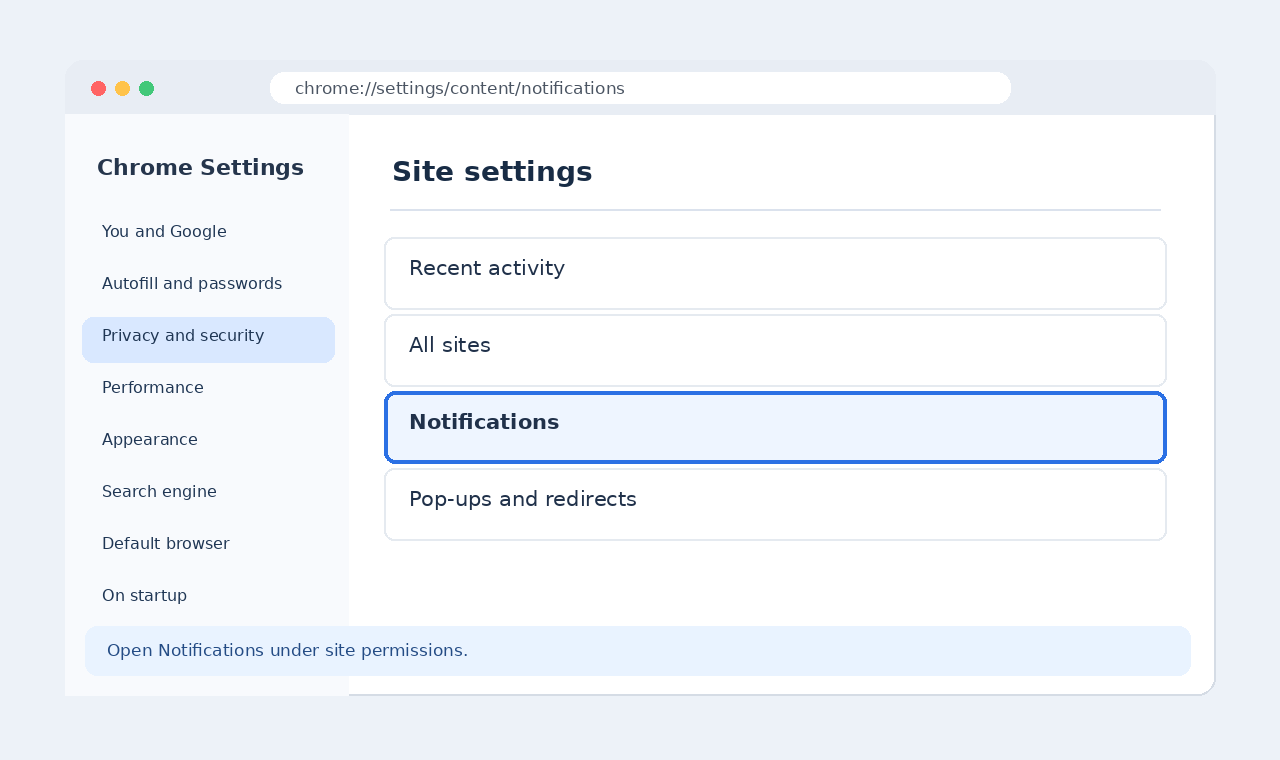
Step 3: Open Notifications
On the Site settings page, find and open Notifications. A shortcut is to enter chrome://settings/content/notifications directly in Chrome’s address bar.
Step 4: Block new requests and review allowed websites
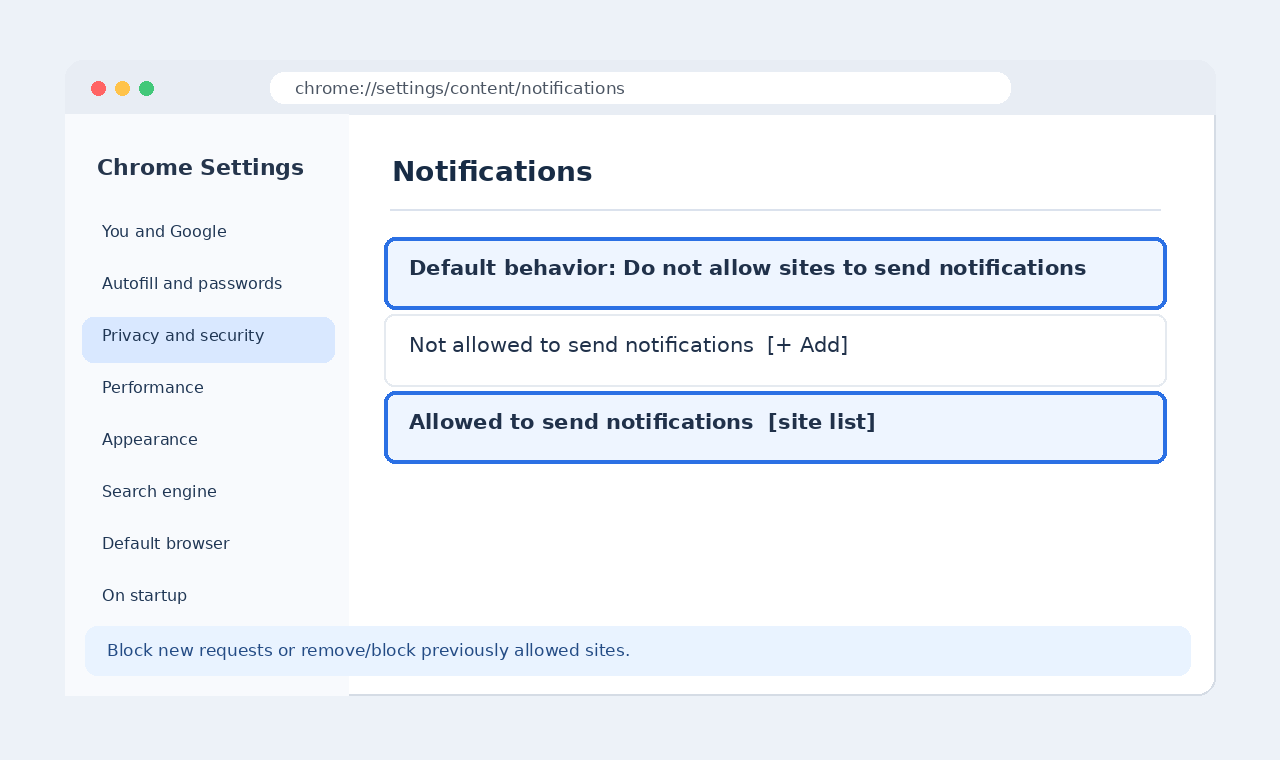
Under Default behavior, choose Don’t allow sites to send notifications if you do not want websites to ask for notification permission. This default does not necessarily revoke permissions you previously granted. Review the list of sites allowed to send notifications and change or remove unwanted entries. For one website, open its permission settings and set Notifications to Block.
How to block notifications from only one website
- Open the website in Chrome.
- Select the View site information icon to the left of the address.
- Open Site settings.
- Change Notifications to Block.
This is useful when you still want notifications from calendar, email, or collaboration websites.
Want fewer interruptions without blocking everything?
On the Notifications page, if available, enable Use quieter messaging. Chrome can then show less intrusive permission prompts rather than interrupting you with a pop-up. The wording and options can vary by Chrome version.
Why am I still getting notifications?
- Already allowed websites: Review and block existing site permissions; changing the default alone may not remove them.
- Another browser or app: The alert may be coming from Microsoft Edge, another app, or your operating system.
- Pop-ups instead of notifications: Website pop-ups are controlled separately under Site settings → Pop-ups and redirects.
Frequently asked questions
Does blocking Chrome notifications stop websites from working?
Usually not. Websites generally remain usable, but you may miss optional alerts, such as new messages or updates.
Can I turn notifications back on later?
Yes. Return to the Notifications settings and change the default behavior or allow individual websites again.
Is this the same as blocking ads?
No. Website notification permissions and on-page advertisements are different features. Blocking notifications will not remove ads displayed inside web pages.
Official Google documentation
For the latest wording and instructions, see Google Chrome Help: Use notifications to get alerts and Change site settings permissions.