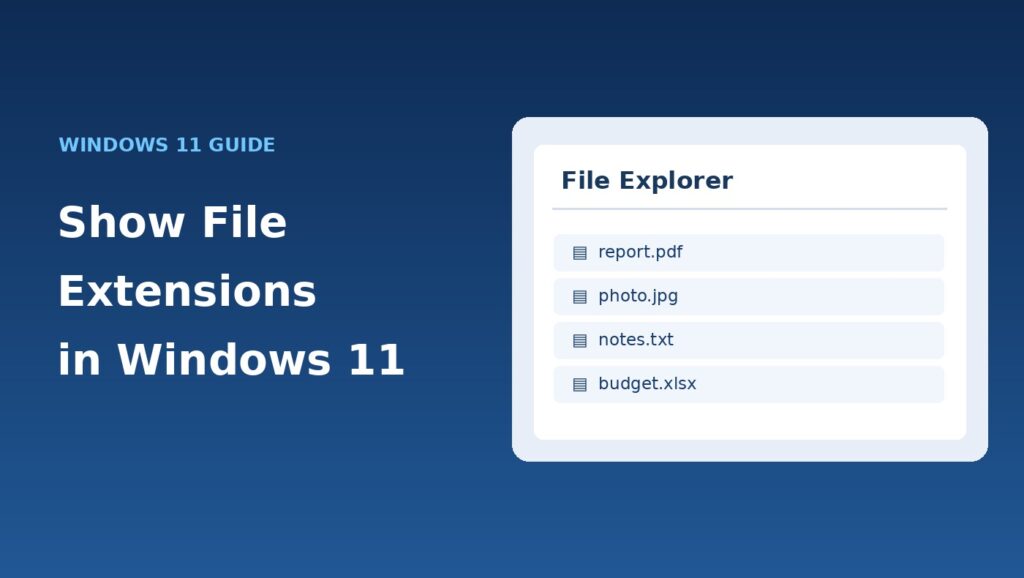
Windows 11 normally hides extensions for many familiar file types. That means a file called photo.jpg may appear simply as photo. If you want to know whether a file is a PDF, a picture, or a text document, you can change one setting in File Explorer.
In this guide, you will learn how to show file extensions in Windows 11, why the setting is useful, and how to turn it off again.
Quick answer
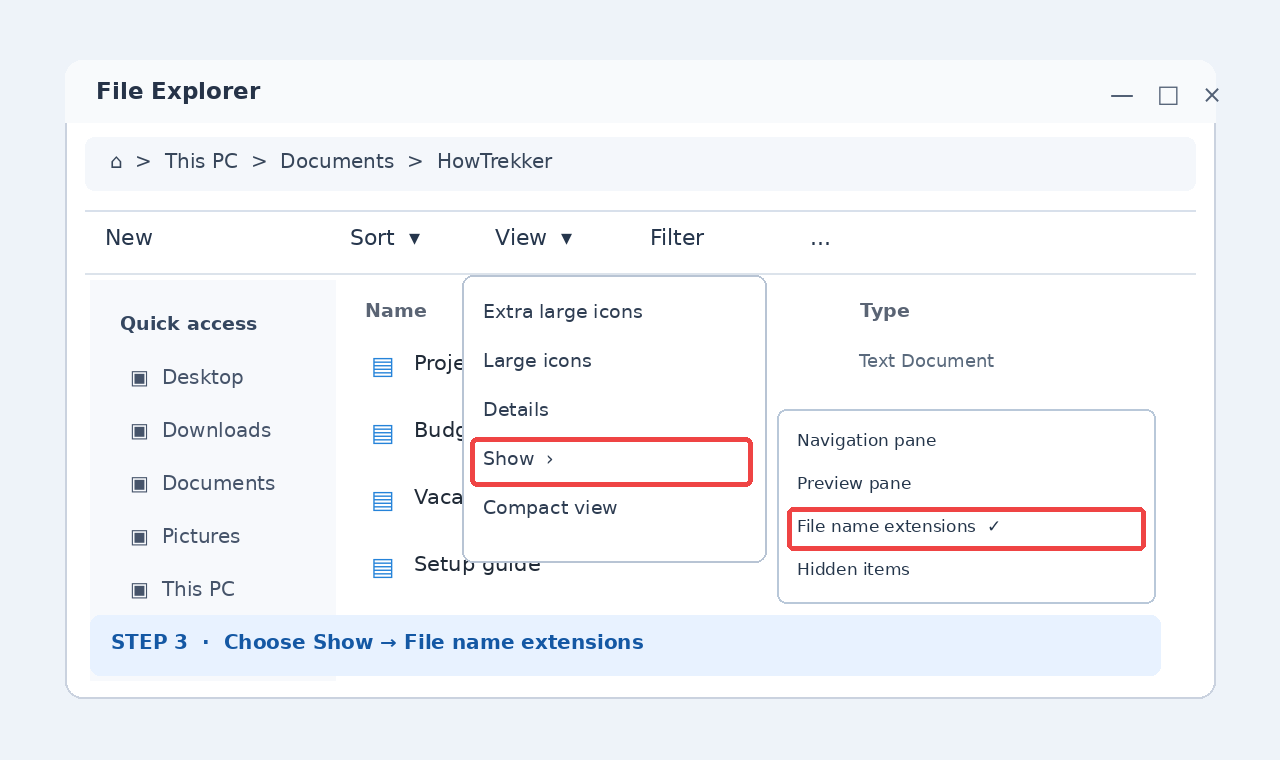
Open File Explorer, choose View → Show → File name extensions. A check mark indicates the option is enabled. You do not need to restart your computer.
How to show file extensions in Windows 11
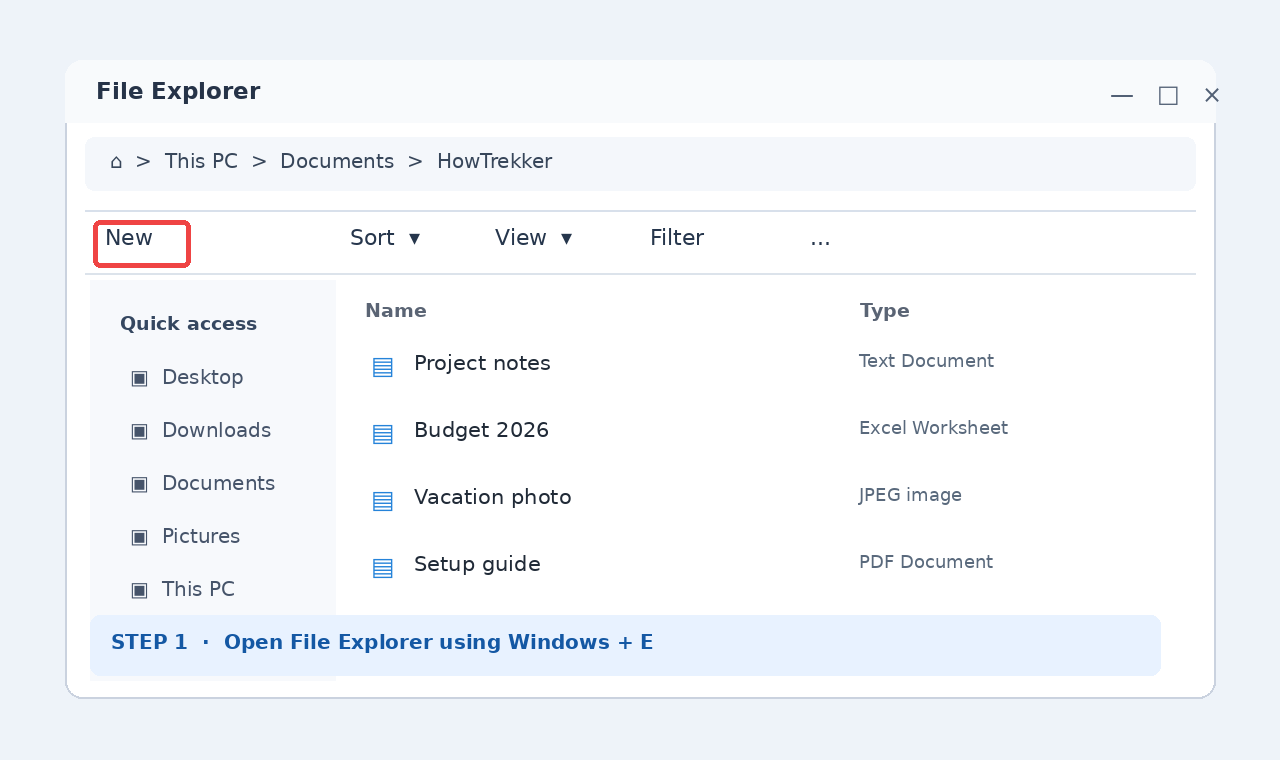
Step 1: Open File Explorer
Press Windows + E on your keyboard. Alternatively, click the folder icon on the taskbar or search for File Explorer in the Start menu. Open a folder that contains a few files so you can see the change.
Step 2: Open the View menu
At the top of the File Explorer window, select View. This menu controls how files and folders are displayed, including icon size, details, and additional visibility options.
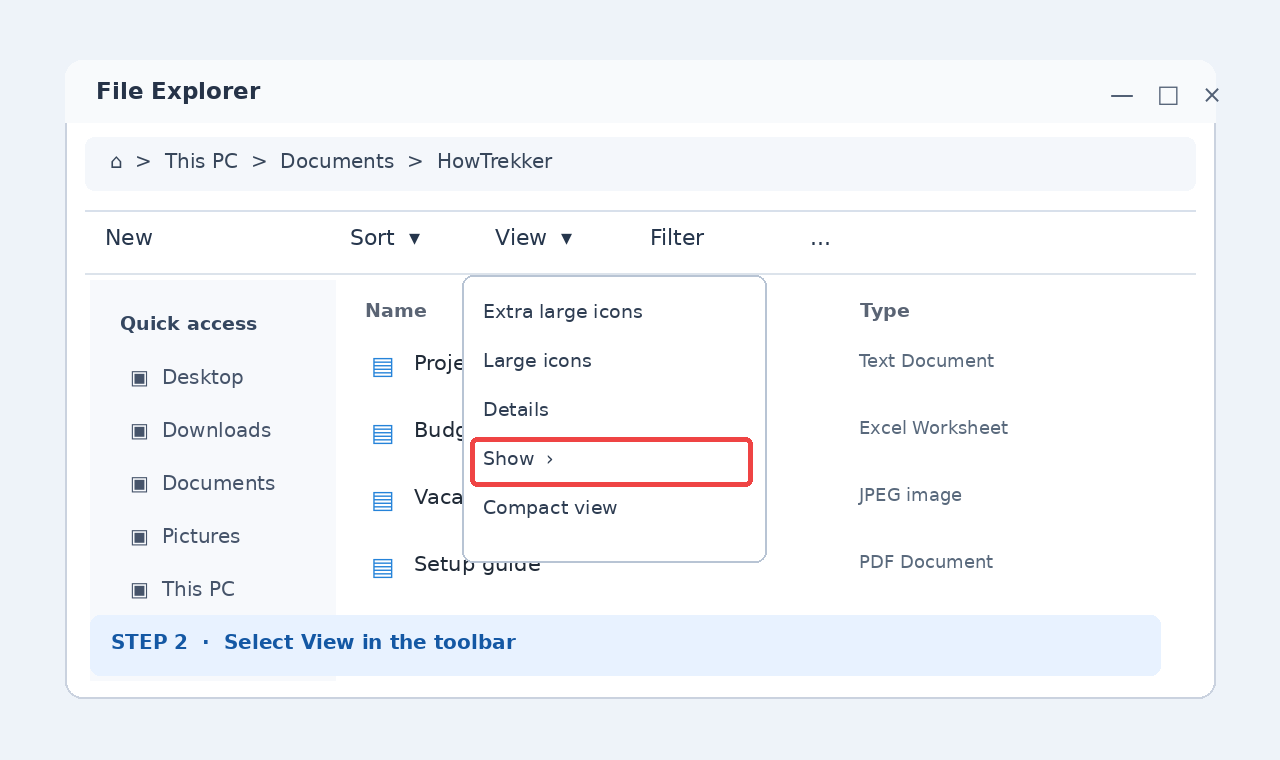
Step 3: Enable File name extensions
Move to Show, then click File name extensions. If you already see a check mark beside it, the setting is enabled. Menu wording can vary slightly between Windows builds.
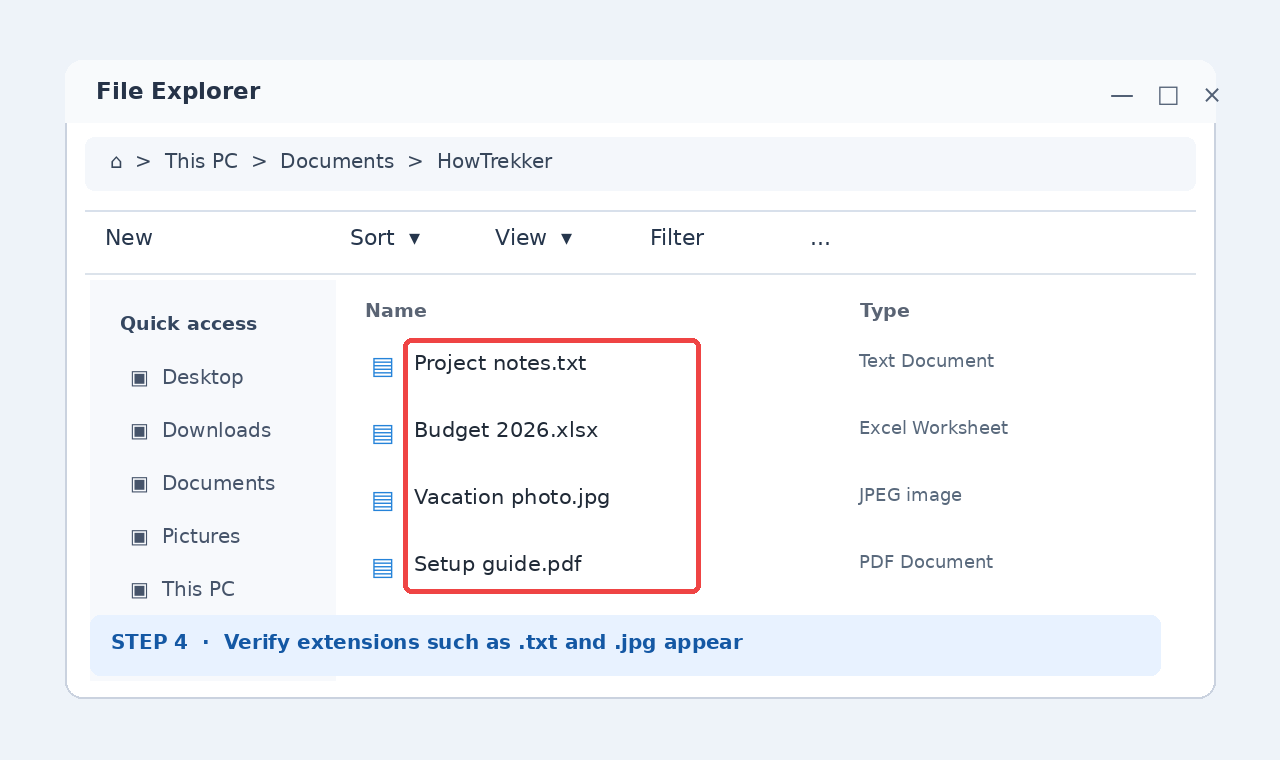
Step 4: Check the result
Look at your files again. Names that previously appeared as report or photo may now display as report.pdf or photo.jpg. The setting applies across File Explorer, not only to the folder you opened.
Why show file extensions?
Visible extensions make it easier to recognize file formats, troubleshoot files that will not open, and avoid confusing similarly named files. For example, invoice.pdf and invoice.exe are not the same type of file. An extension alone does not prove that a file is safe, however: do not open unexpected attachments just because their names look familiar.
How to hide file extensions again
Open File Explorer → View → Show and click File name extensions again to remove the check mark. This restores the default presentation for recognized file types.
Alternative: File Explorer Options
You can also open File Explorer Options, select the View tab, and clear Hide extensions for known file types. Select Apply and then OK. The View menu method is usually faster.
Frequently asked questions
Does showing extensions change my files?
No. This only changes how File Explorer displays file names. It does not convert or modify the files.
Can I rename a file extension to convert its format?
No. Renaming image.jpg to image.png does not convert the image data. Use an appropriate application or converter instead.
Why do some file names still look unusual?
Windows may use different file associations, and some names already contain periods. Check the Type column in Details view if you are unsure.
More information
For Windows support and File Explorer guidance, visit the official Microsoft Windows support website. You can also explore our Windows 11 performance guide.
Image note: The four step visuals are original interface recreations for explanation, not screenshots captured from a running Windows installation.