Updated: October 2026 · Platform: Windows 11 · Browser: Google Chrome
Need to fix an outdated or broken webpage? This guide explains how to clear Google Chrome’s cached images and files on Windows 11 while avoiding unnecessary deletion of passwords, history, or cookies.
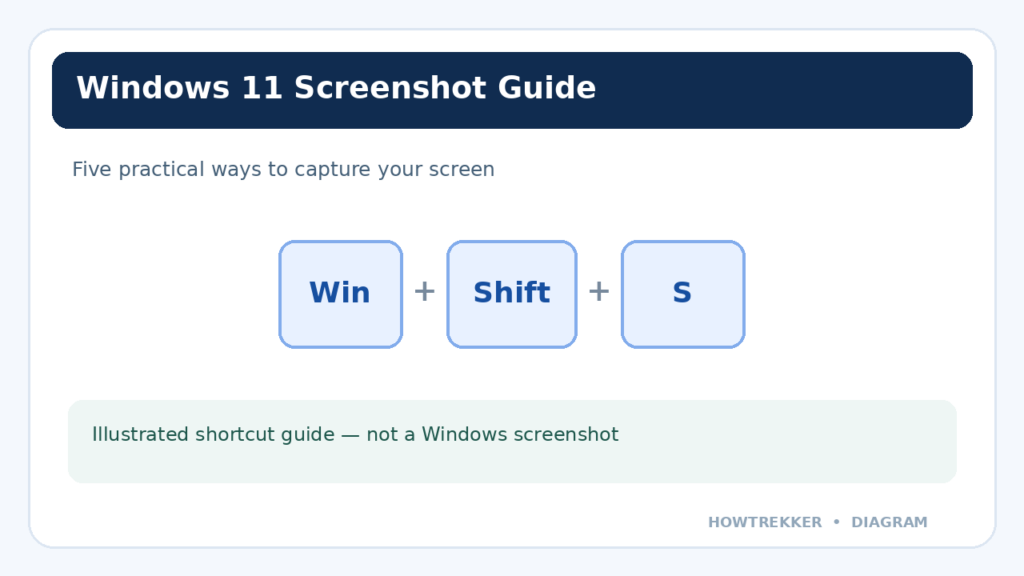
Visual note: The four step images below are original explanatory diagrams, not screenshots of Chrome.
Why clear Chrome's cache?
Chrome stores temporary copies of images and other website resources so pages can load faster. Occasionally, outdated cached files can cause a website to display old content, look broken, or behave unexpectedly. Clearing the cache forces Chrome to download fresh resources when you visit the site again.
Important: You do not need to erase your browsing history, passwords, or cookies just to clear cached files.
Step 1: Open Chrome's browsing-data controls
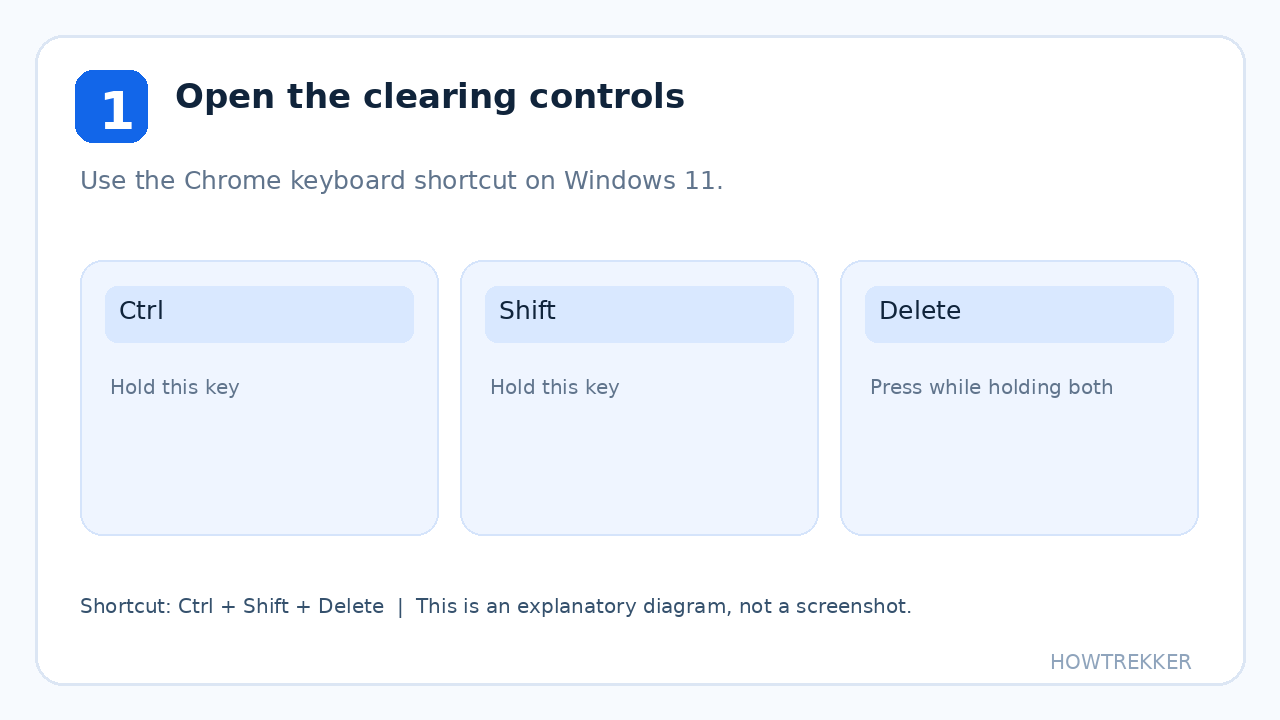
Open Google Chrome on your Windows 11 computer. Press Ctrl + Shift + Delete on your keyboard to open the browsing-data clearing interface. You can also find the clearing option through Chrome’s menu and settings.
Step 2: Choose a time range
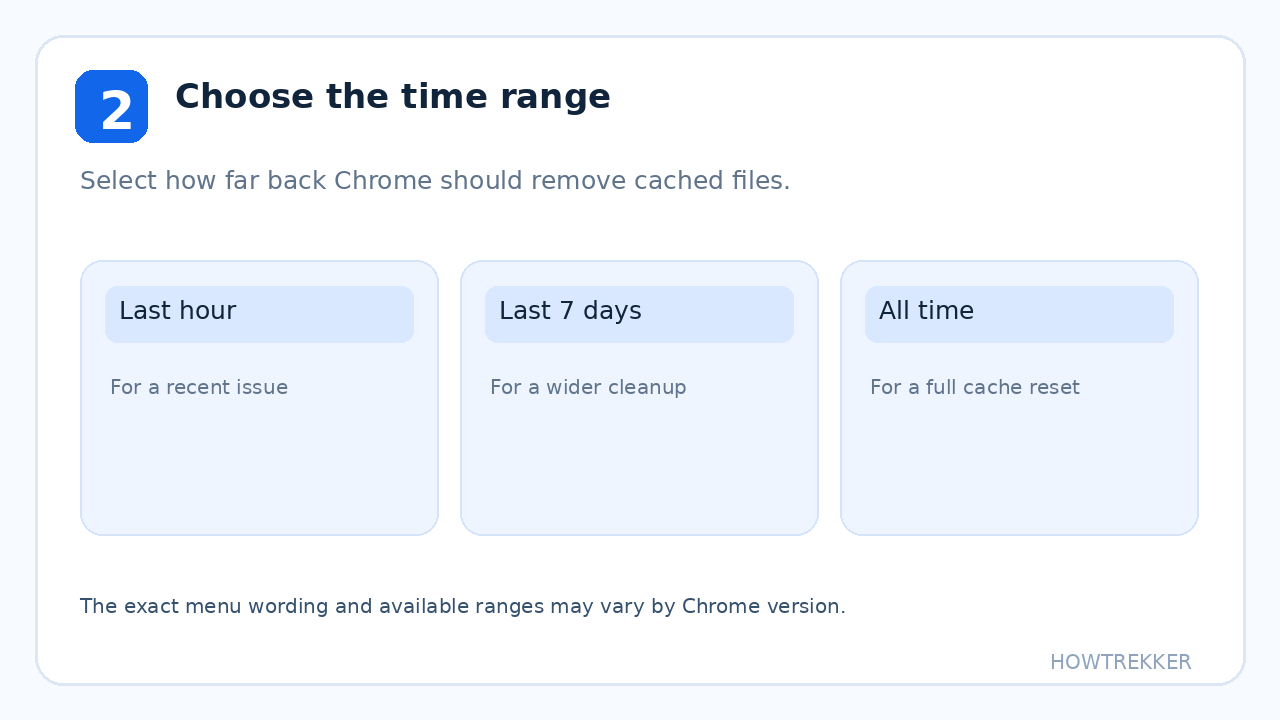
Choose how much cached data you want to remove. For a stubborn website problem, All time is a reasonable option. If the problem started recently, a shorter range may be enough.
Step 3: Select cached images and files
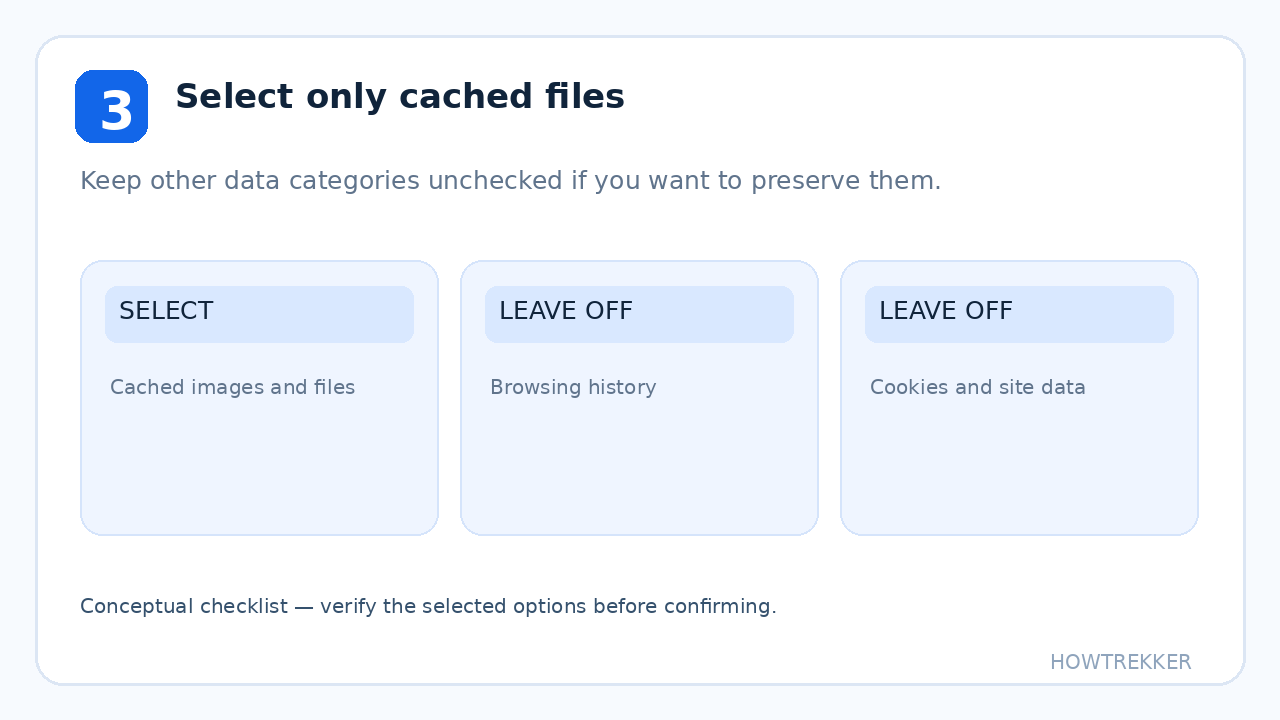
Find and select Cached images and files. If you only want to clear the cache, deselect other categories such as Browsing history and Cookies and other site data. The layout can differ between Chrome versions, so review the selected items before proceeding.
Step 4: Delete the selected data
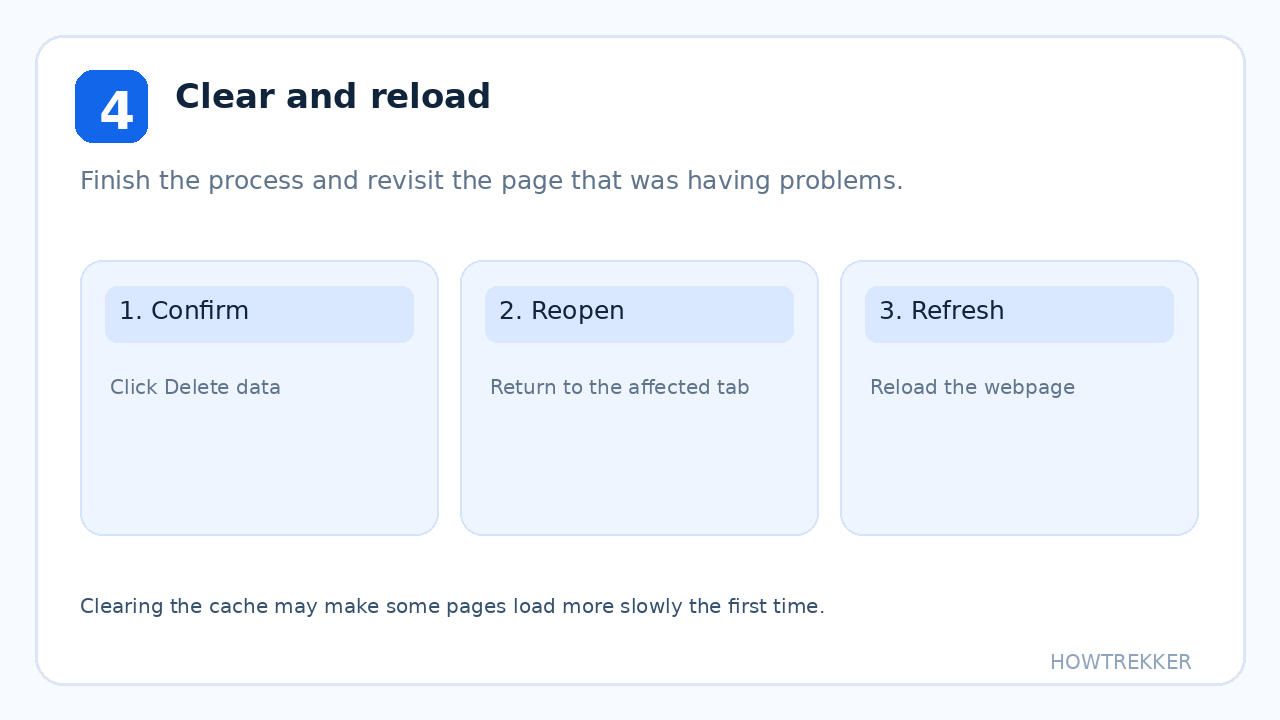
Click Delete data (or the equivalent confirmation button in your version). Wait for Chrome to finish, then reload the website you were troubleshooting.
What happens after clearing the cache?
Chrome will download fresh website resources as needed. Some websites may initially load more slowly. If you left cookies and other site data unchecked, clearing only cached files generally should not sign you out of websites.
If the website still does not work
Try refreshing the page, restarting Chrome, checking your internet connection, updating Chrome, or testing the site in an Incognito window. If the problem affects only one site, its server or an extension could be involved.
Frequently asked questions
Will clearing Chrome’s cache delete my passwords?
No, not when you select only Cached images and files. Saved passwords are a separate data category.
Will I be logged out of websites?
Usually not if you keep cookies and site data unchecked. Clearing cookies can sign you out.
How often should I clear the cache?
There is no need to clear it on a fixed schedule. Do it when troubleshooting outdated or broken website content.
Official reference
Google Chrome Help: Delete browsing data in Chrome.