This step-by-step guide explains how to fix bluetooth not working in windows 11 with illustrated interface examples. Menus may vary by device, software version and account.
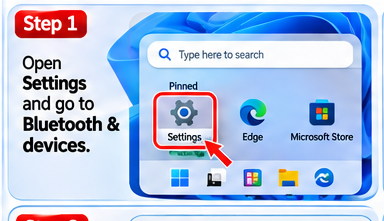
Step 1: Open Windows Settings
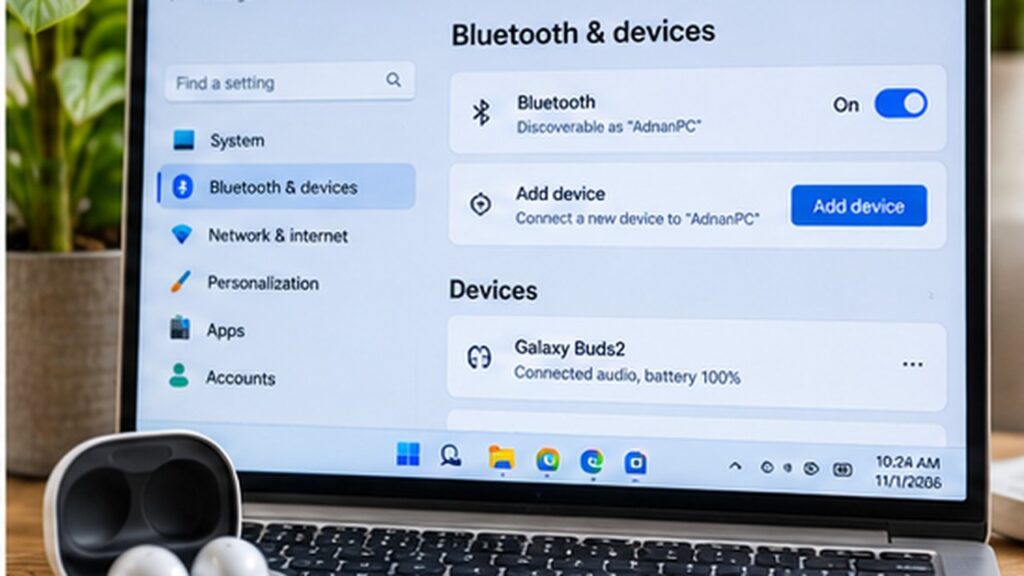
Press Windows + I to open Settings. Select Bluetooth & devices from the left sidebar.
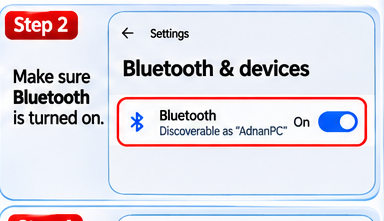
Step 2: Check the Bluetooth switch
Turn Bluetooth on. If the switch is missing, restart the PC and check Device Manager for a missing or disabled Bluetooth adapter.
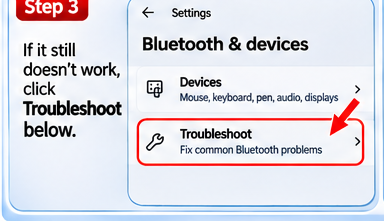
Step 3: Open troubleshooting
In Settings, search for Bluetooth troubleshooting or navigate to System > Troubleshoot > Other troubleshooters. Depending on your Windows version, Windows may open Get Help instead.
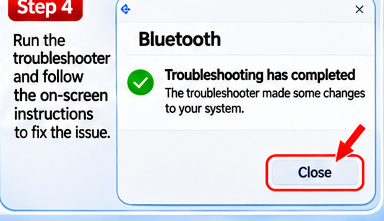
Step 4: Follow the guided checks
Follow the prompts in the Bluetooth troubleshooter or Get Help. A success screen is illustrative; results vary and the tool may not resolve the issue.
Helpful tips
If your screen looks different, use the app or Settings search feature to find the equivalent option. Update the app or operating system if a feature is missing.
Frequently asked questions
Why does my screen look different?
Software updates and device-specific interfaces can move or rename controls.
Are these real screenshots?
No. The step images are AI-generated visual guides, not captures from a real device.