How to Fix Wi-Fi Connected but No Internet
A Wi-Fi connection does not always mean that your device can reach the internet. Work through these fixes in order, starting with the least disruptive.
Before you begin: Menu names may differ slightly by device, app version and region. Back up important data before making destructive changes.
What you will learn
- Check whether the problem affects other devices
- Restart Wi-Fi and your router
- Run Windows network troubleshooting
- Flush DNS and use network reset only if needed
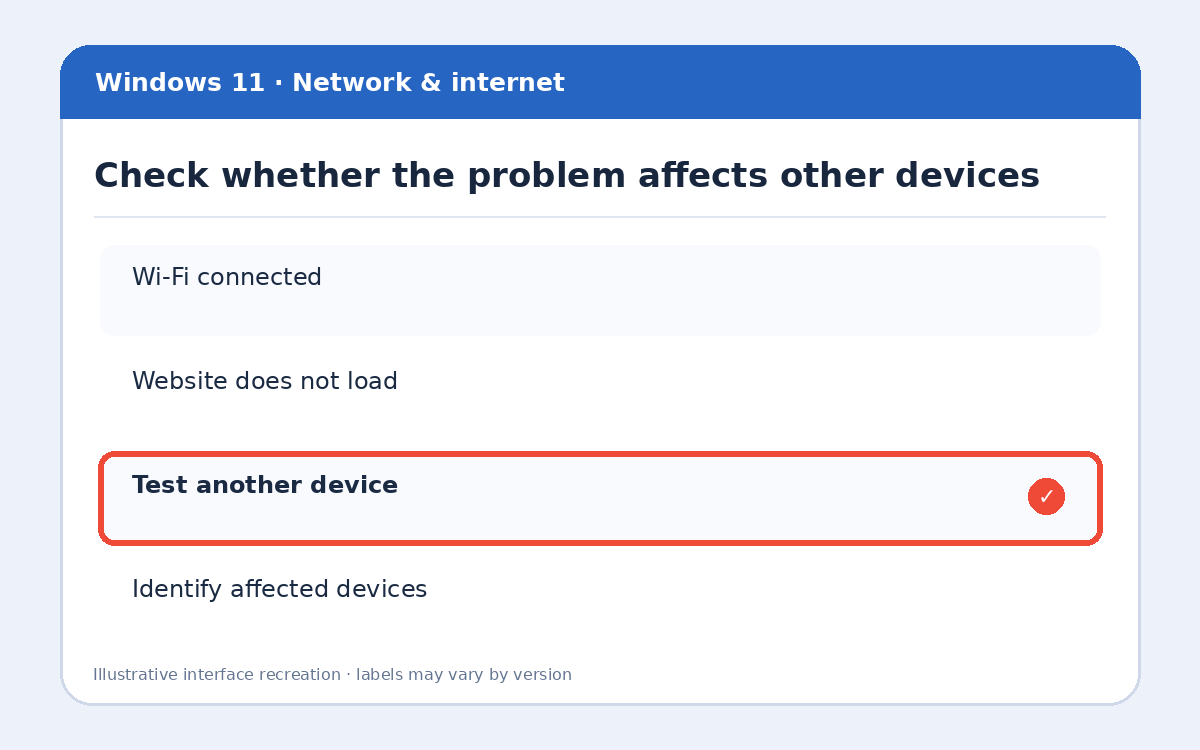
Step 1: Check whether the problem affects other devices
Try opening two unrelated websites on your phone using the same Wi-Fi. If every device fails, focus on the router or your internet service provider. If only the PC fails, continue with Windows checks.
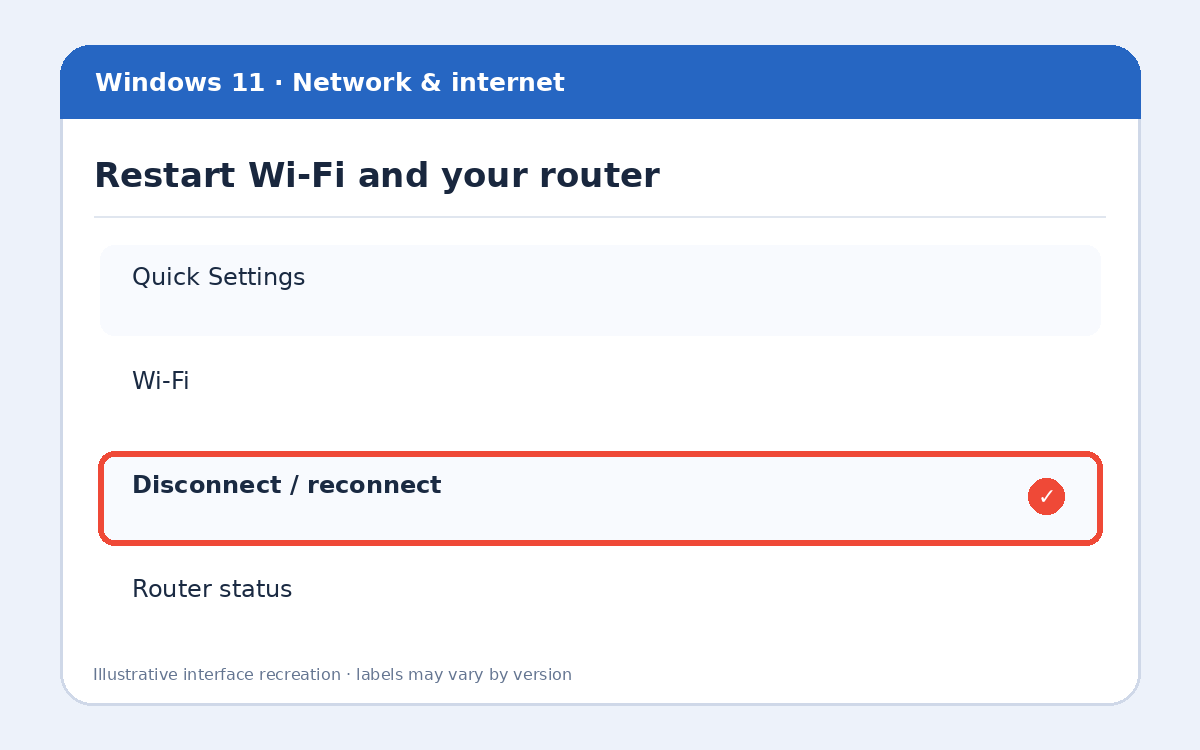
Step 2: Restart Wi-Fi and your router
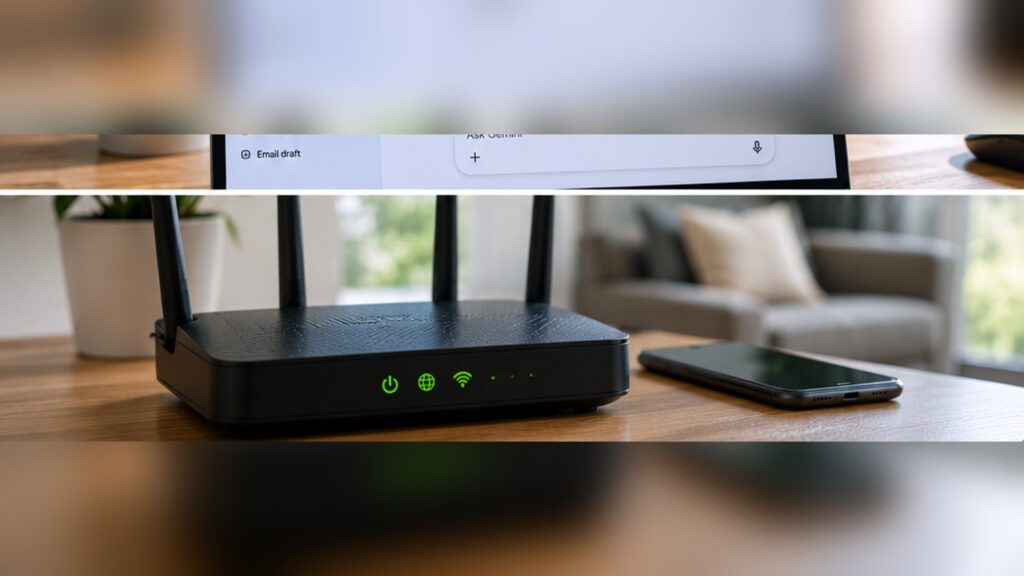
Turn Wi-Fi off and on in Windows Quick Settings. If several devices are offline, power-cycle the router using its normal power switch, wait until it finishes restarting, and test again.
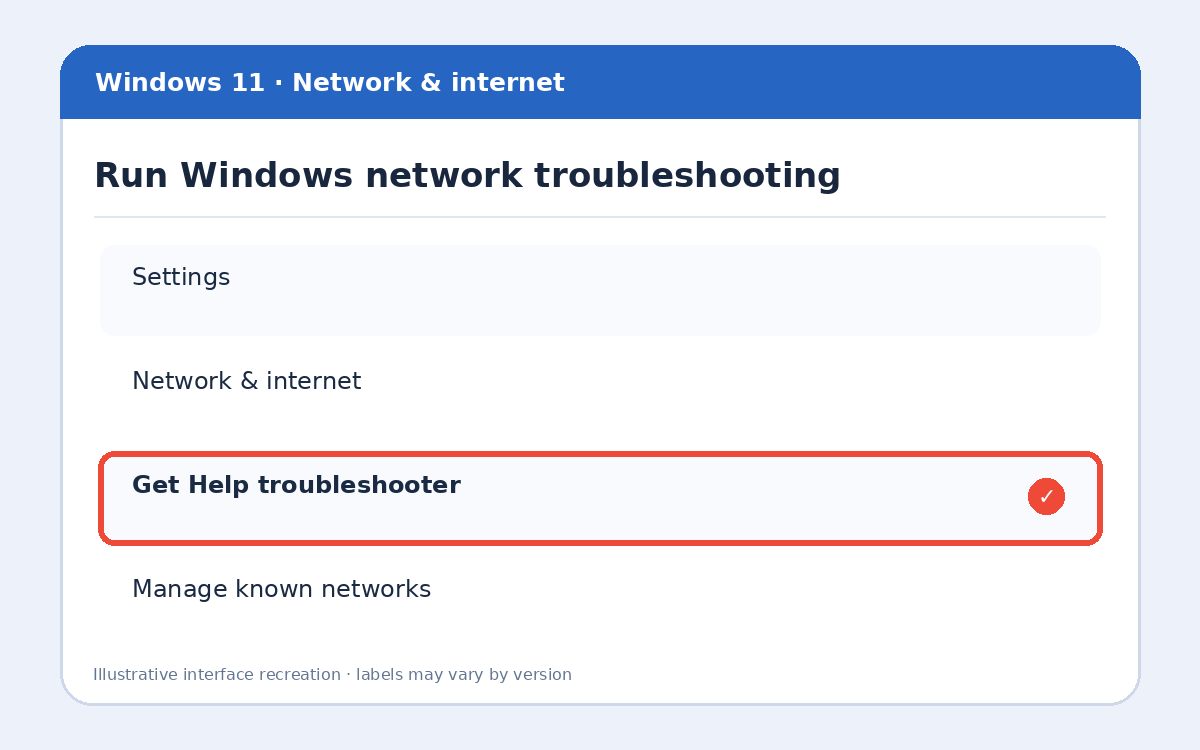
Step 3: Run Windows network troubleshooting
Open Settings → Network & internet. Run the network troubleshooter through Get Help if offered. You can also check Network & internet → Wi-Fi → Manage known networks and forget/reconnect to the affected network.
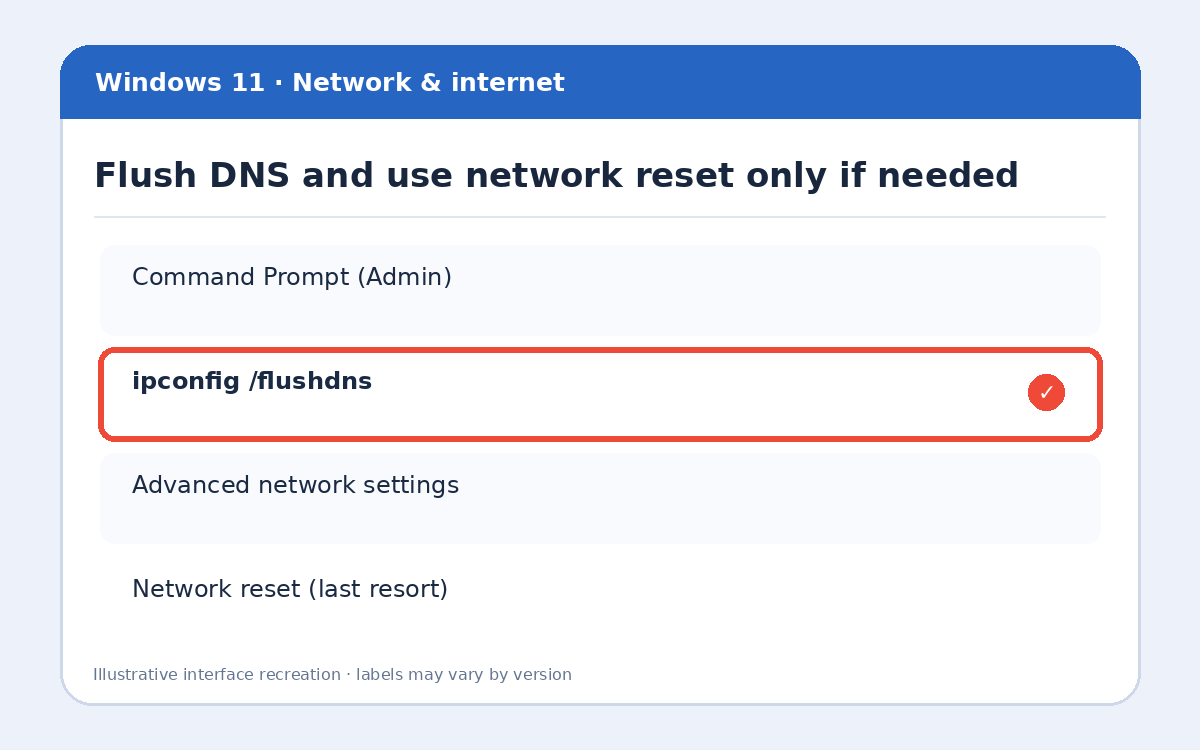
Step 4: Flush DNS and use network reset only if needed
Open Command Prompt as administrator and run ipconfig /flushdns. If problems continue, consider Settings → Network & internet → Advanced network settings → Network reset as a last resort; it removes saved network adapter settings and can affect VPN software.
Extra tips and important precautions
If you see a 169.254.x.x IP address, your PC may not be getting an address from the router. Check DHCP and restart the router. Contact your provider if multiple devices have no internet after the router is back online.
Frequently asked questions
Why does Wi-Fi say connected with no internet?
Your computer can communicate with the router while the router has no working internet connection, or DNS/IP settings may be incorrect.
Should I reset my router to factory defaults?
No. A factory reset can erase provider and Wi-Fi settings. Start with a normal restart.
Does network reset delete files?
It does not target personal files, but it resets networking settings and may require VPN or adapter setup again.
More useful HowTrekker tutorials
Explore our other guides on HowTrekker for practical step-by-step technology help.
Official reference
Check the official support documentation for the latest interface and policy details.