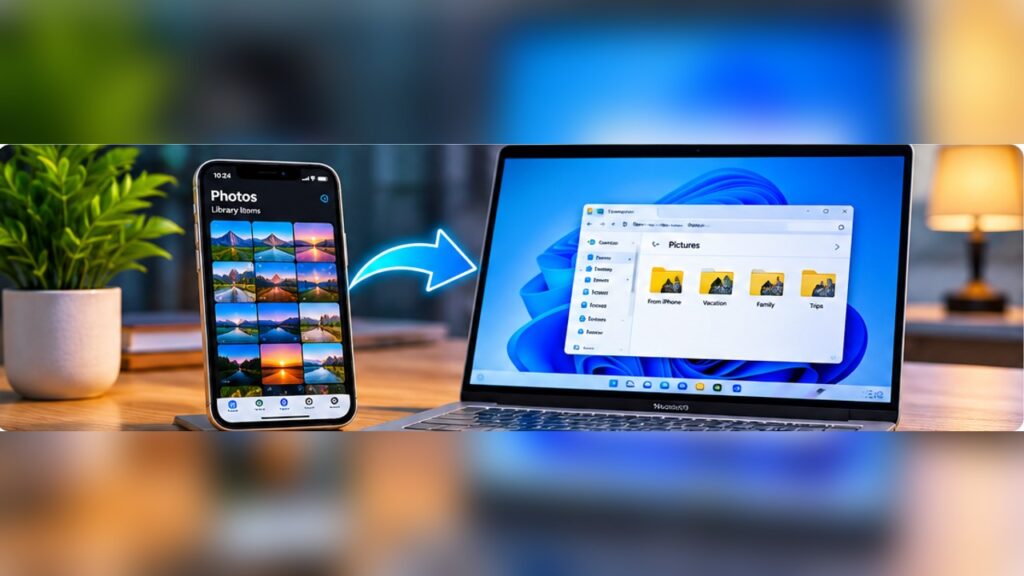
Want to move pictures from your phone to your computer? You can transfer photos from iPhone to Windows 11 with a USB cable and the built-in Microsoft Photos app. This guide explains the process and how to fix common connection issues.
Quick answer: Connect your unlocked iPhone to the PC with a data cable, approve the trust prompt, open Windows Photos, choose Import, select your iPhone and import your pictures.
Before you start
Use a USB cable that supports data transfer, not just charging. Unlock your iPhone, leave it connected and ensure your PC has enough storage space. If you use iCloud Photos with optimized storage, some originals may need to download before they can be imported by USB.
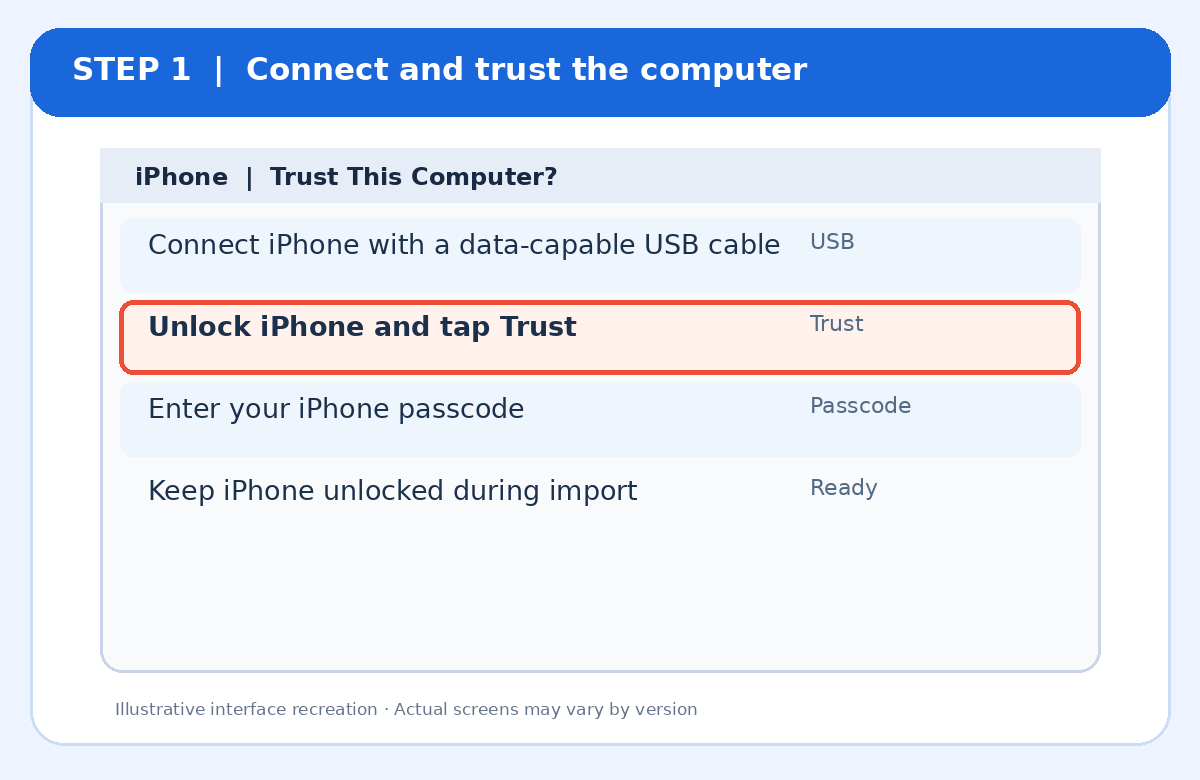
Step 1: Connect your iPhone and approve access
Connect your iPhone to your Windows 11 PC. Unlock the phone. If you see Trust This Computer?, tap Trust and enter your passcode. A charging-only cable will not work.
Step 2: Open the Microsoft Photos app
On your Windows PC, open the Photos app from Start. Find the Import command; its location can vary between app versions.
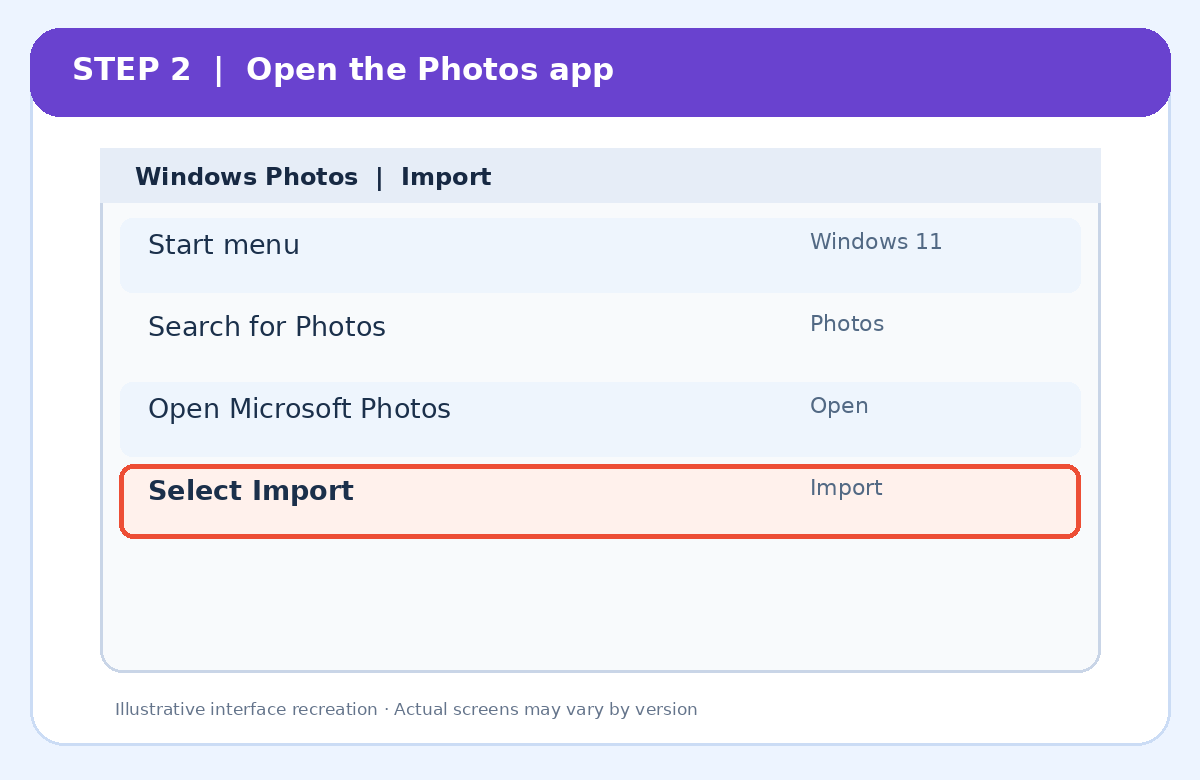
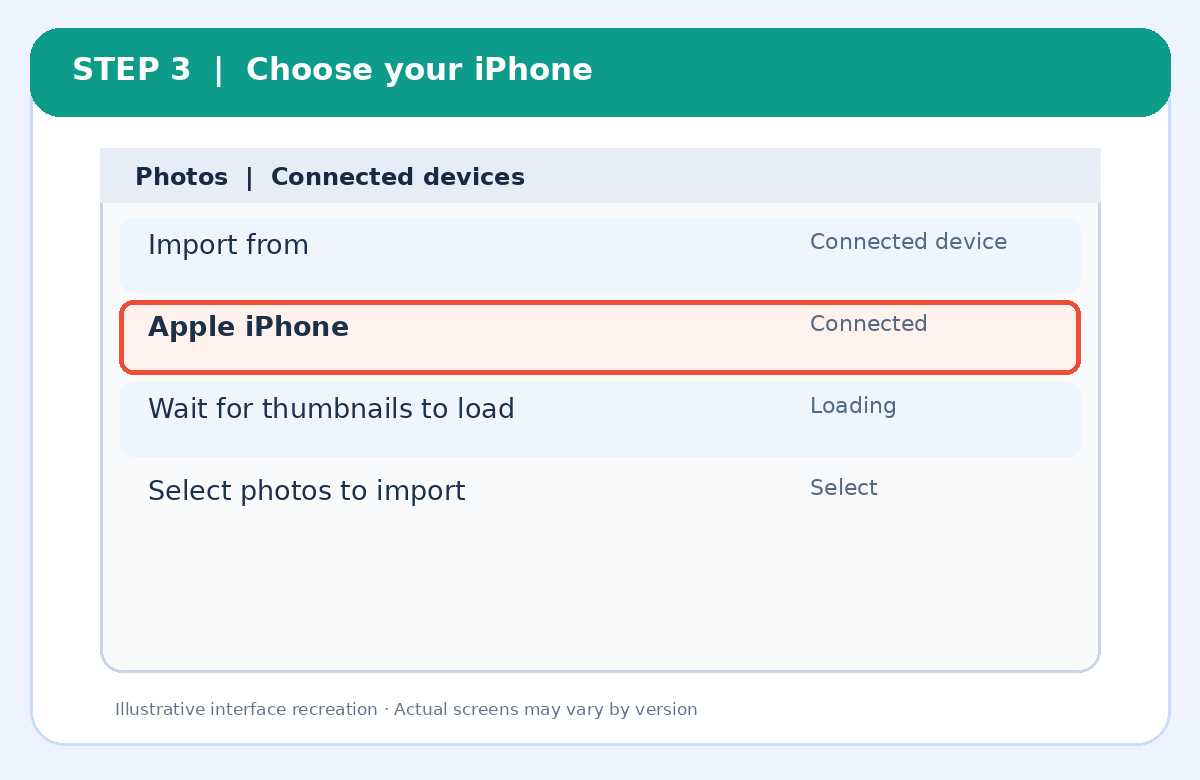
Step 3: Select the connected iPhone
Choose your iPhone from the available connected devices. Allow time for thumbnails to load. Keep the phone unlocked and connected while Windows reads the photo library.
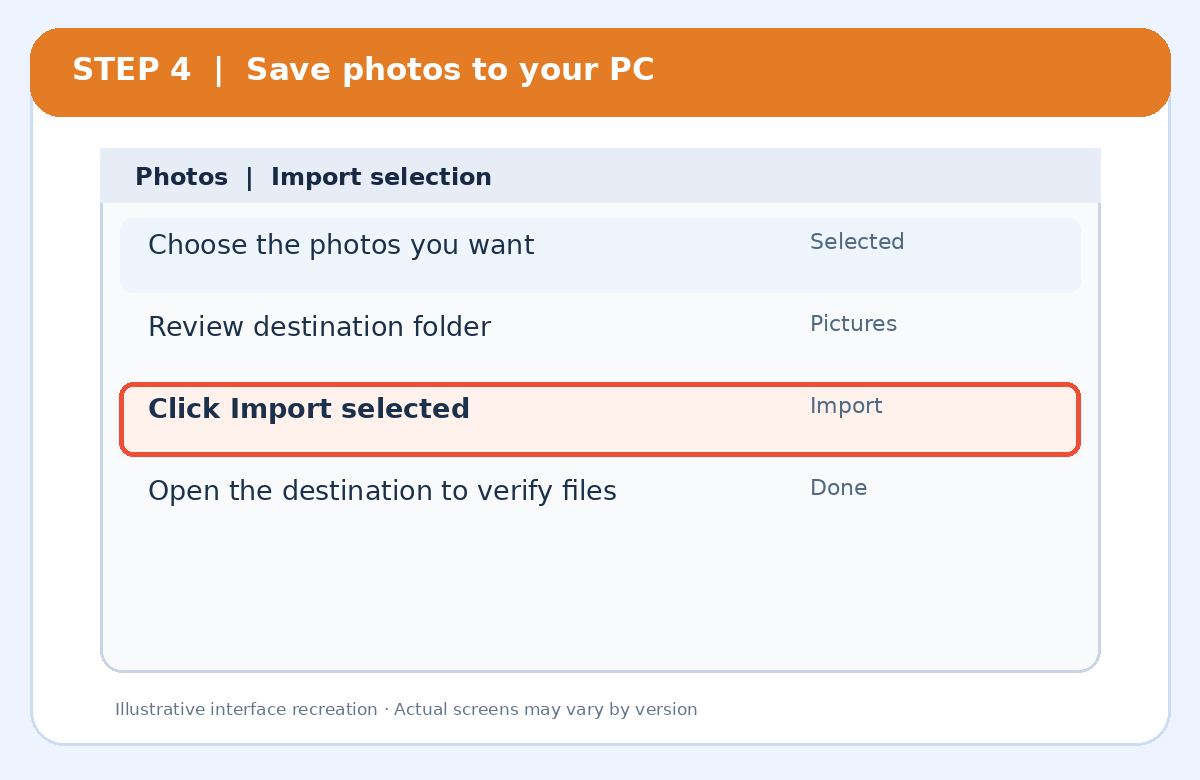
Step 4: Choose pictures and import
Select the photos and videos you want. Review the destination folder and start the import. When it finishes, open the folder to confirm your files are present before deleting anything from the iPhone.
Alternative: Use iCloud Photos
If you prefer a wireless option, enable iCloud Photos on your iPhone and access your library through iCloud Photos on the web or Apple’s iCloud for Windows app. This requires enough iCloud storage and an internet connection.
Troubleshooting: iPhone not showing up?
- Unlock your iPhone and respond to the trust prompt.
- Try a different USB data cable and USB port.
- Restart both devices and update Windows Photos.
- Check whether photos are stored only in iCloud and need downloading.
- If needed, consult Apple Support or Microsoft Windows Support.
Frequently asked questions
Does transferring photos delete them from my iPhone?
No. Importing generally copies them. Do not delete originals until you have checked the copies and your backups.
Can I transfer photos without a cable?
Yes. iCloud Photos is one option, but it depends on your settings, internet access and available cloud storage.
Why are some photos missing?
Photos optimized for iCloud storage may not have full originals stored locally on the phone. Download originals or use iCloud Photos to retrieve them.