How to Free Up Storage on iPhone (Without Losing Data)
Running low on space? This guide explains how to free up storage on iPhone safely, using built-in iOS tools before you consider deleting anything important.
Before you begin: Back up irreplaceable photos and files to iCloud or a computer. iOS menus may vary slightly by version.
Quick overview
- Check the storage breakdown
- Use built-in storage recommendations
- Offload rarely used apps
- Review duplicate photos and deleted items
Step 1: Check what is using your storage
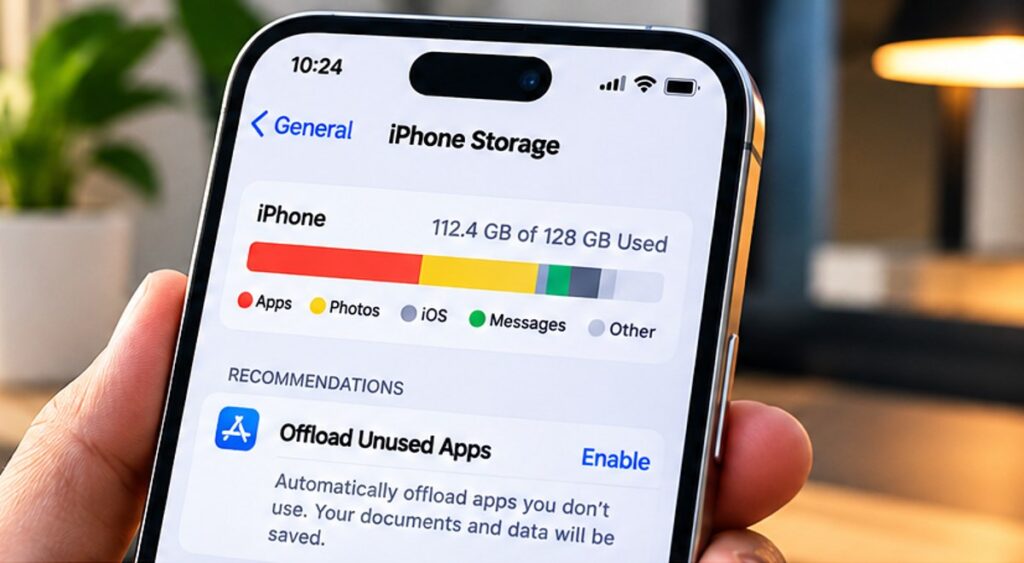
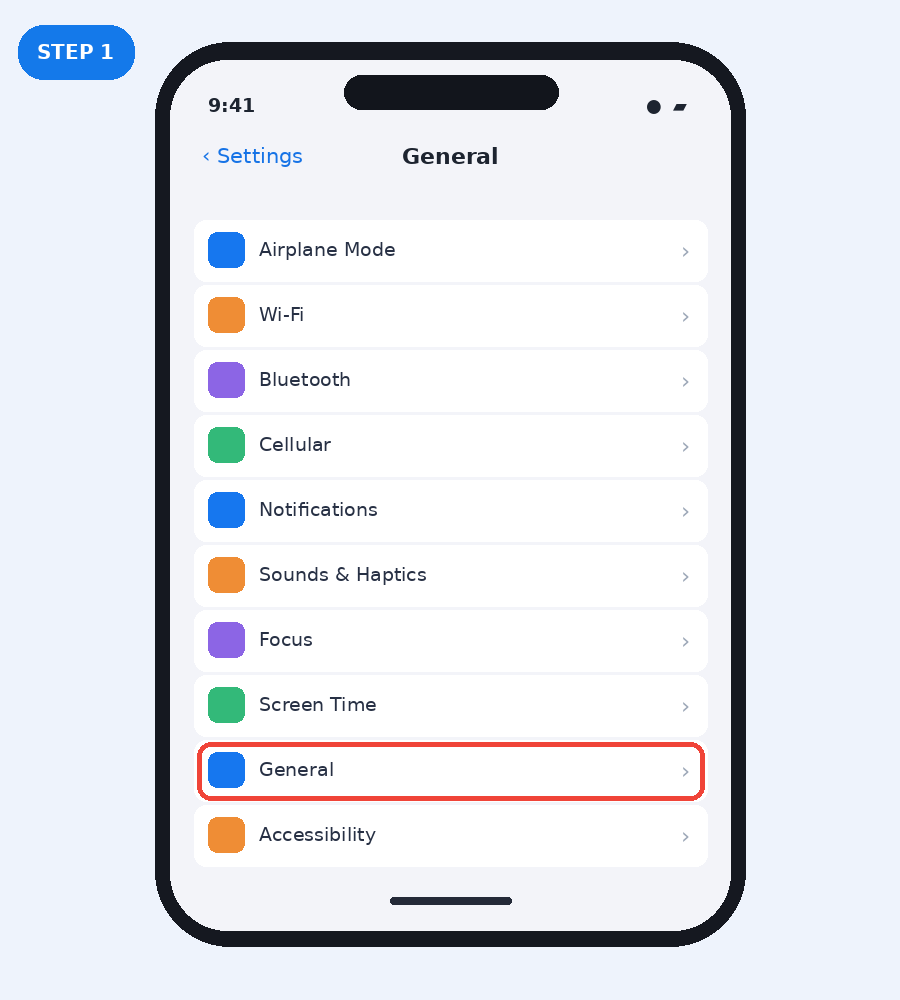
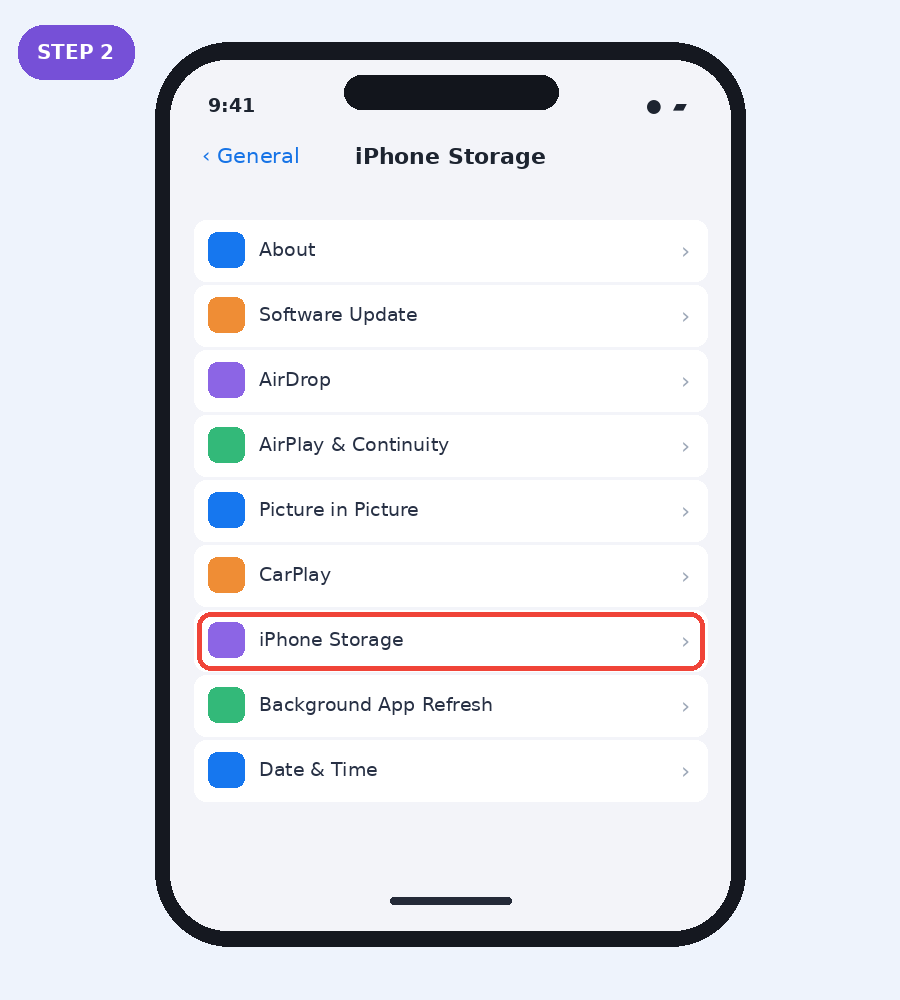
Open Settings → General → iPhone Storage. Wait for the storage chart and app list to load. Look at the largest categories first. Photos, videos, downloaded media and messaging attachments are often major contributors.
Step 2: Review the iPhone Storage recommendations
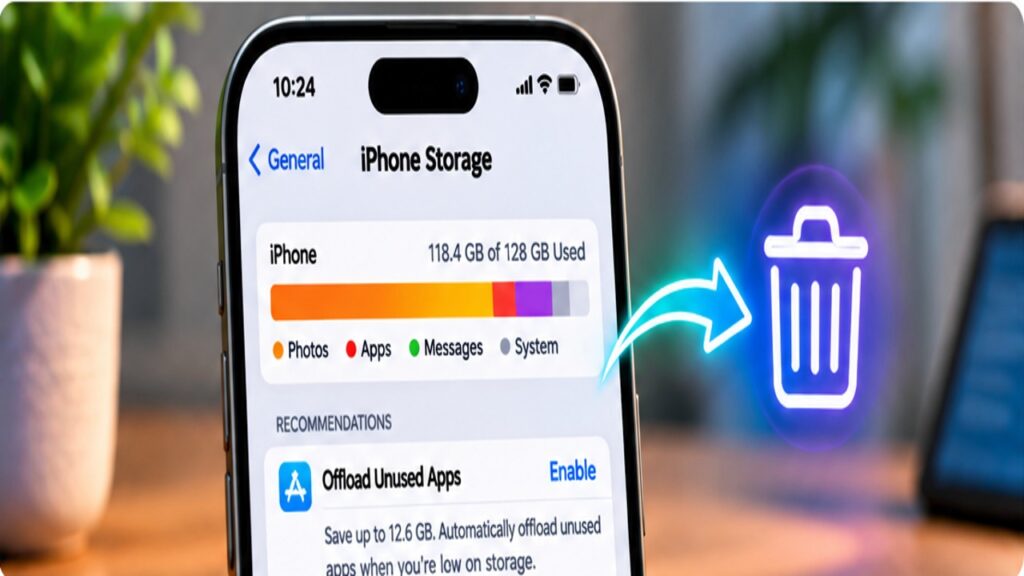
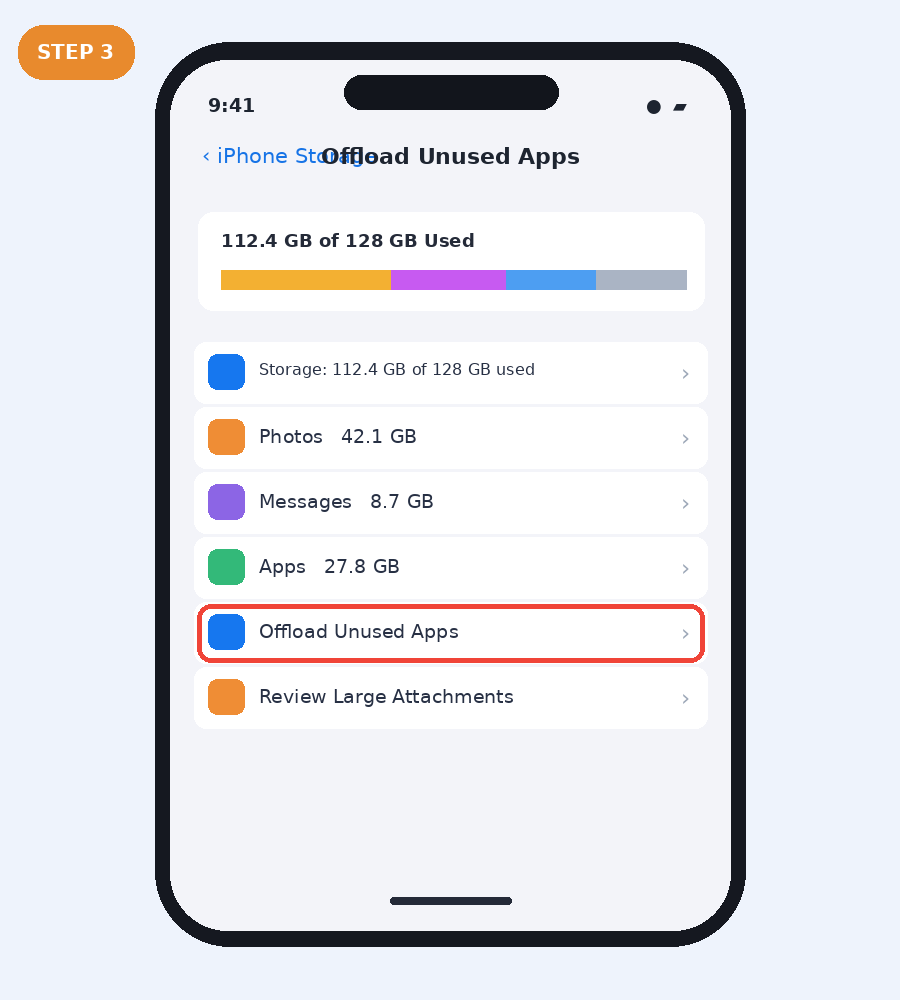
On the iPhone Storage screen, review Apple’s recommendations. Options may include Offload Unused Apps or reviewing large attachments. Read each recommendation before enabling it; available options vary by iOS version.
Step 3: Offload an app instead of deleting its data
In Settings → General → iPhone Storage, select an app you rarely use and tap Offload App if available. Offloading removes the app itself but keeps its documents and data. Reinstalling normally restores access to that data, provided the app remains available.
Step 4: Find duplicate photos and review Recently Deleted
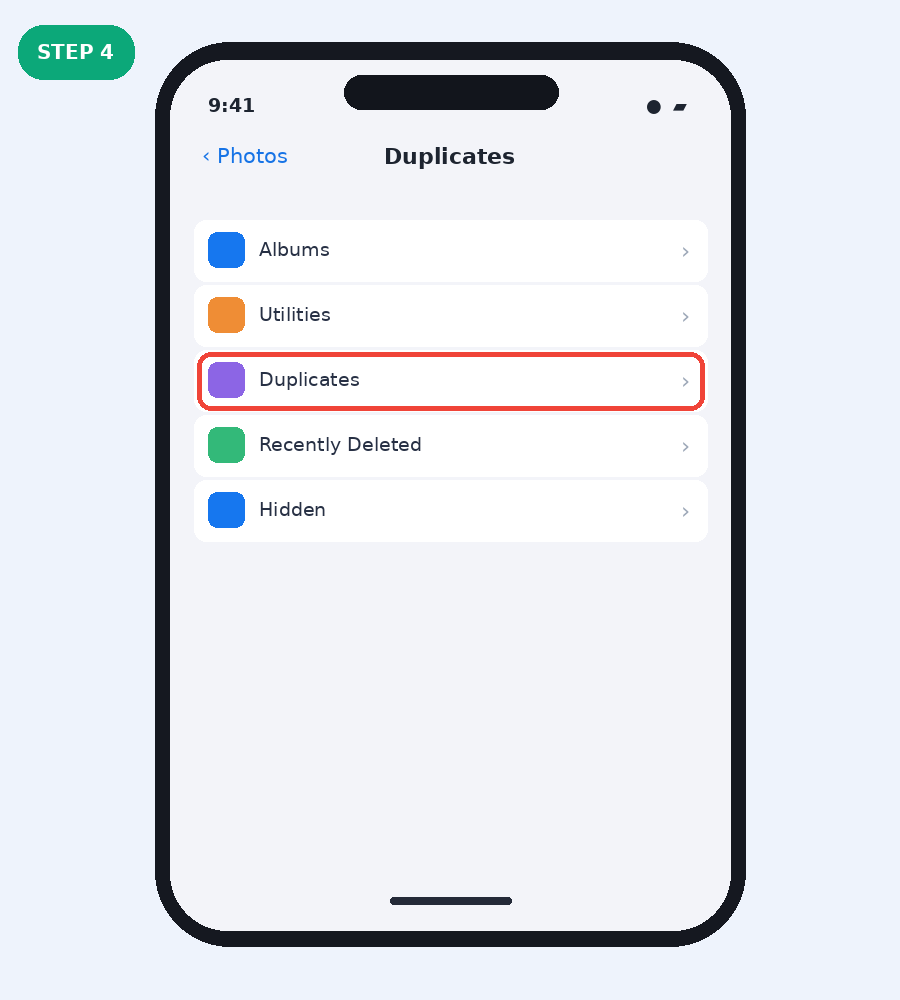
Open Photos and find Duplicates under Utilities (its location depends on your iOS version). Review suggested merges carefully. Check Recently Deleted only after confirming you no longer need the photos: permanently deleting items cannot be undone.
Other ways to reclaim space
Remove offline downloads from streaming apps, review large Messages attachments, and move photos to a verified backup before deleting local copies. Deleting an app may also remove its local data; choose Offload App when you want to keep documents and settings.
Frequently asked questions
Does offloading an app delete my data?
Offloading is designed to keep the app’s documents and data while removing the app binary. Some app-specific behavior may vary.
Will deleting photos free space immediately?
Photos may remain in Recently Deleted for a period before permanent removal. With iCloud Photos enabled, deleting a photo can also remove it from your synced devices.
Can I clear the cache of every iPhone app?
No. iOS does not offer one universal cache-clearing button for all apps. Some apps provide their own storage controls.
Official guidance
For current instructions, consult Apple iPhone Support and Apple’s iPhone User Guide.