How to Transfer Photos from Android to PC
You can copy Android photos to a Windows computer with a USB data cable or download backed-up photos through Google Photos. This guide starts with the direct USB method.
Before you begin: Menu names may differ slightly by device, app version and region. Back up important data before making destructive changes.
What you will learn
- Connect your Android phone with a data USB cable
- Select File transfer on your phone
- Open the phone in Windows File Explorer
- Copy photos to a folder and verify them
Step 1: Connect your Android phone with a data USB cable
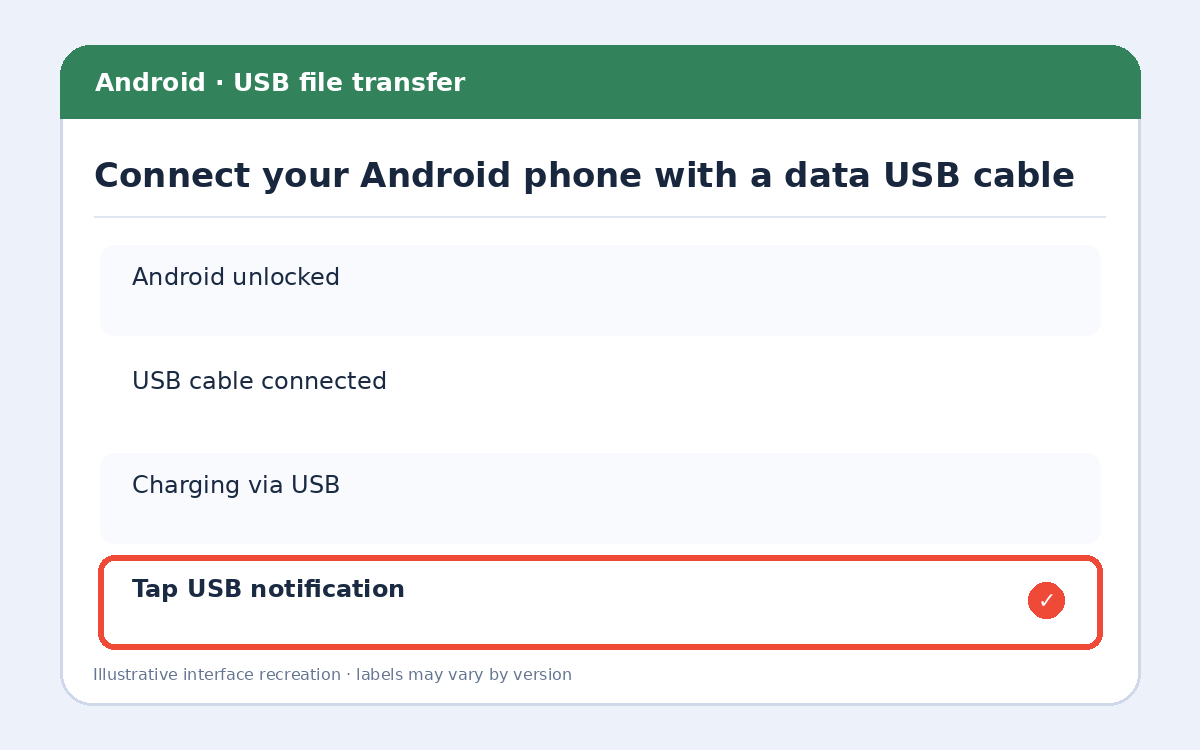
Unlock the phone and connect it to your Windows PC using a USB cable that supports data transfer. Some cables only charge devices and cannot transfer files.
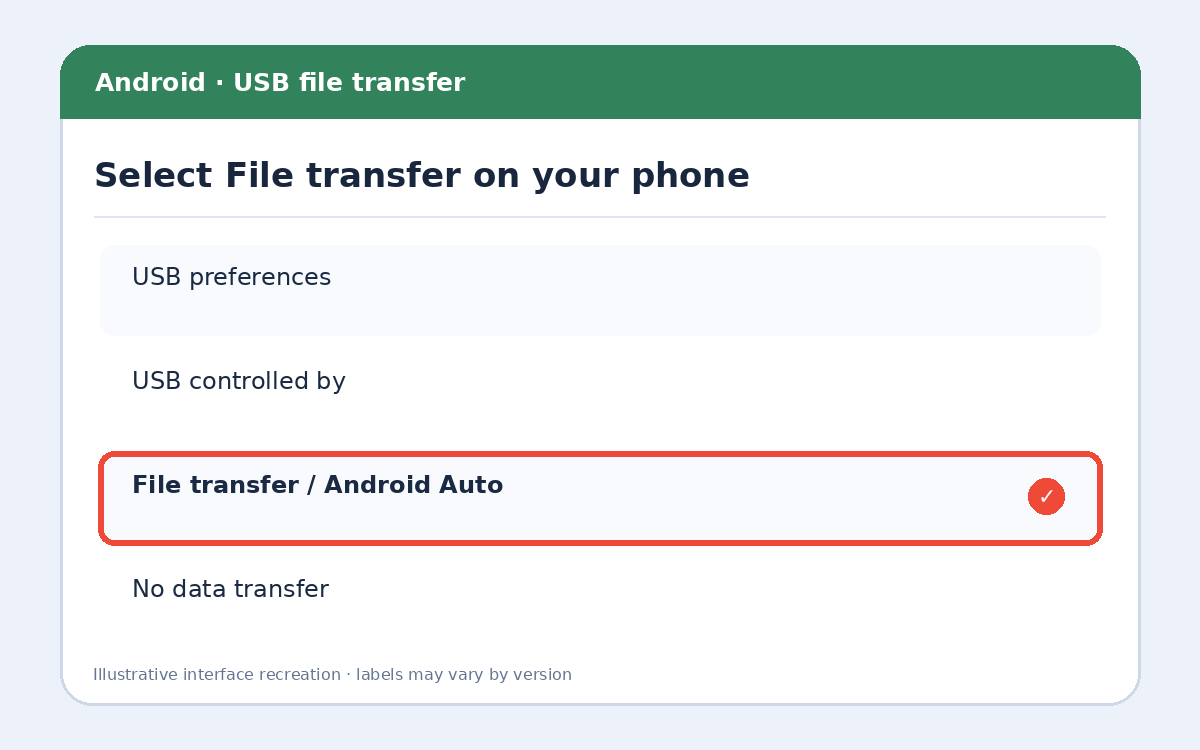
Step 2: Select File transfer on your phone
Tap the USB notification and select File transfer (sometimes called MTP or Transferring files). Labels vary between Samsung, Pixel and other Android phones.
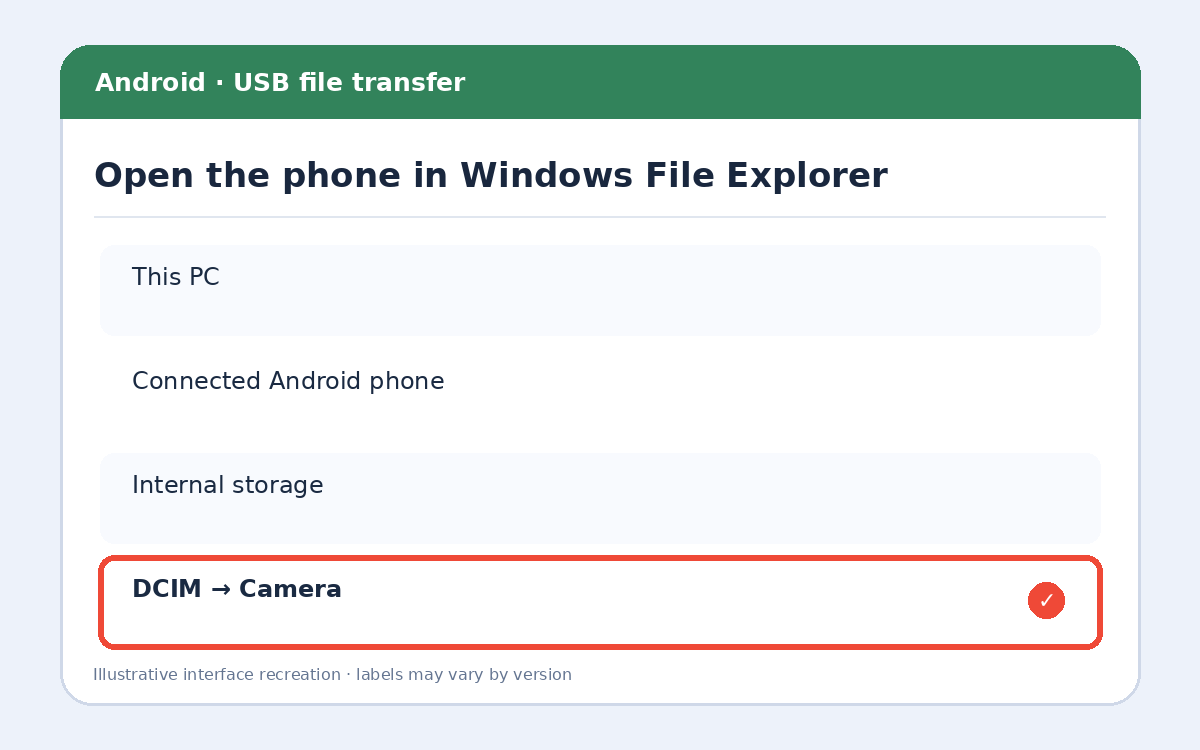
Step 3: Open the phone in Windows File Explorer
Press Win + E, choose This PC and open your connected Android device. Browse Internal storage → DCIM → Camera. Screenshots may be in Pictures → Screenshots.
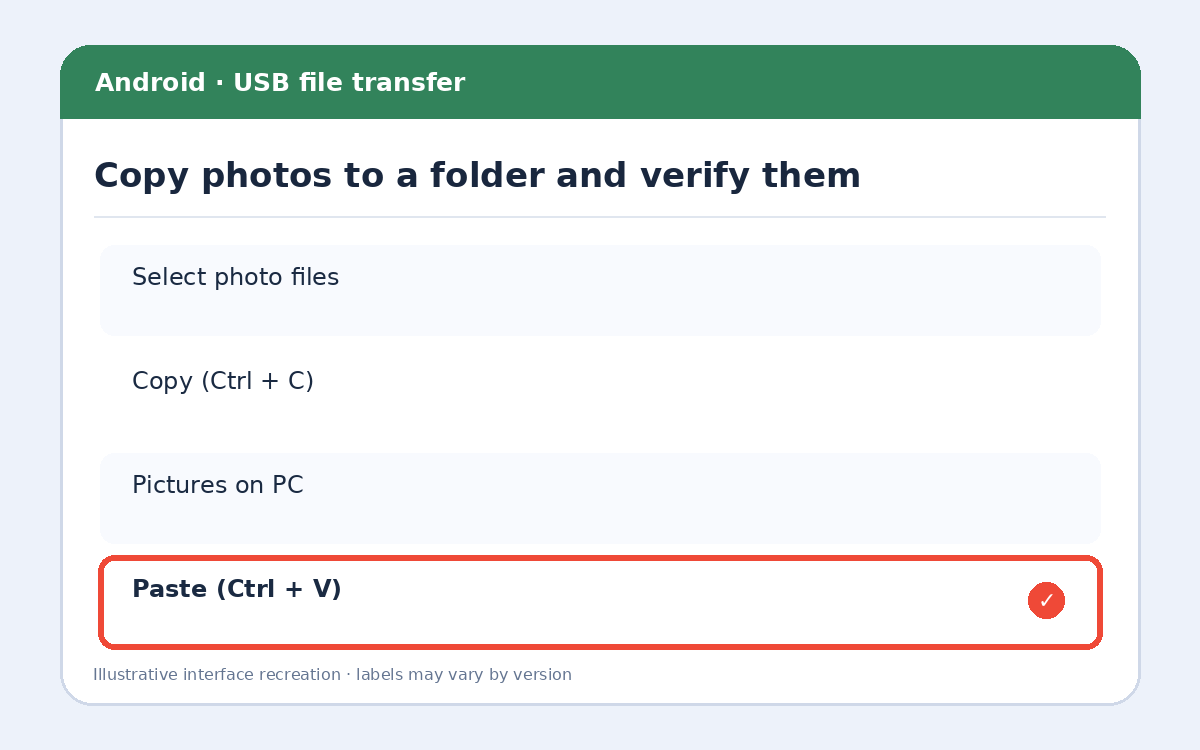
Step 4: Copy photos to a folder and verify them
Select photos, press Ctrl + C, open a destination folder on the PC and press Ctrl + V. Open a few copied images before deleting anything from your phone. Safely disconnect when done.
Extra tips and important precautions
Alternative: If your photos are backed up to Google Photos, visit photos.google.com on your PC and download the originals you need. Check that backup is complete before removing any files from your phone.
Frequently asked questions
Why does my PC only charge my Android phone?
Try a data-capable USB cable, unlock the phone and select File transfer in USB preferences.
Where are Android camera photos stored?
Most are in Internal storage/DCIM/Camera, but some apps save media elsewhere.
Does copying photos delete them from Android?
No. Copying keeps the originals unless you deliberately move or delete them.
More useful HowTrekker tutorials
Explore our other guides on HowTrekker for practical step-by-step technology help.
Official reference
Check the official support documentation for the latest interface and policy details.