Want to find hidden apps on Samsung Android? Samsung One UI can hide app icons from the Home and Apps screens without uninstalling the apps. Here is how to find the hidden-app list and restore an icon.
Before you begin
These instructions focus on Samsung Galaxy phones using One UI. Menus may vary by device and software version. The images are AI-generated interface illustrations, not captured screenshots.
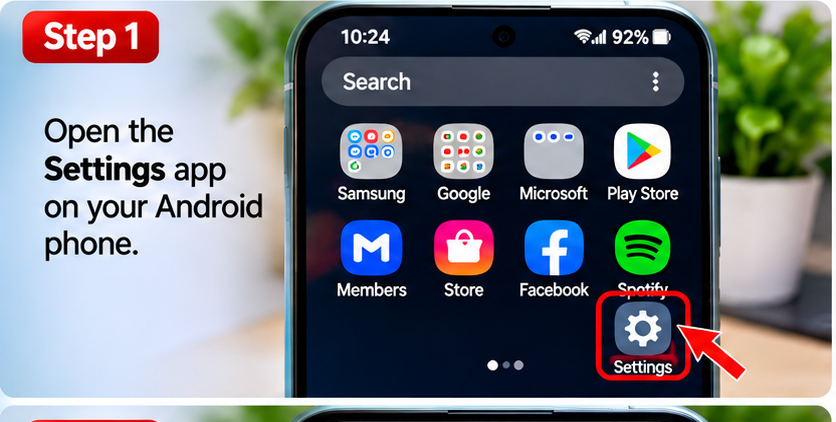
Step 1: Open the Settings app
On your Samsung Galaxy phone, open the app drawer and tap the gear-shaped Settings icon. You can also swipe down twice and tap the Settings gear.
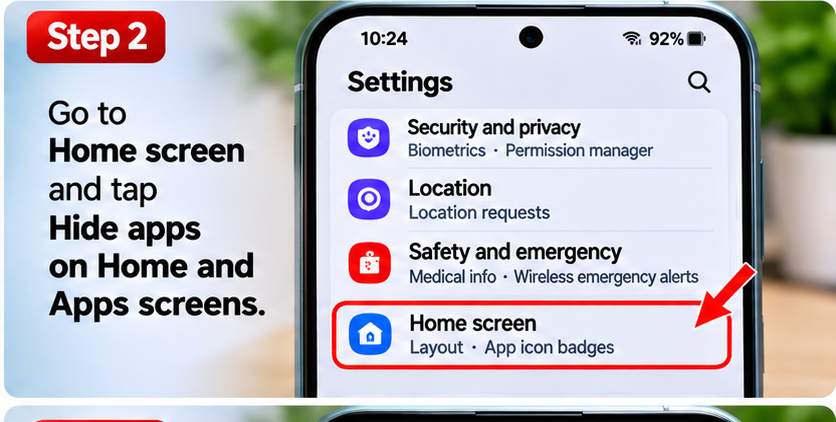
Step 2: Open Home screen settings
In Settings, scroll to Home screen and tap it. On some One UI versions, the option may appear in a different position.
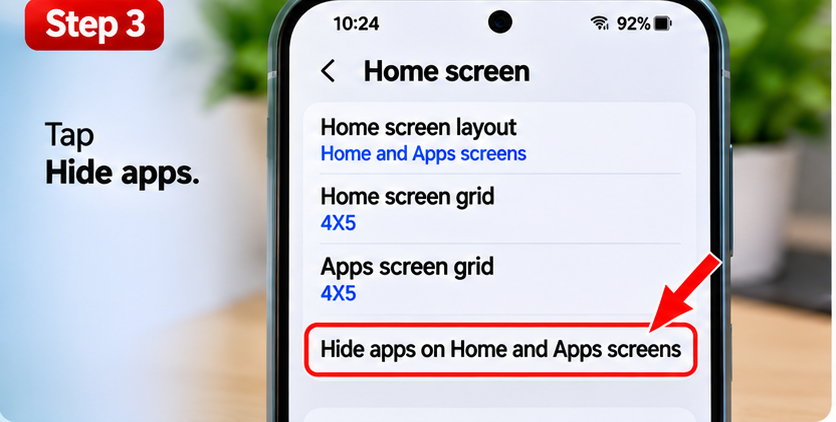
Step 3: Find the Hide apps option
Select Hide apps on Home and Apps screens. This opens Samsung’s launcher settings for hiding app icons.
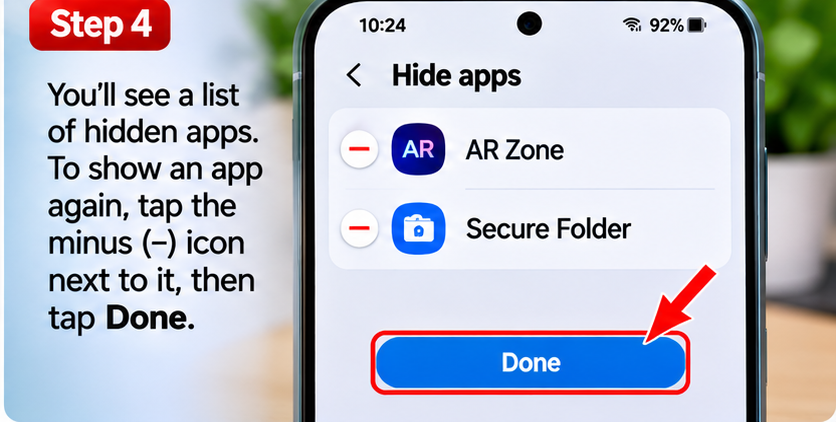
Step 4: Review and unhide apps
Look at the apps listed as hidden. To show an app again, tap its minus (−) icon or deselect it, then tap Done. The exact selection controls can differ by One UI version.
What if the app is not in the hidden-app list?
Go to Settings → Apps and search for the app. If it is installed but disabled, the app details screen may offer an Enable button. Some apps may be inside Secure Folder, which is separate from the launcher’s Hide apps feature. A third-party launcher can also have its own hidden-app settings.
Frequently asked questions
Does hiding an app delete its data?
No. Hiding the icon does not uninstall the app or delete its data.
Can I find hidden apps on every Android phone using these steps?
No. This walkthrough is specific to Samsung One UI. Google Pixel and other Android phones may use different launchers and settings.
Why is Secure Folder not the same as Hide apps?
Secure Folder is a separate protected space for apps and data. Apps inside it are not necessarily listed in the regular launcher’s hidden-app settings.
Official help
For device-specific options, see Samsung Support.