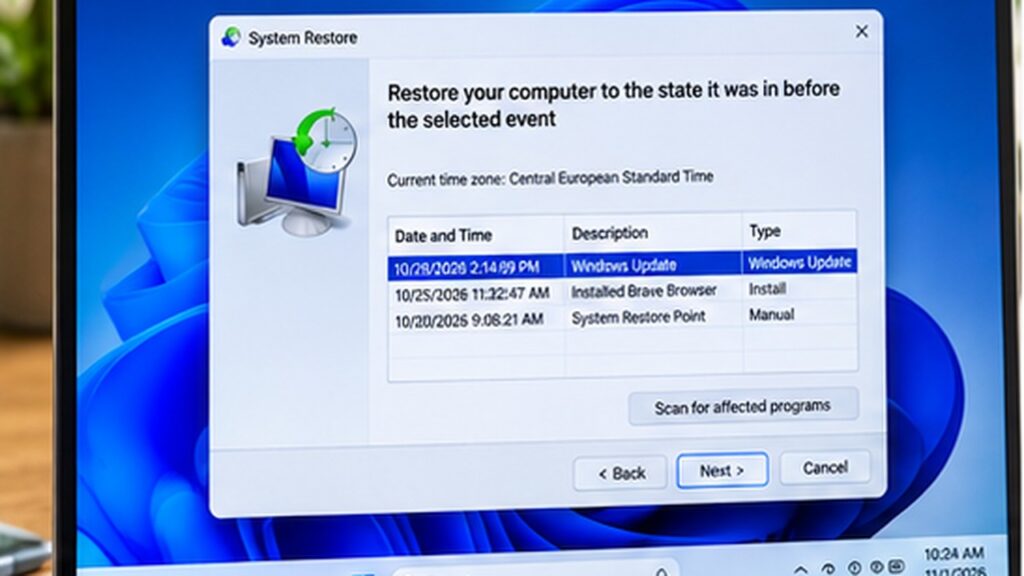
A restore point can help you undo certain Windows system changes without removing your personal documents. Create one before installing risky drivers or changing system settings.
Before you begin
Keep your device updated and follow the steps in order. Menus can differ slightly by software version and manufacturer.
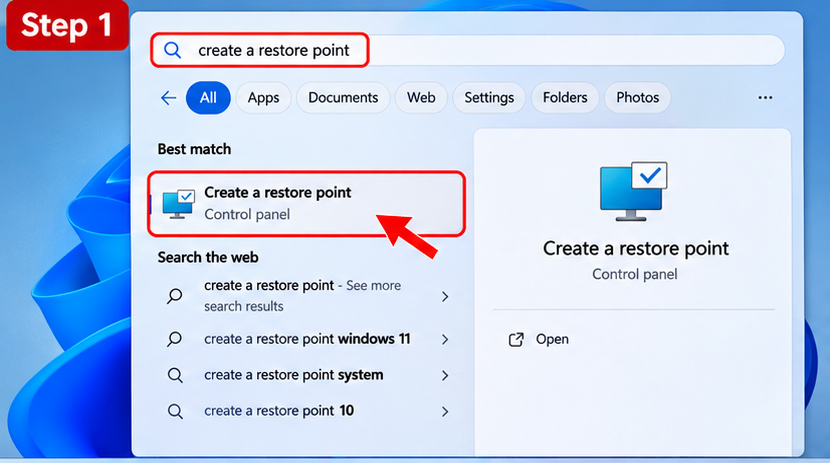
Step 1: Open System Protection
Press Windows + S, type Create a restore point, and open the matching Control Panel result.
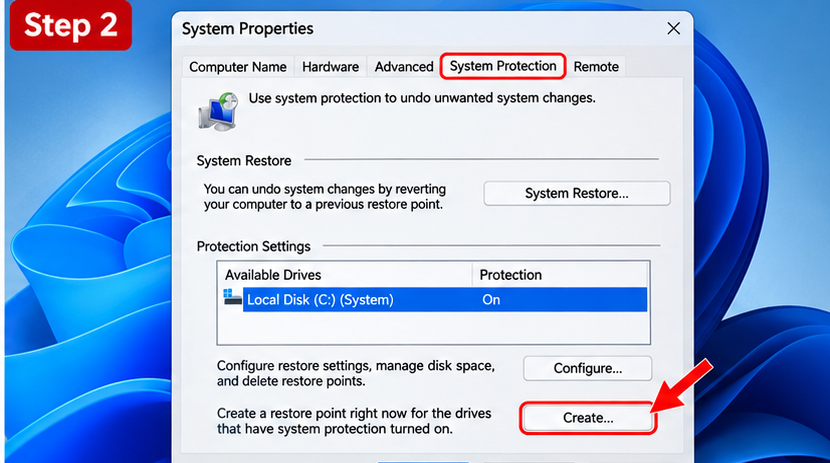
Step 2: Choose the system drive
In the System Properties window, open the System Protection tab and select your Windows drive, usually C:.
Step 3: Enable protection if necessary
If protection is Off, select Configure, choose Turn on system protection, set a sensible disk-space limit, and select Apply.
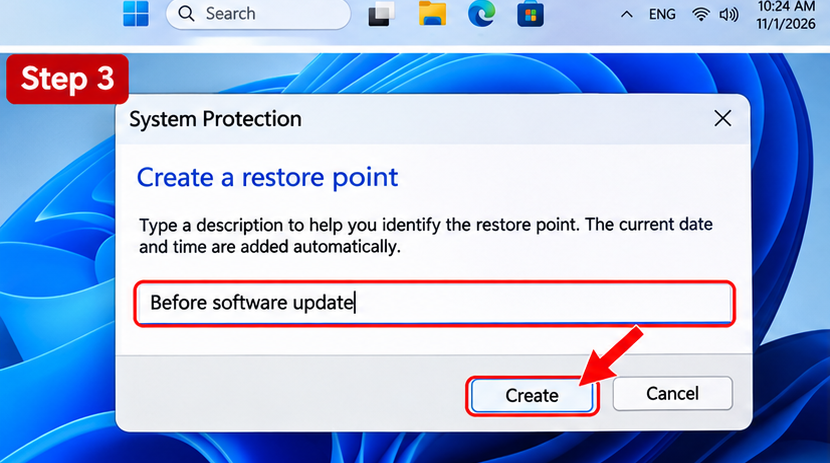
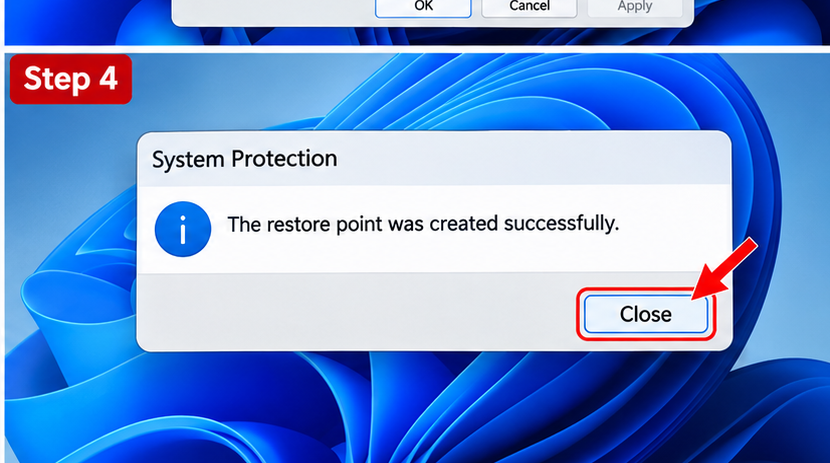
Step 4: Create the restore point
Select Create, enter a descriptive name such as Before driver update, and wait for Windows to confirm completion.
Important notes
Restore points are not full backups. Keep a separate backup of important files. Windows may delete older restore points as space is needed.
Frequently asked questions
Will a restore point recover deleted photos?
No. Use File History, OneDrive, or another file backup for personal files.
What if the Create button is disabled?
Turn on System Protection for the system drive first.
Official resources
Last reviewed: November 2026. Check your device software version if the labels shown here are different.