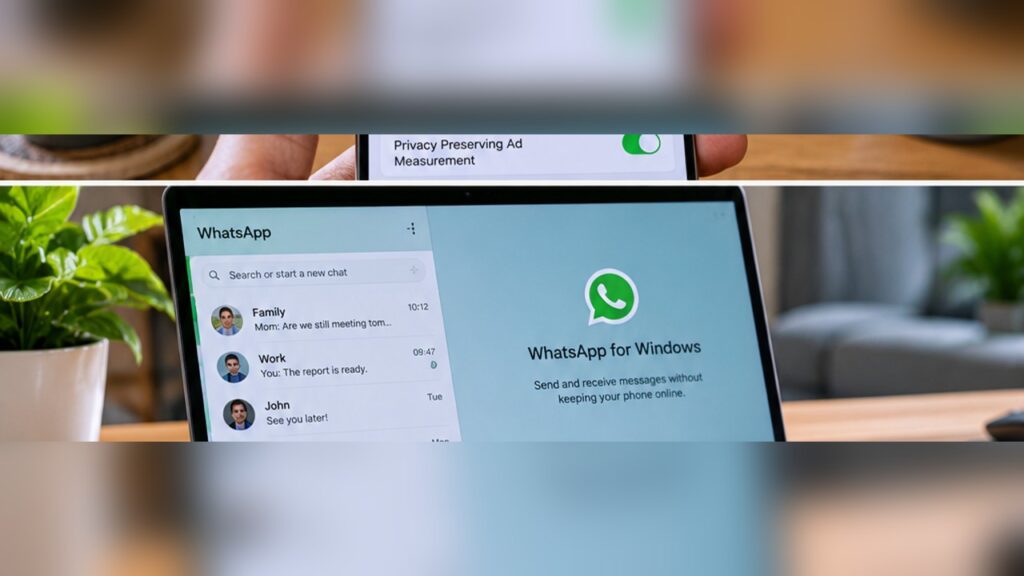
How to Use WhatsApp Desktop on Windows — WhatsApp Desktop lets you message from your Windows PC using a linked account, without keeping the web browser open.
This guide explains how to use WhatsApp Desktop on Windows with straightforward instructions. Check the on-screen labels on your own device before proceeding.
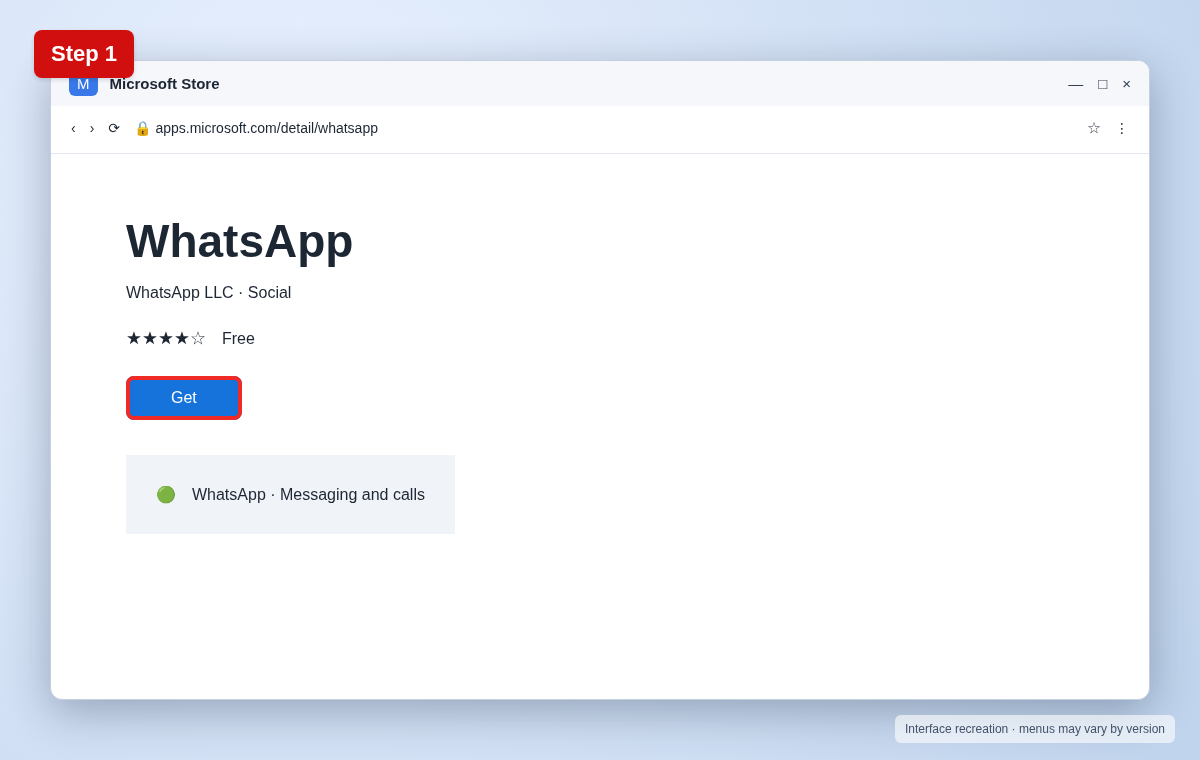
Step 1: Install the official WhatsApp app
Open Microsoft Store, search for WhatsApp, and install the app published by WhatsApp. Avoid third-party download sites.
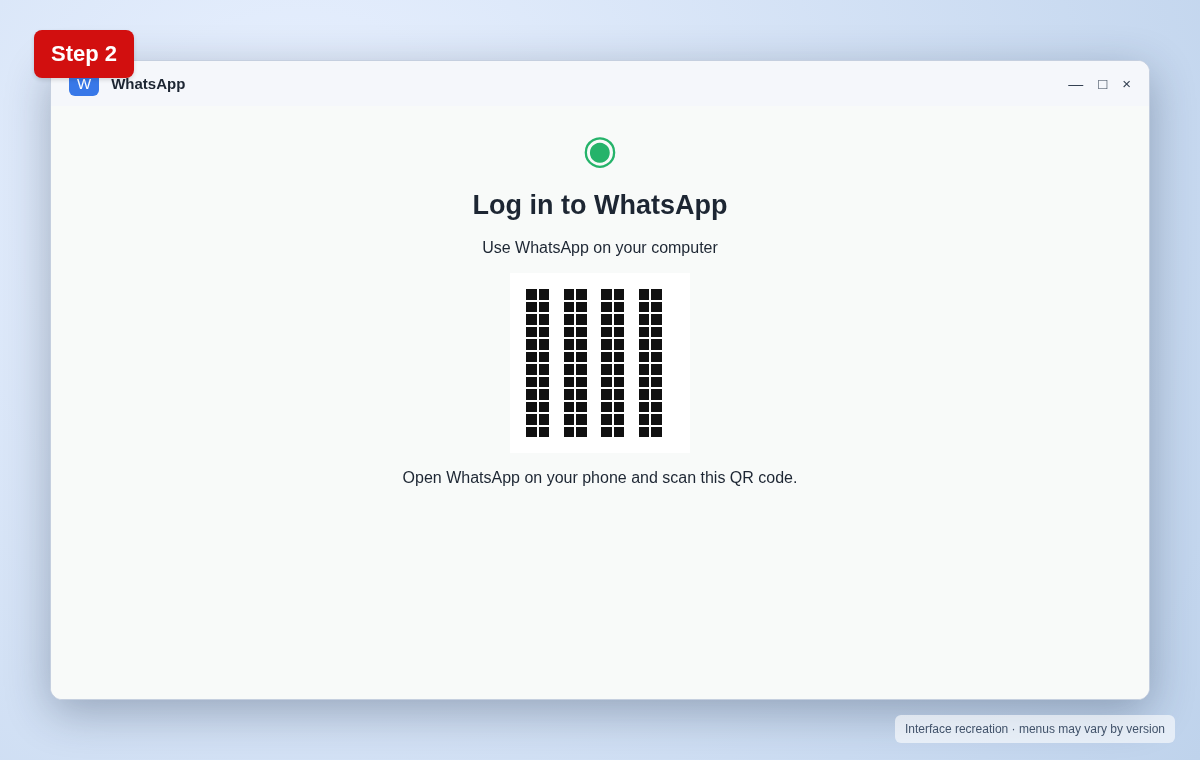
Step 2: Open WhatsApp Desktop
Launch the app from Start. It displays a QR code to link your existing WhatsApp account.
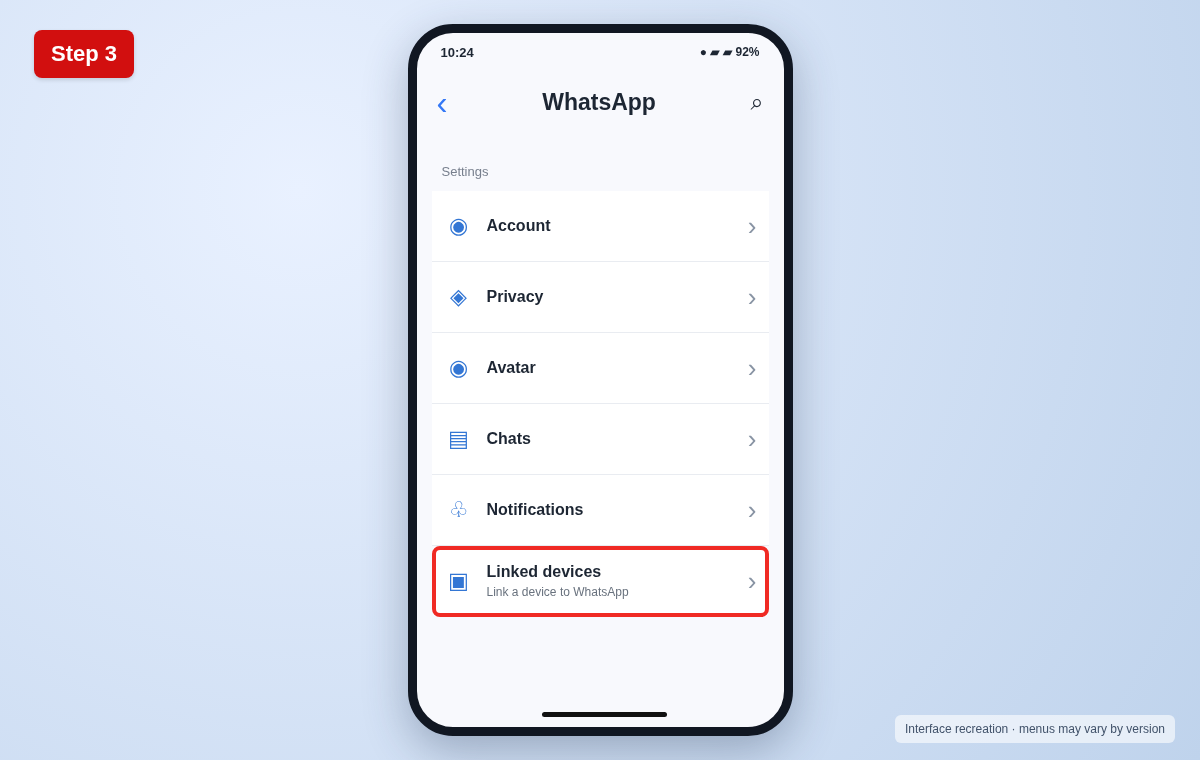
Step 3: Open Linked devices on your phone
On Android, open WhatsApp, tap the three-dot menu, and choose Linked devices. On iPhone, open WhatsApp Settings and tap Linked Devices.
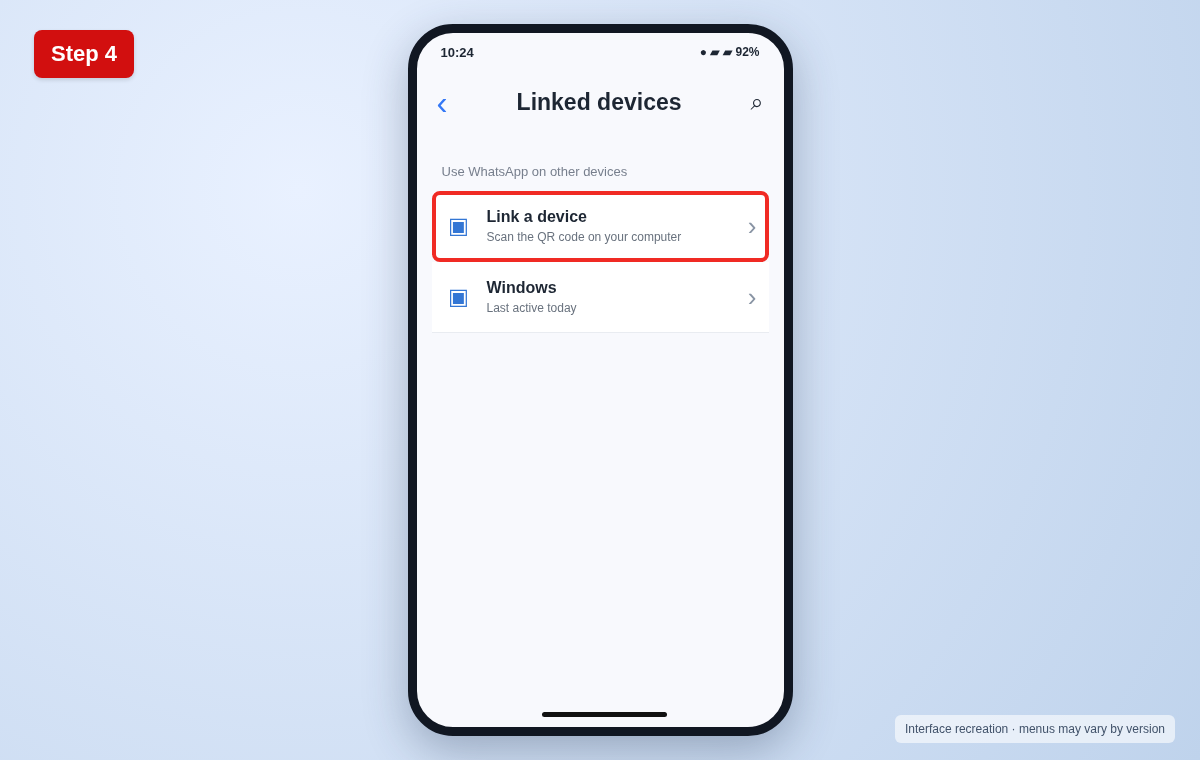
Step 4: Scan the QR code
Tap Link a device and scan the QR code displayed in the Windows app. Approve any security prompt and wait for your chats to sync.
Useful tips and precautions
Use official apps and device settings where possible. Before changing important settings, note your original configuration. If your device shows different labels, use its built-in Settings search or consult the manufacturer’s documentation.
Frequently asked questions
Do I need to keep my phone connected?
WhatsApp supports multi-device use, although you must periodically use WhatsApp on your primary phone to keep linked devices active.
Can I use WhatsApp on two computers?
Yes, subject to WhatsApp’s current linked-device limits.
How do I log out of a shared PC?
Open Linked devices on your phone, select that computer, and choose Log out.
Final thoughts
Now you know how to use WhatsApp Desktop on Windows. If a menu looks different, check your device’s software version and look for the equivalent option rather than guessing.