This step-by-step guide explains how to recover recently deleted photos on iphone with illustrated interface examples. Menus may vary by device, software version and account.
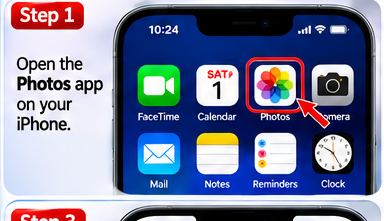
Step 1: Open Photos
Launch the Photos app on your iPhone.
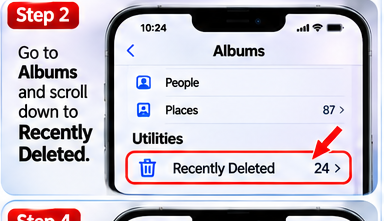
Step 2: Find Recently Deleted
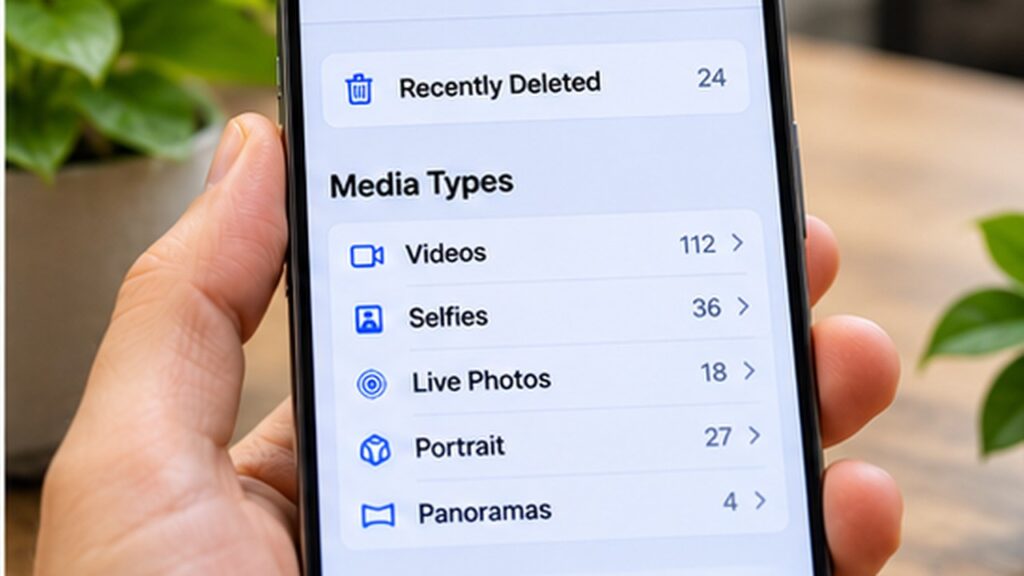
Scroll to Utilities and select Recently Deleted. On some iOS versions it appears under Albums. Unlock the album with Face ID, Touch ID, or your passcode.
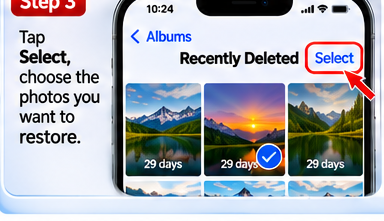
Step 3: Select photos
Tap Select and choose the photos you want back.
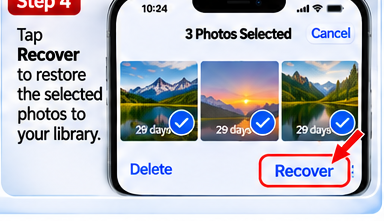
Step 4: Recover your photos
Tap Recover and confirm. Recently Deleted usually keeps photos for 30 days before permanent deletion.
Helpful tips
If your screen looks different, use the app or Settings search feature to find the equivalent option. Update the app or operating system if a feature is missing.
Frequently asked questions
Why does my screen look different?
Software updates and device-specific interfaces can move or rename controls.
Are these real screenshots?
No. The step images are AI-generated visual guides, not captures from a real device.