Need to update drivers in Windows 11? Drivers help Windows communicate with hardware such as your graphics card, Wi-Fi adapter, printer, and speakers. If a device is malfunctioning, updating its driver may solve the problem. This guide shows three safe methods, when to use each, and how to undo a problematic update.
Before You Start
- Save your work and connect your laptop to power.
- Use a stable internet connection.
- If everything works normally, you do not need to update every driver just because a newer version exists.
- Prefer Windows Update or your PC/device manufacturer’s official support website. Avoid third-party driver updater tools.
Method 1: Update a Driver in Device Manager
This is useful when a particular device is not working correctly. Right-click the Start button (or press Windows + X) and choose Device Manager.
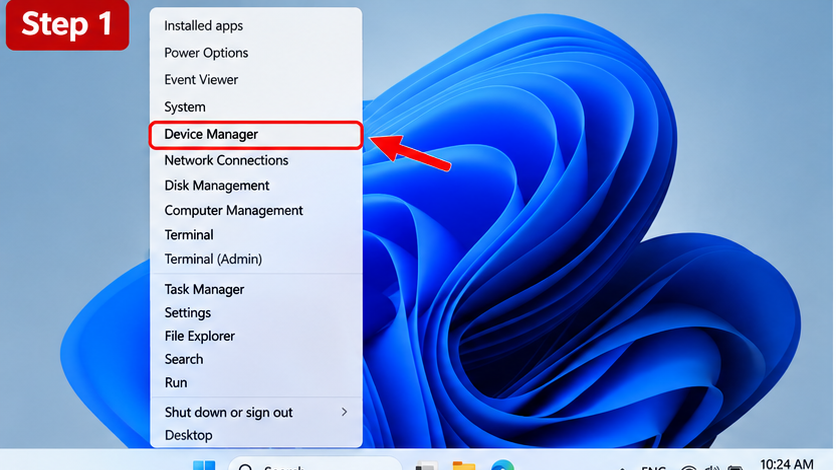
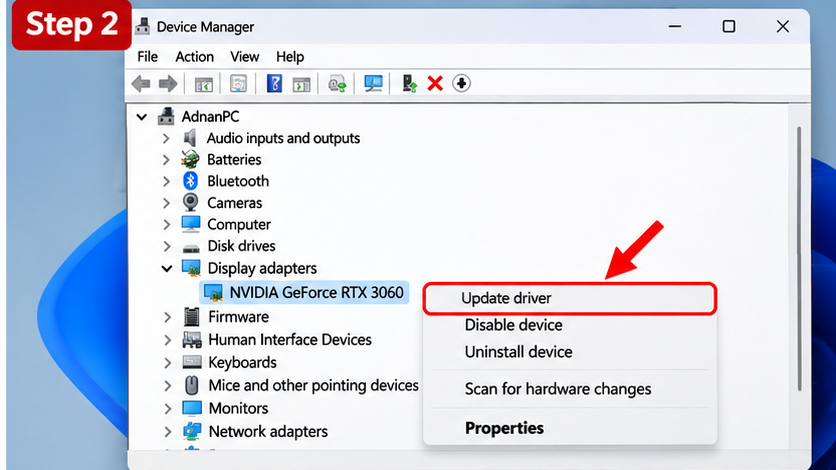
Expand the relevant hardware category, such as Display adapters. Right-click the device and choose Update driver.
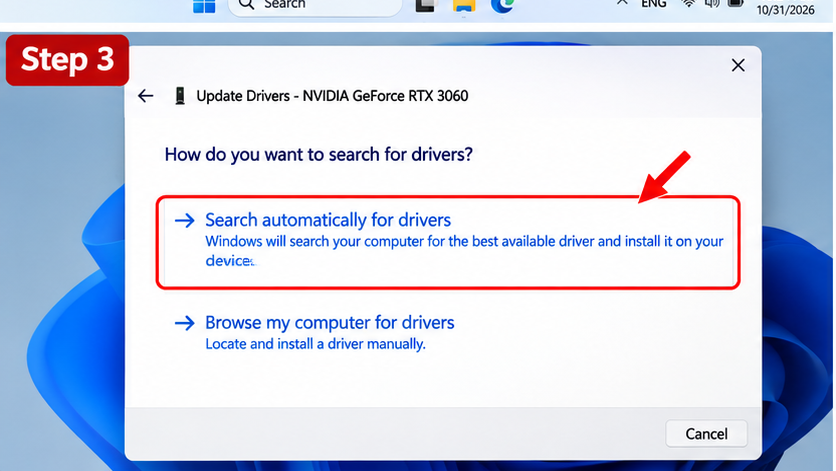
In the Update Drivers dialog, select Search automatically for drivers. Windows checks for a compatible driver and tells you whether one was installed or the best available version is already installed. If none is found, the manufacturer might still offer a newer driver.
Method 2: Check Optional Driver Updates in Windows Update
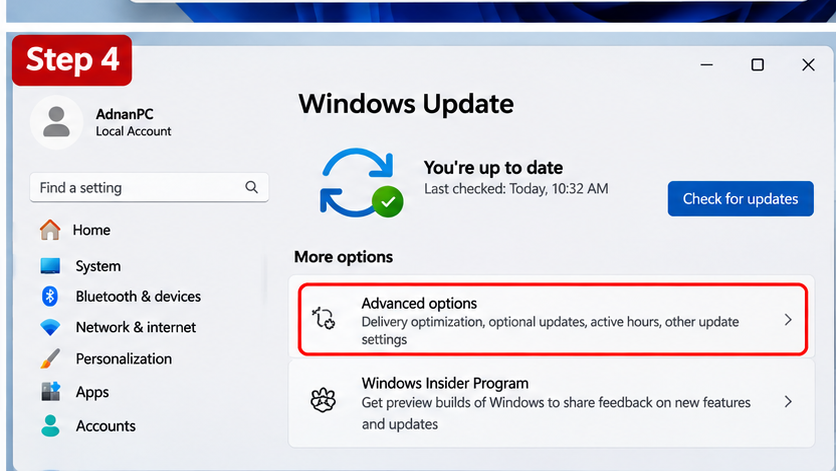
Open Start → Settings → Windows Update → Advanced options. Under Additional options, choose Optional updates if available. Expand Driver updates, select only relevant updates, and choose Download & install. Restart if prompted. The optional updates list may be empty.
Method 3: Download from the Official Manufacturer
For graphics, Wi-Fi, chipset, or laptop-specific drivers, open the official support site for your PC model or hardware manufacturer. Enter the exact model, choose Windows 11, and download the appropriate driver. Run the installer and follow its instructions. Laptop owners should generally check their laptop maker’s support page first for device-specific drivers.
Examples of official sources include Dell Support, HP Support, Intel Driver & Support Assistant, and NVIDIA Drivers. Verify your exact device model before installing anything.
Which Method Should You Choose?
- Windows Update: Best starting point for most users and routine updates.
- Device Manager: Useful for troubleshooting one device.
- Manufacturer’s site: Best when you need a specific newer version or the device maker recommends it.
What If a Driver Update Causes Problems?
Open Device Manager, double-click the device, open Properties → Driver, and select Roll Back Driver if available. If the button is disabled, use the manufacturer’s support resources or Windows recovery options. You can also create a restore point before major changes.
Frequently Asked Questions
Does Windows 11 update drivers automatically?
Yes. Windows Update can install recommended drivers automatically, though optional drivers may require manual selection.
Is a driver updater app necessary?
No. Windows Update and official manufacturer support pages are usually sufficient and safer.
Should I update my graphics driver for games?
If a game requires a newer driver or you are fixing a known issue, check the graphics card manufacturer’s official driver page.
Do I need to restart?
Some updates require a restart; follow the installer or Windows prompt.
Final Tips
Update only what you need, keep a backup of important files, and download drivers from trusted sources. For another Windows troubleshooting guide, see how to speed up Windows 11. Microsoft’s Device Manager driver update guide provides additional official instructions.