Need to clear cache and cookies in Google Chrome? This step-by-step HowTrekker guide explains what to do, what to check first, and how to avoid common mistakes.
Visual note: The illustrations below are AI-generated interface examples, not official screenshots. Menu names and positions may differ across versions.
Before you start
Make sure your device or browser is updated and you have access to the settings or account needed for the task. Read the notes below before deleting data or installing updates.
Visual overview
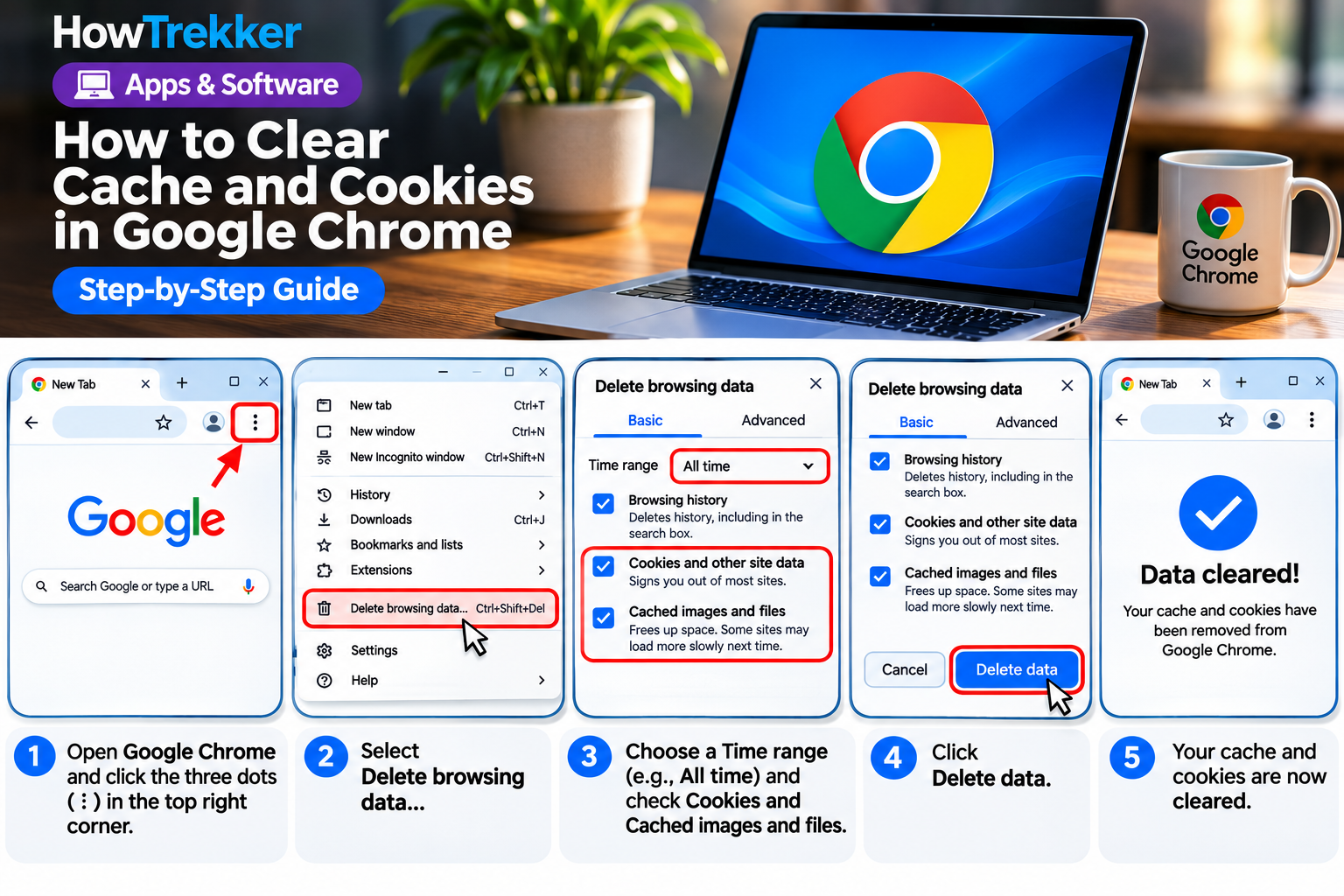
The complete illustrated guide is available below. The screens are AI reconstructions rather than official product screenshots.
Step 1: Open the Chrome menu
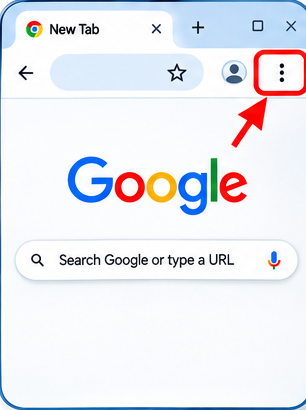
Click the three dots in the upper-right corner of Google Chrome.
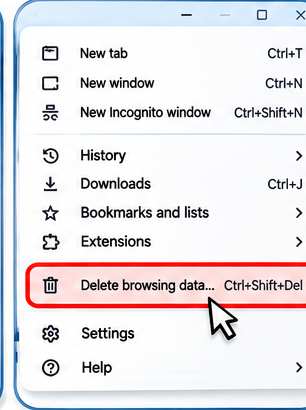
Step 2: Choose Delete browsing data
Choose Delete browsing data, or use Ctrl+Shift+Delete (Windows) or Command+Shift+Delete (Mac).
Step 3: Select a time range and data
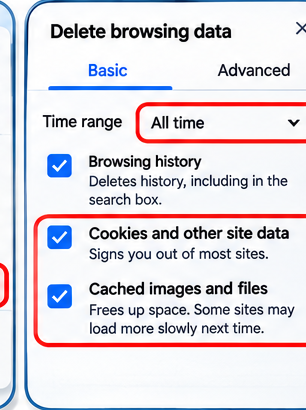
Select a time range and check Cached images and files. Select Cookies and other site data only if you accept being signed out of websites. Leave Browsing history unchecked if you want to keep it.
Step 4: Click Delete data
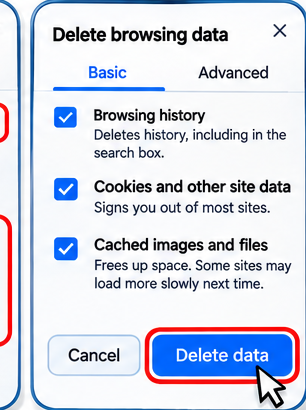
Click Delete data. Do not select passwords or autofill unless you intentionally want to remove those items.
Step 5: Check the website again
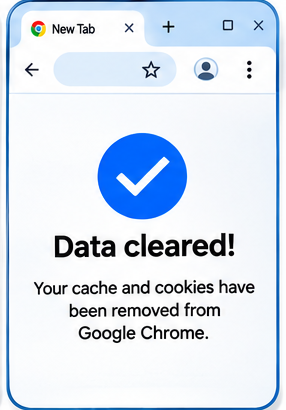
Reload the affected website. Chrome may not display the exact confirmation screen pictured; this is an illustrative end state.
Important tips and common problems
Important: Removing cookies can sign you out of websites and reset site preferences. Clearing cached files may make the first reload slightly slower, but it can resolve outdated or corrupted page resources.
Frequently asked questions
Will clearing Chrome cache delete bookmarks?
No. Clearing cached images and files does not delete your bookmarks.
Should I select All time?
Only if you want to remove the selected types of browsing data from all available dates; try a shorter range first.
Helpful resources
For official instructions, see Google Chrome Help: Delete browsing data.
Explore more step-by-step technology tutorials on HowTrekker.
For more Windows performance tips, read How to Speed Up Windows 11.