Need to update iPhone to the latest iOS version? This step-by-step HowTrekker guide explains what to do, what to check first, and how to avoid common mistakes.
Visual note: The illustrations below are AI-generated interface examples, not official screenshots. Menu names and positions may differ across versions.
Before you start
Make sure your device or browser is updated and you have access to the settings or account needed for the task. Read the notes below before deleting data or installing updates.
Visual overview
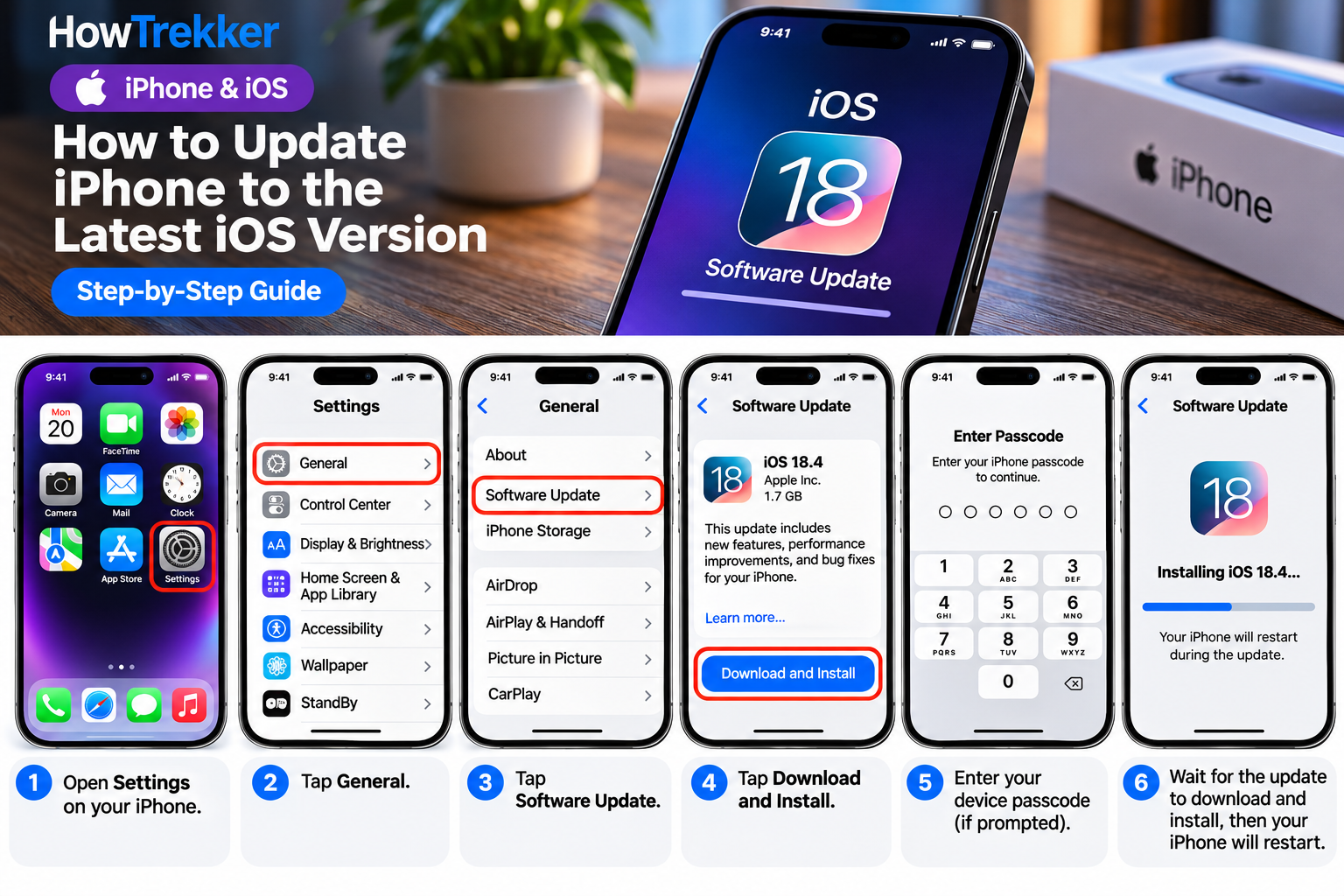
The complete illustrated guide is available below. The screens are AI reconstructions rather than official product screenshots.
Step 1: Open Settings
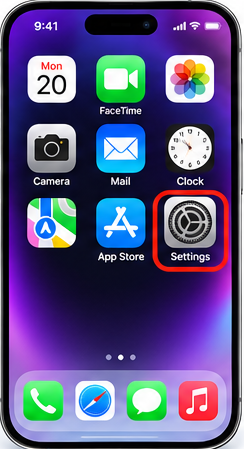
Connect to Wi-Fi and power first. Back up your iPhone, then open Settings.
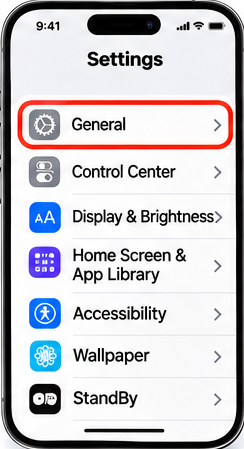
Step 2: Open General
Tap General in Settings.
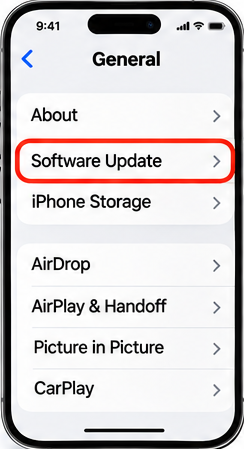
Step 3: Choose Software Update
Select Software Update and allow the phone to check availability.
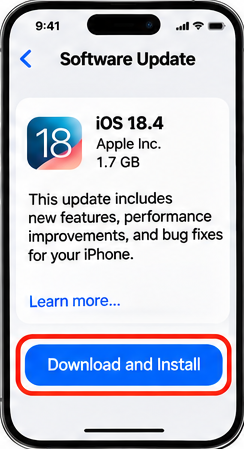
Step 4: Download and install
If an update is offered, choose Update Now or Download and Install. The version in the image is illustrative, not a statement of the current release.
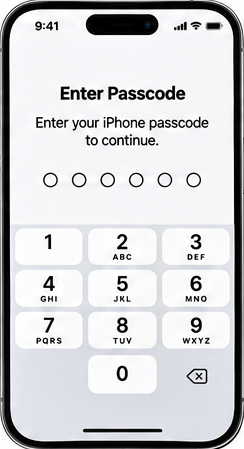
Step 5: Enter passcode if prompted
Enter your device passcode if prompted and follow the onscreen instructions.
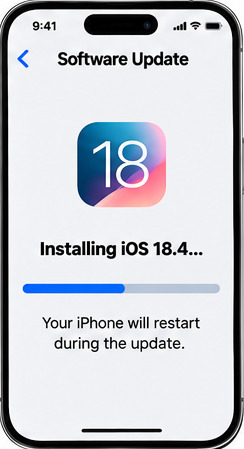
Step 6: Wait for installation and restart
Keep your device charged. Wait for installation and the automatic restart; do not force power off.
Important tips and common problems
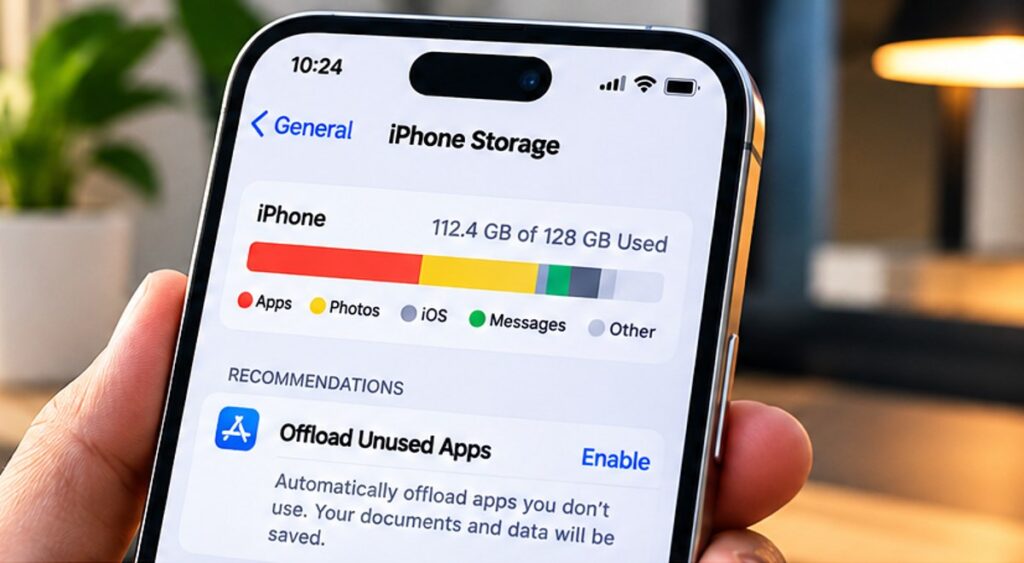
If you do not have enough free space, remove unused downloads or apps first. If an update fails, restart the iPhone and try again on a stable Wi-Fi network. Do not interrupt an installation that is already underway.
Frequently asked questions
Will updating iOS delete my photos?
A normal iOS update is designed to preserve your data, but making a backup beforehand is strongly recommended.
Why can’t I see the latest update?
Your device may be incompatible, the rollout may be delayed, or your network or storage may be limiting the update.
Helpful resources
For official instructions, see Apple: Update your iPhone or iPad.
Explore more step-by-step technology tutorials on HowTrekker.