How to Prevent Cross-Site Tracking on iPhone — Safari includes a privacy setting that helps stop third-party trackers from following your browsing activity across websites.
This guide explains how to prevent cross-site tracking on iPhone with straightforward instructions. Check the on-screen labels on your own device before proceeding.
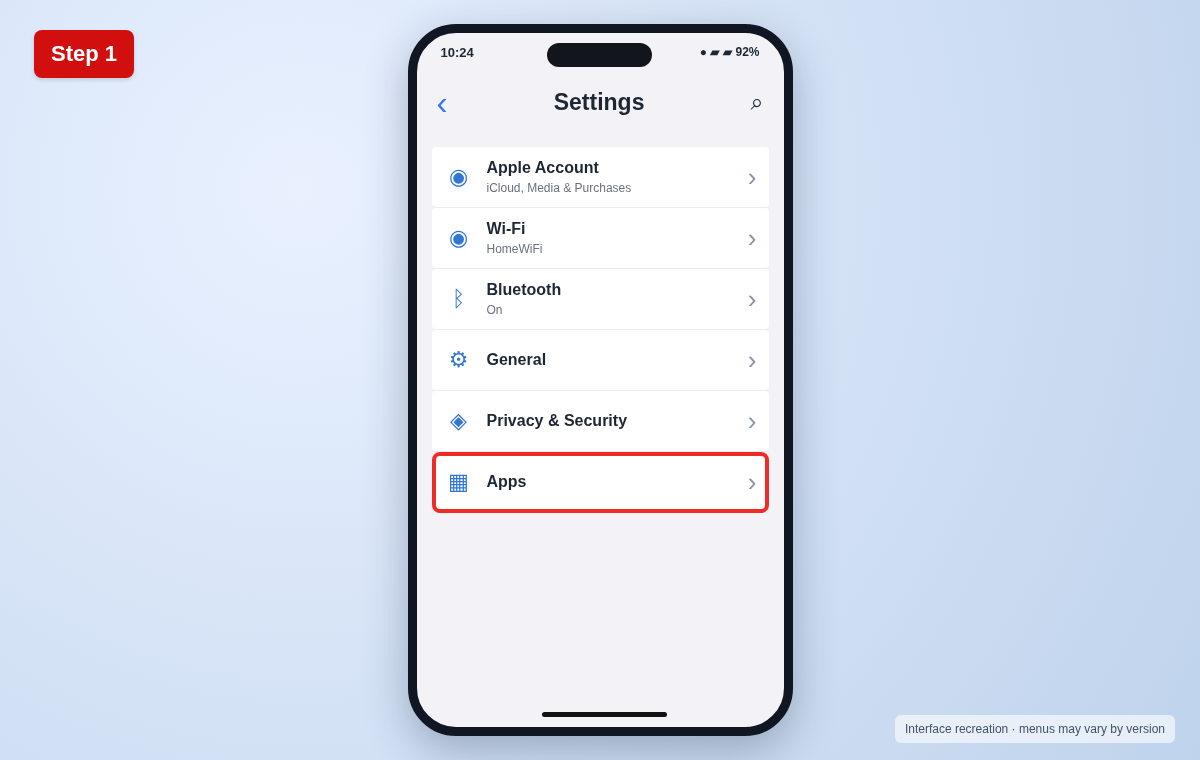
Step 1: Open Settings
On your iPhone, open the Settings app.
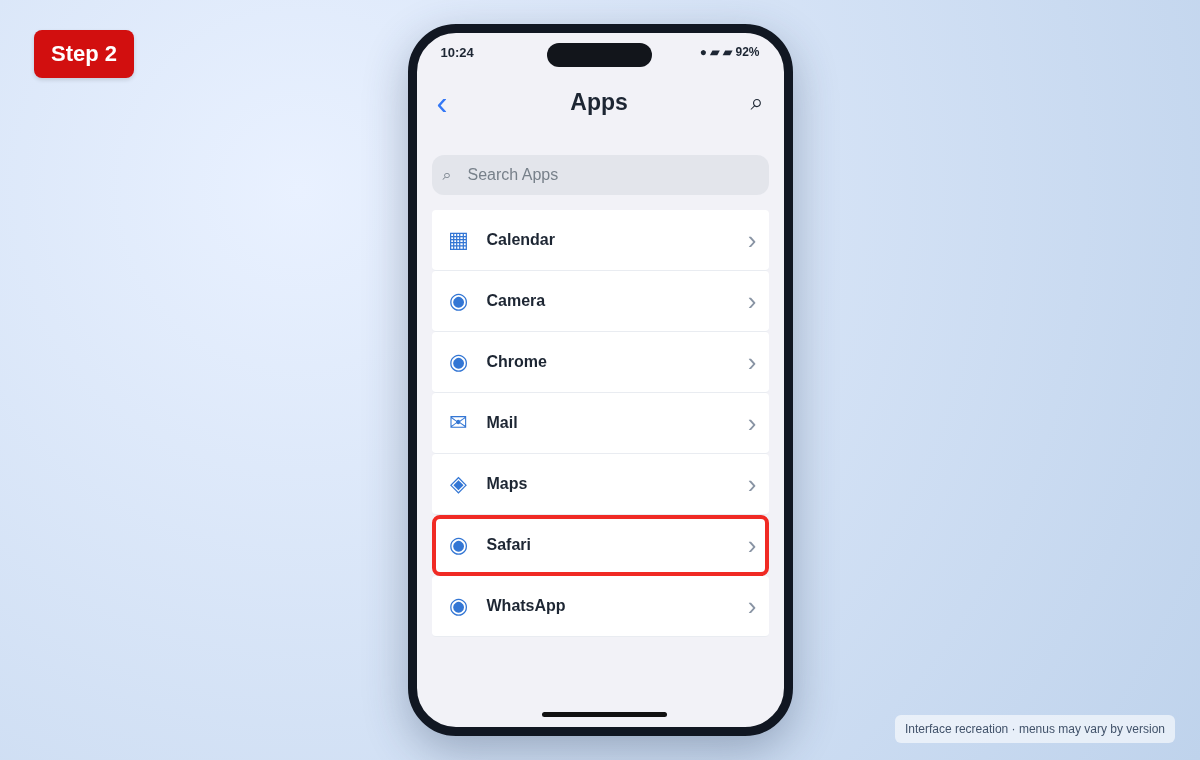
Step 2: Find Safari settings
Scroll to Apps, then choose Safari on newer iOS versions. On some older versions, Safari appears directly in Settings.
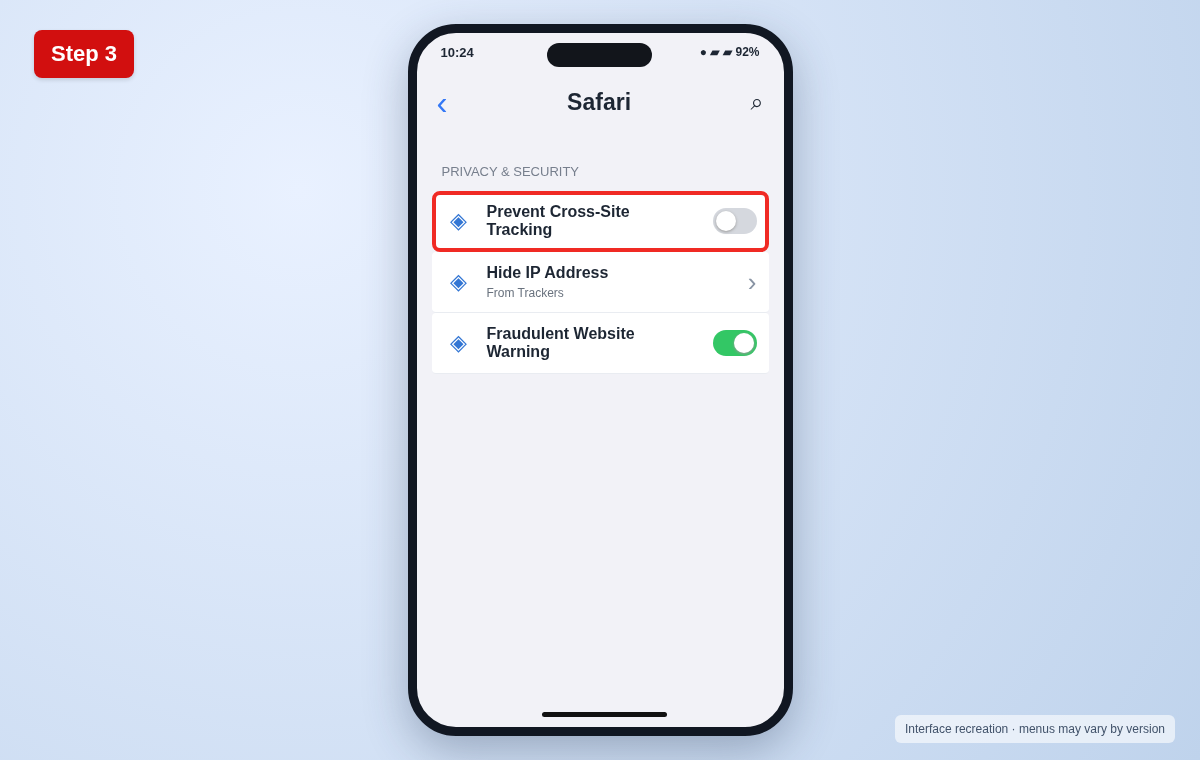
Step 3: Locate Privacy & Security
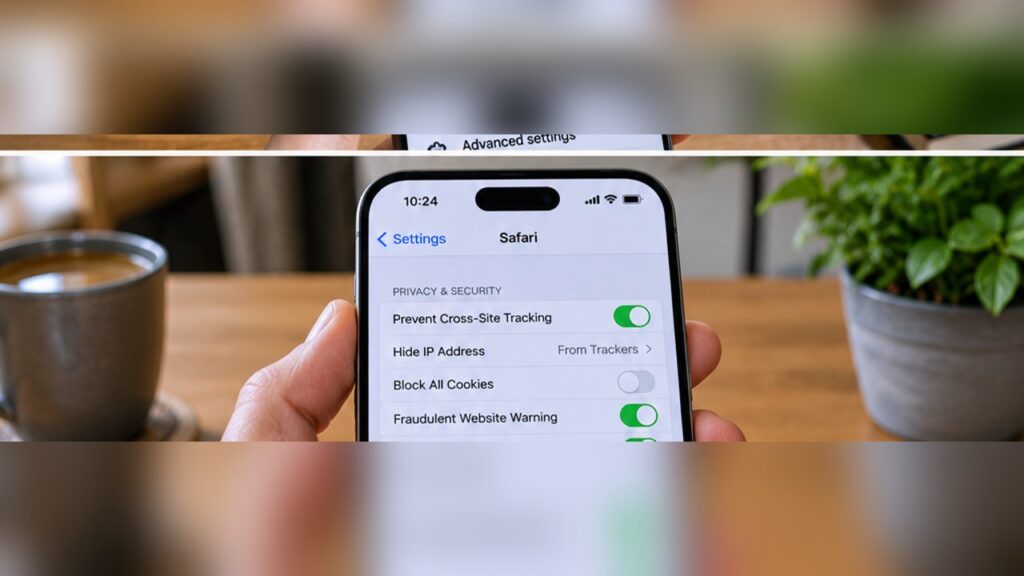
Scroll down to the Privacy & Security section in Safari settings.
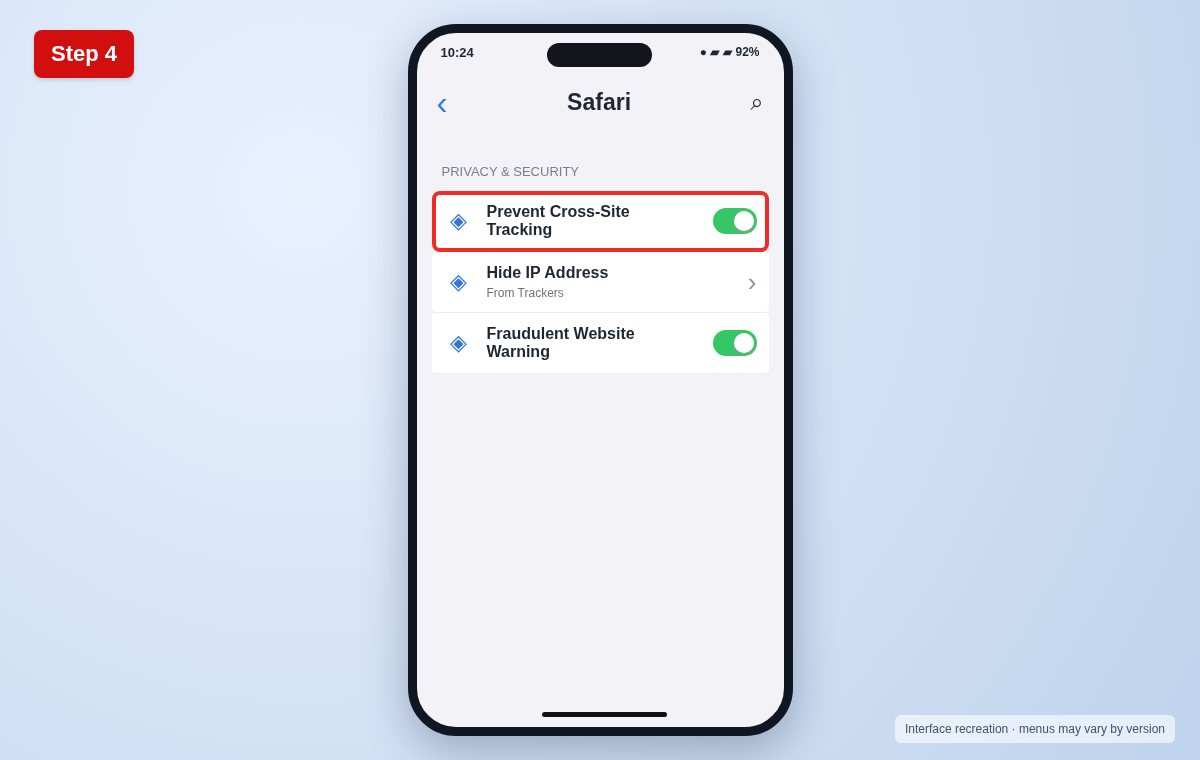
Step 4: Enable tracking prevention
Switch on Prevent Cross-Site Tracking. You can also review Hide IP Address and Fraudulent Website Warning for additional protection.
Useful tips and precautions
Use official apps and device settings where possible. Before changing important settings, note your original configuration. If your device shows different labels, use its built-in Settings search or consult the manufacturer’s documentation.
Frequently asked questions
Does this block all online tracking?
No. It reduces cross-site tracking in Safari but does not prevent all tracking, including tracking by sites you visit directly.
Will websites stop working?
Most sites work normally. Some embedded sign-in or personalization features may behave differently.
Does it affect Chrome on iPhone?
This setting applies to Safari. Other browsers have their own privacy controls.
Final thoughts
Now you know how to prevent cross-site tracking on iPhone. If a menu looks different, check your device’s software version and look for the equivalent option rather than guessing.